
Paramètres
Paramètres
Configurez votre profil, vos notifications et vos préférences de sécurité.
Account
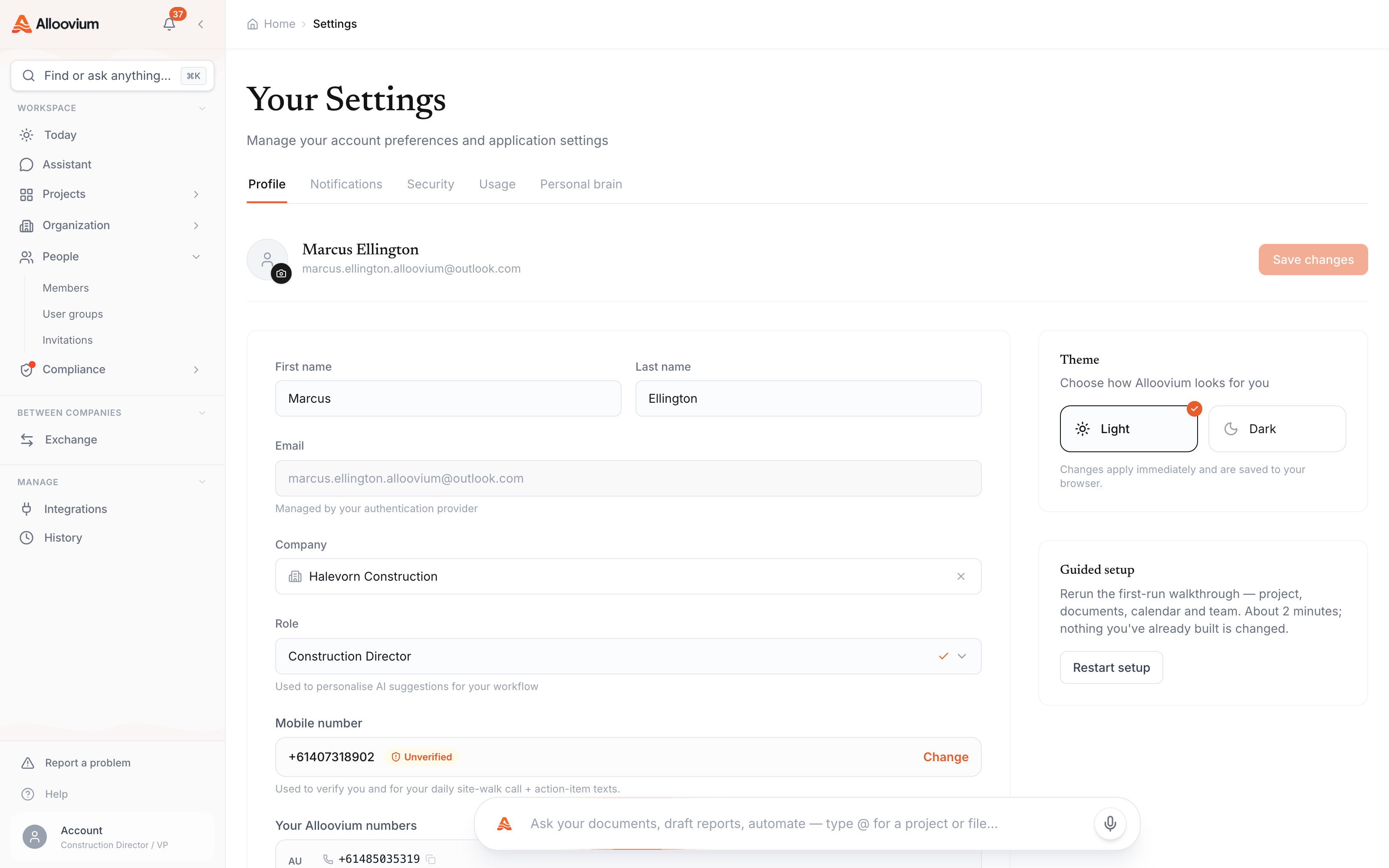
Your account settings are accessible from the top-right menu → Account Settings. Here you can update your display name, profile picture, and email address.
Note that your email address is managed by your organisation's identity provider (Microsoft 365 or Google Workspace). Contact your IT administrator if you need to change your email.
Notifications
Alloovium notifies you in-app and, if you choose, by email when important events occur. Tune email delivery and the priority threshold in Account Settings → Notifications.
- Document generation complete — notified when a document generation job finishes.
- Background AI queries — notified when a background mode query completes.
- Shared with me — notified when a colleague shares a conversation or document with you.
- Document processing — notified when a large document batch finishes processing.
- SharePoint sync errors — notified if a sync job encounters an error.
Weekly digest
Alongside per-event email, a weekly digest summarises activity across your projects — a safety net even when the email threshold is set high.Sécurité
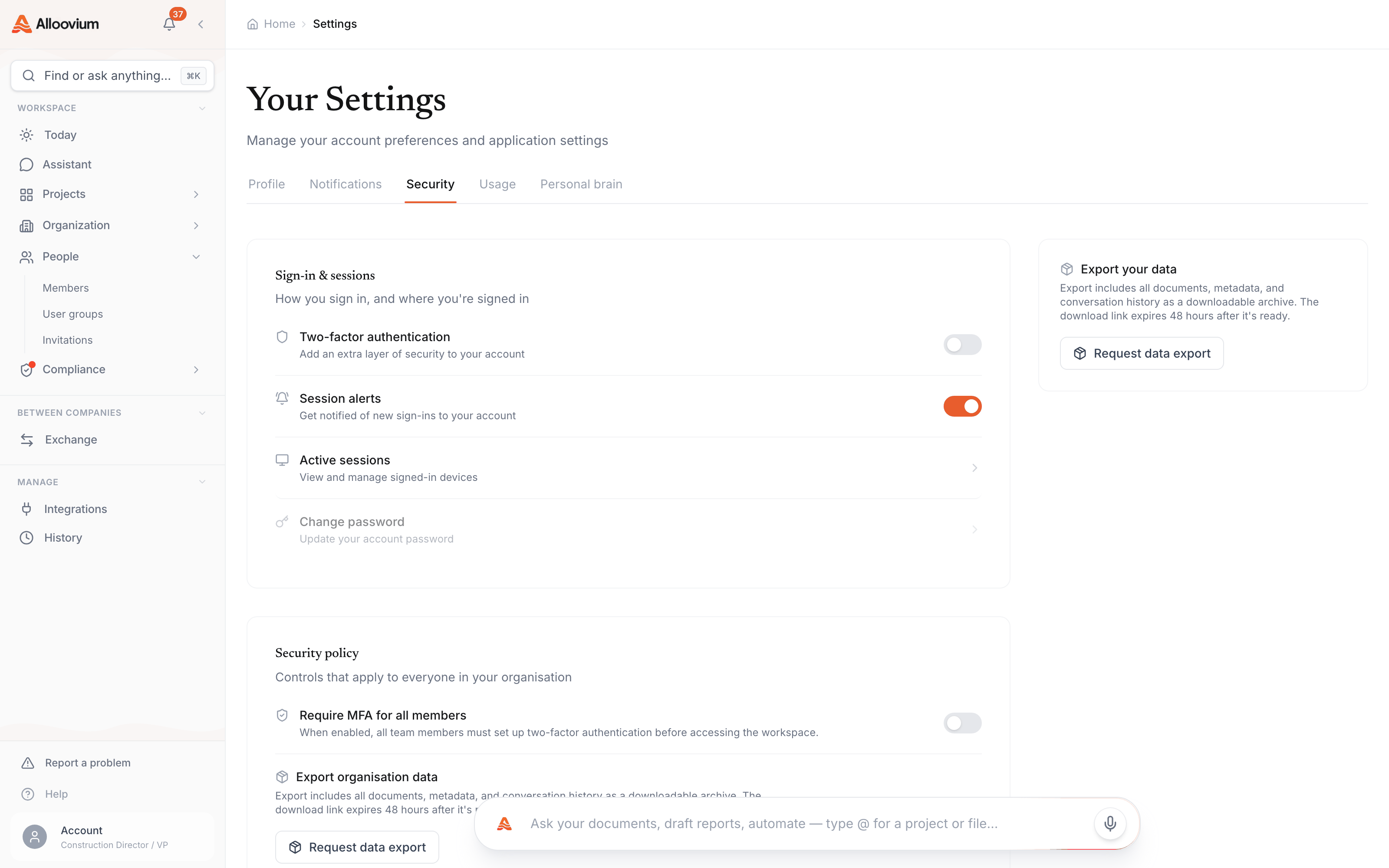
Alloovium uses Clerk for authentication, which supports single sign-on (SSO) via your organisation's identity provider, multi-factor authentication (MFA), and session management.
- Multi-factor authentication (MFA) — enable MFA in Account Settings → Security. Alloovium uses authenticator apps (TOTP) — any standard app works.
- Active sessions — view all active sessions for your account and remotely terminate any session you do not recognise.
- Organisation SSO — contact your organisation admin to configure SSO via Microsoft Entra ID or Google Workspace.
BYOK encryption
Enterprise plans support Bring Your Own Key (BYOK) encryption for data at rest. With BYOK, Alloovium uses your organisation's AWS KMS key to encrypt all stored data. Contact sales to enable BYOK.API Keys
If you need to access the Alloovium API programmatically (for example, to build a custom integration), you can generate API keys from Account Settings → API Keys.
API keys are scoped to your user account and inherit your project permissions. Keys can be given a name and an optional expiry date. You can revoke a key at any time.
Keep your API keys secret
API keys provide full access to your Alloovium account. Never commit them to source control or share them in chat. If a key is compromised, revoke it immediately and generate a new one.