
AI ASSISTANT
Taking Action
The same ask bar that answers questions can do things: create to-dos, book meetings, send emails and texts, invite people to a project, share documents with another company, flag schedule risk. You describe the action in plain language; the assistant drafts it and waits for your approval.
Video · ~2 min
Do it from the ask bar
Three actions in one sitting: asking the assistant to add a to-do (draft card → confirm → it appears in Today), then to email a subcontractor about a late claim (reviewing the drafted recipients and body, editing one line, sending), then to invite a new engineer to the project (the invitation draft, confirmation, and the pending invite appearing on the People page).
Overview
Most questions to the assistant are reads — “what does the contract say?”, “what happened this week?”. But plenty of the follow-through is a write: someone needs to be chased, a meeting needs to move, a document needs to go out. Rather than switching to another screen, you can ask for the action in the same sentence you’d use with a colleague — “text Wayne the crew count”, “invite Pat to the project”, “send the latest claim to Calabria”.
The assistant works out what kind of action you mean, gathers what it needs from the project — the right person, the right document, the right time — and lays the whole thing out as a draft for you to review. It never acts first and tells you after.
What it can do
| Action | Example ask |
|---|---|
| Create a to-do | “Add a task to inspect the Level 14 pour prep on Friday.” |
| Complete or move tasks | “Mark the pour-prep inspection done.” · “Push my tasks to Monday.” |
| Book, move or cancel events | “Book a site walk at 9am Thursday with Reece.” · “Move Thursday’s meeting to Friday.” |
| Send an email | “Reply to the client saying we’ll price the Level 10 bring-forward this week.” |
| Send an SMS | “Text Wayne asking for tomorrow’s crew count.” |
| Invite someone to the project | “Invite pat@meridian.com.au to Northgate.” — a real platform invitation, not just an email. |
| Share a document via Exchange | “Send the signed amendment to Lumino.” — a tracked company-to-company share with receipts. |
| Flag schedule risk | “Flag the Level 10 waterproofing as at risk — membrane delivery slipped.” |
| Raise RFIs and start variations | “Raise an RFI about the facade shop drawings.” · “Start a variation for the Level 10 bring-forward.” |
Two ways to send a document
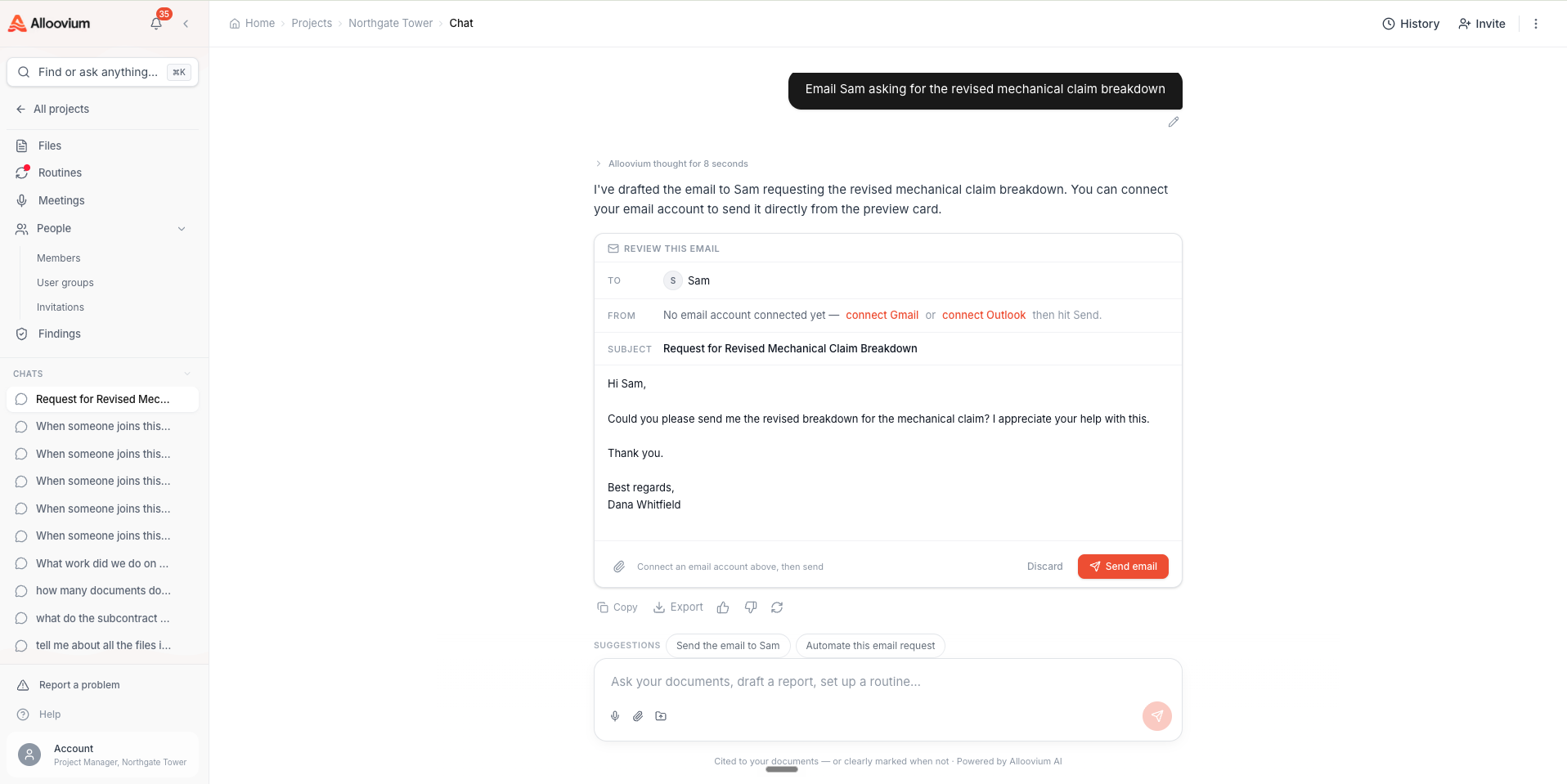
“Email the report to Sam” drafts an email with the file attached. “Send the report to Lumino” (another company) goes through Exchange — a tracked share with delivery and read receipts. The assistant picks the right lane from how you phrase it, and the draft card always shows which one it chose.Nothing happens without you
Every action follows the same pattern: the assistant prepares a draft card showing exactly what will happen — the recipient, the message body, the event time, the document being shared — and nothing executes until you confirm it. You can edit the draft directly, ask the assistant to change it, or dismiss it entirely.
For messages, what goes out is what you approved — the assistant doesn’t rewrite your words after you’ve confirmed them. If the ask is missing something essential (a send needs a recipient, an event needs a time), the assistant asks rather than guessing.
Refining a draft
A pending draft stays in the conversation, so you can shape it the way you’d shape anything else in chat: “make it 8am instead”, “add Janelle”, “firmer tone”. The assistant updates the same draft rather than starting a new one, and the card re-renders with the change so you can see what you’re about to approve.
Conditional asks
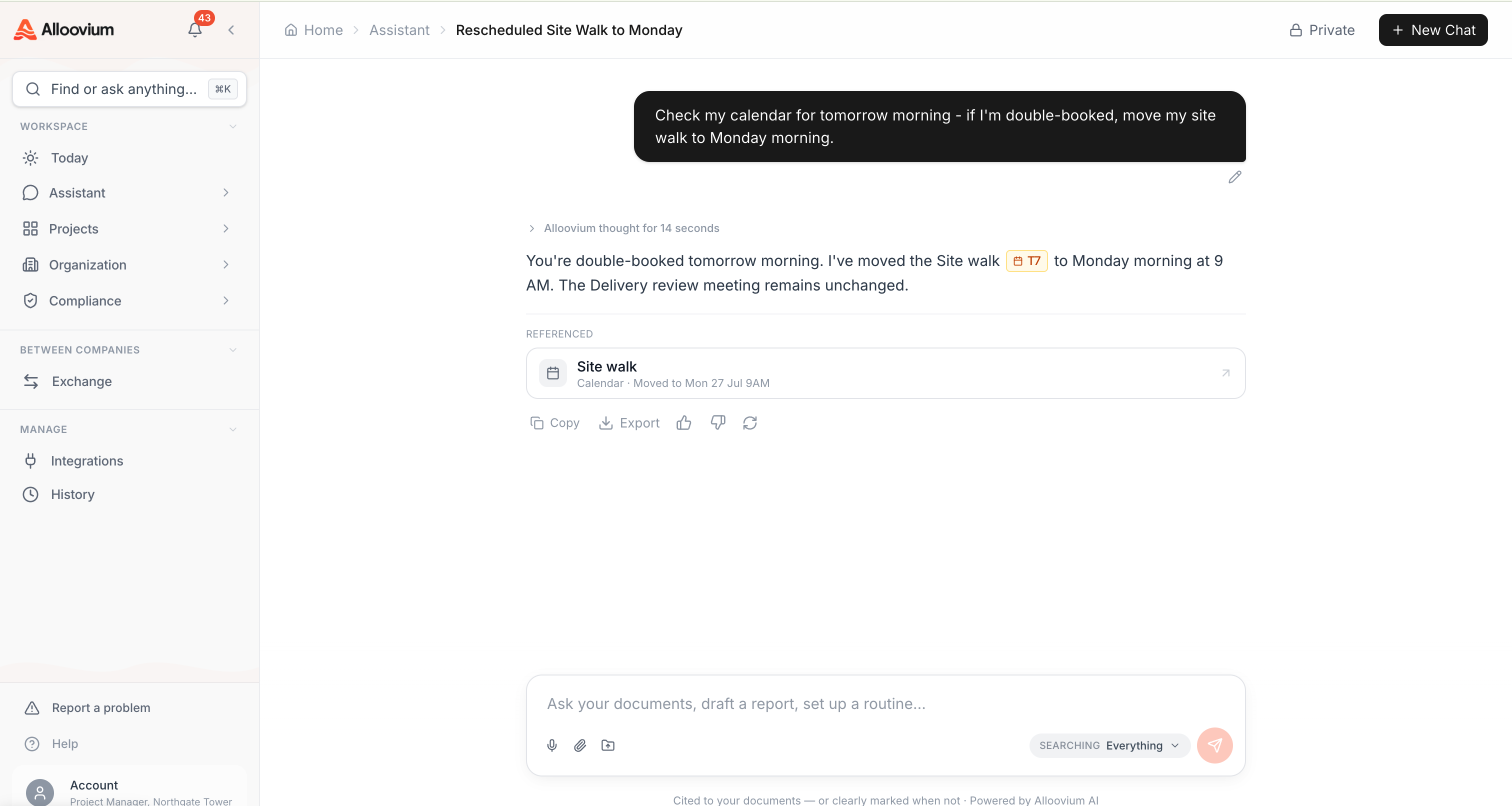
Actions can be gated on a check: “Check my calendar for tomorrow morning — if I'm double-booked, move my site walk to Monday morning.” The assistant runs the read first and acts only if the condition actually holds — and the result carries a reference chip back to the thing it changed, so the outcome is on the record, not just in the reply. The same shape works for recurring routines — see Creating Routines.
Where actions land
Confirmed actions create real records, not chat-only artifacts. A to-do appears on your Today page, an event lands on your calendar, an invitation shows as pending on the People page, an Exchange share appears in the package register with its receipts — and each one writes an event to the project timeline, so there’s always a record of what was done, by whom, and when.