
AI ASSISTANT
AI Assistant
One conversation that knows your project — and can act on it. Ask questions and get answers with a citation on every claim; then ask for the follow-through: draft the notice, send the email, book the meeting, build the routine. Everything it does is grounded in your project record and gated on your approval.
Video · ~3 min
Ask your project anything
End-to-end tour of the AI Assistant: typing a question about a project document, watching the answer stream in with numbered citations, clicking a citation to open the highlighted source passage, then using a follow-up suggestion chip to go deeper.
Overview
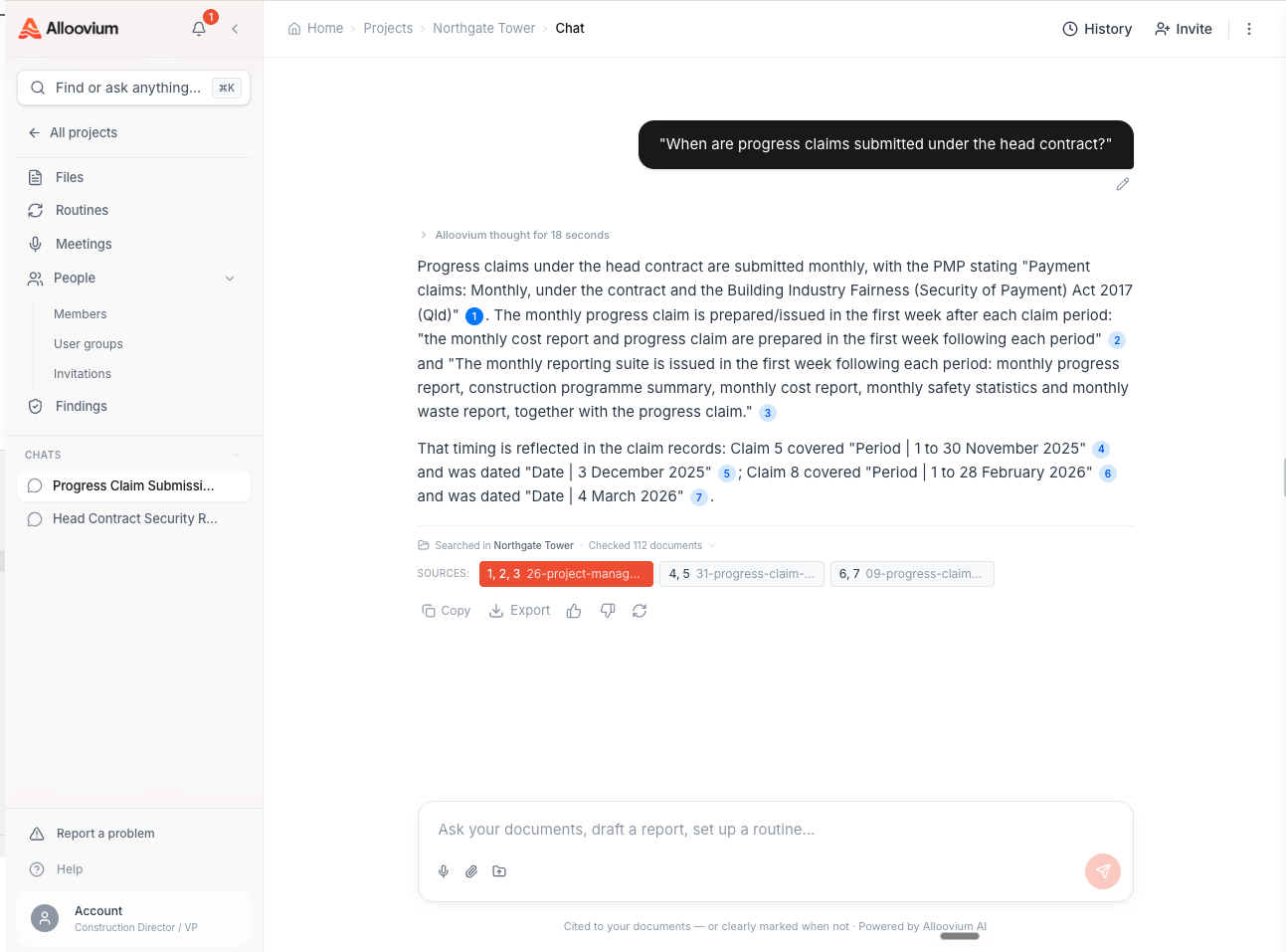
The AI Assistant is the front door to everything in Alloovium. It’s a conversational interface, but unlike a general-purpose chatbot it is always grounded in your workspace: your documents, your project’s live records — variations, RFIs, the programme, the timeline — your meetings and your connected email. Every answer links back to the passage or record it was derived from, so you can verify the source rather than take its word.
And it doesn’t stop at answers. The same ask bar takes instructions: draft a document, email the subbie, invite someone to the project, share a file with another company, flag an activity at risk, set up a routine that does the checking for you. Actions are never fired silently — the assistant drafts what it intends to do and waits for your confirmation.
Conversations are multi-turn: ask follow-ups, refine a draft, change your mind — the assistant keeps the thread’s context throughout.
What you can ask
Questions can be broad (“what are the key deliverables in this contract?”) or highly specific (“what’s the liquidated damages rate in clause 12?”) — and they aren’t limited to documents. The assistant answers from every source the project keeps:
| Source | Example ask |
|---|---|
| Documents | “What does the spec say about curing time?” · “Compare the two amendment versions — what changed?” |
| Timeline & registers | “What happened with VO-118?” · “Which RFIs are still open?” |
| Schedule & lookahead | “What’s planned on site next week?” · “Is anything at risk?” |
| Meetings | “What did we decide about the facade?” |
| People | “Who’s the services engineer on this job?” |
| “Did Karen send the facade photos?” · “Any new claims in the inbox this week?” | |
| Company knowledge | “Have we dealt with this kind of latent condition before?” — lessons and past projects, when you ask across the company. |
Scope follows where you are: asking inside a project searches that project; asking from the company level — or saying “across all projects” — widens to everything you have access to. You can narrow too: name a folder and the answer draws only on that folder and everything beneath it. Retrieval is permission-aware throughout — the assistant only ever reads what you could open yourself.
Query tip
Phrase questions the way you’d ask a colleague. “Does this contract include a warranty period, and if so, how long is it?” works better than “warranty period duration”.Taking action
When the follow-through is a write — a message, a meeting, a to-do, an invitation, a document share, a schedule risk flag — you can ask for it in the same sentence you’d use with a person: “text Wayne the crew count”, “invite Pat to the project”, “send the signed amendment to Lumino”. The assistant drafts the action, shows you exactly what will happen, and executes only when you confirm.
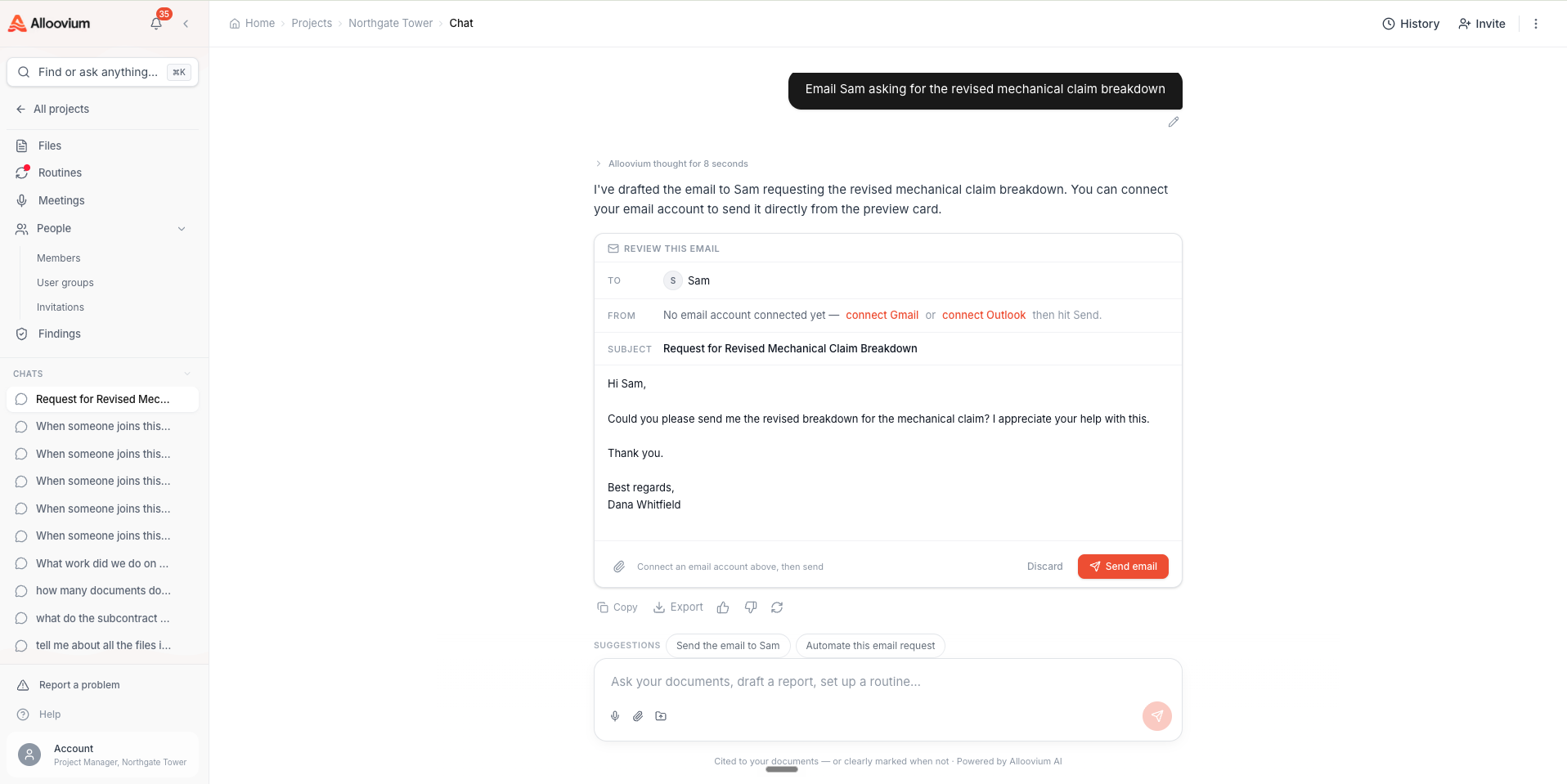
See Taking Action for the full list and how the approval flow works.
Drafting documents
Ask for a document — a delay notice, an RFI response, an evidence pack, a position paper — and the assistant writes it from the project record, with a citation on every factual claim and your library templates matched automatically. The draft opens beside the chat, where you refine it conversationally (“keep it to one page”, “add a cost table”) and save it to the project when it’s right.
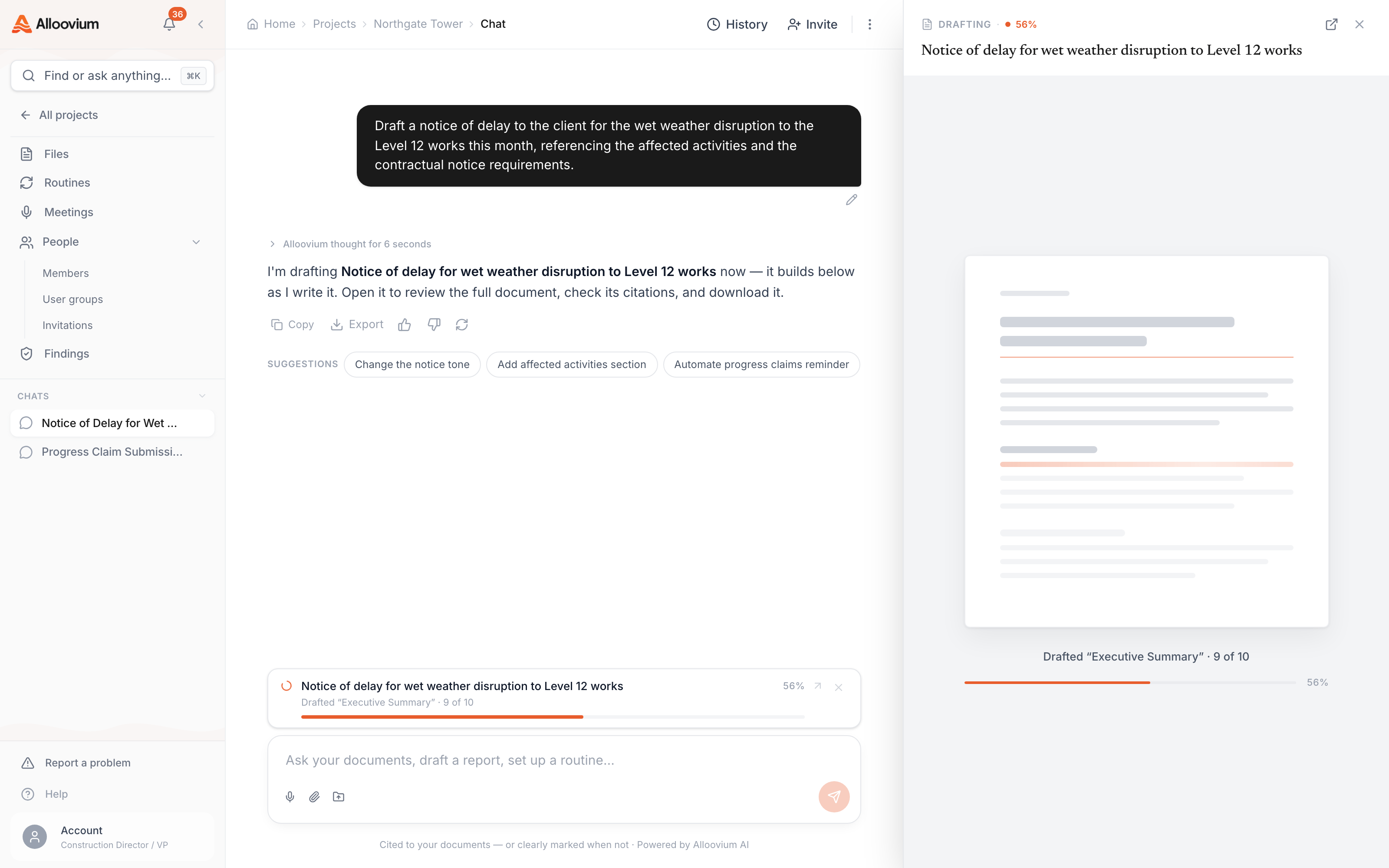
See Drafting Documents.
Creating routines
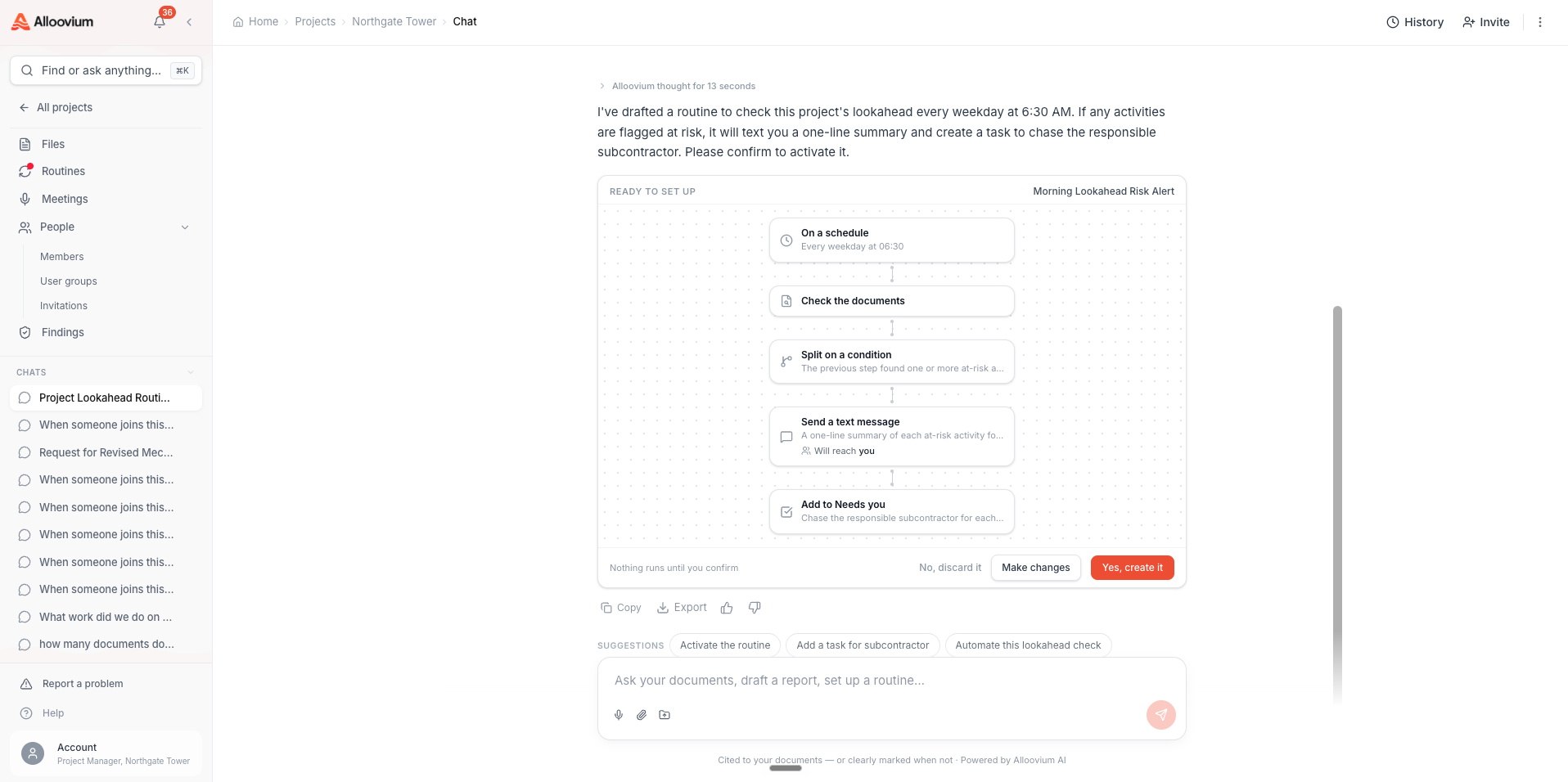
Anything you ask repeatedly can become a routine. Describe the recurring job in one sentence — “every morning, check the inbox for new claims and send me a summary” — and the assistant builds the routine: trigger, steps, conditions and delivery, laid out for your approval before it’s switched on. It will even notice repeated asks and suggest automating them with an Automate this chip.
Citations
Every answer carries numbered citations linking to the exact evidence behind it. Document citations open the file at the highlighted passage; [T#] citations point at live records — timeline events, action items, meetings — and deep-link to where those records live. One answer can carry both kinds.
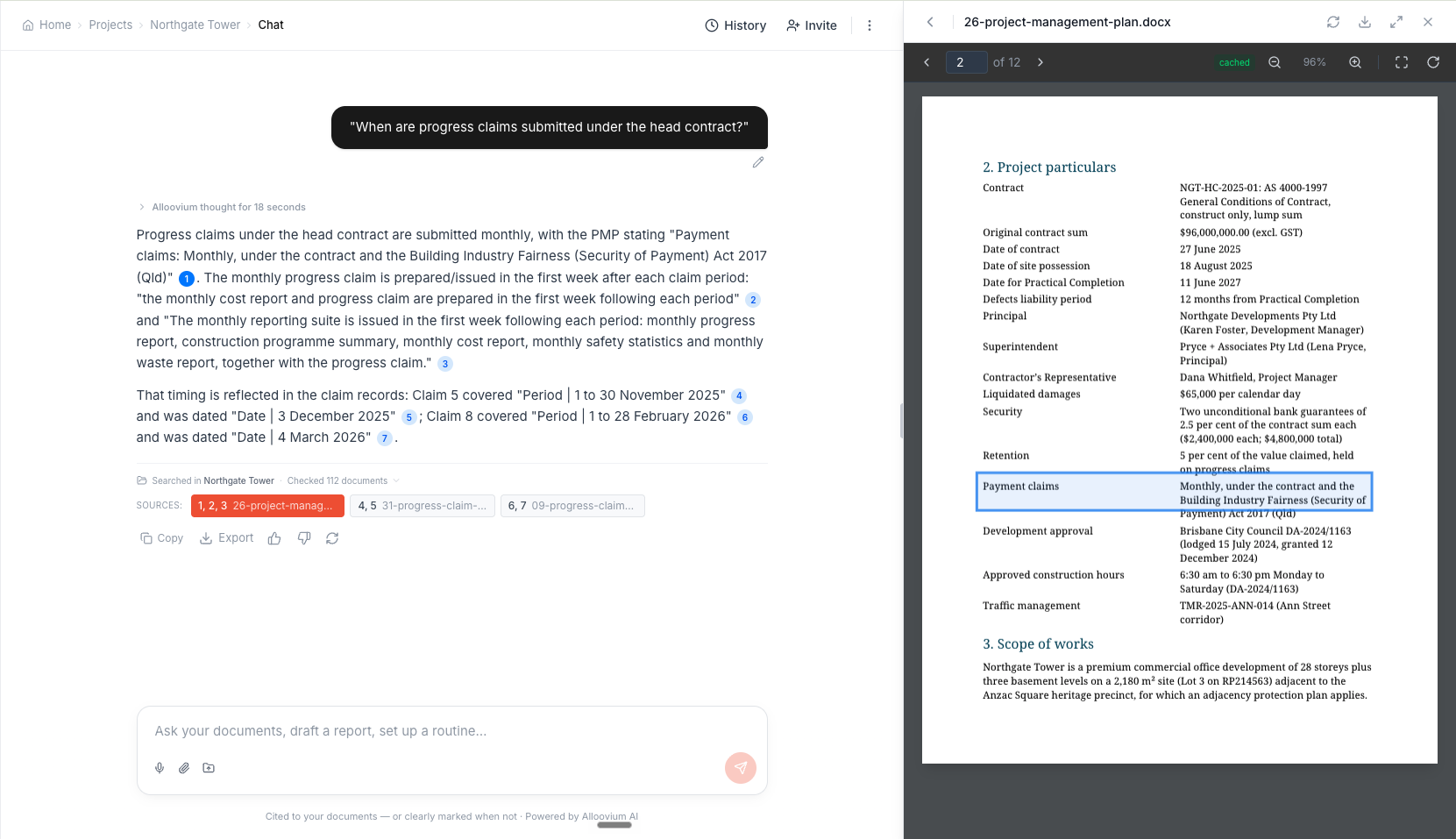
Multiple sources
When an answer draws from more than one document, each citation is numbered separately so you can see exactly which portion of the answer came from which source — useful when comparing information across contracts or specifications. See Citations for the full walkthrough.File attachments
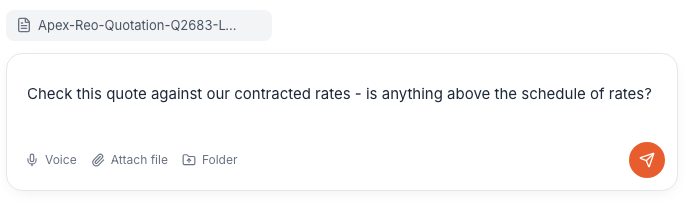
In addition to querying documents already in your project, you can attach files directly to a chat message — useful for a one-off question about a file without adding it permanently to the project. Supported formats include PDF, DOCX, XLSX, PPTX, CSV, TXT, PNG, JPG, and TIFF. Attached files are processed for the duration of the conversation and are not stored in the project unless you explicitly add them.
File size limit
Individual files attached directly in chat are limited to 20 MB. For larger documents, upload them to the project first and then query them through the assistant.Voice input
Speak instead of typing: click the microphone in the ask bar, dictate your question or instruction, and the words appear as text you can edit before sending — particularly handy on site or for longer briefs. See Voice Input. For hands-free work away from the screen entirely, the assistant also answers site calls and SMS.
Sharing conversations
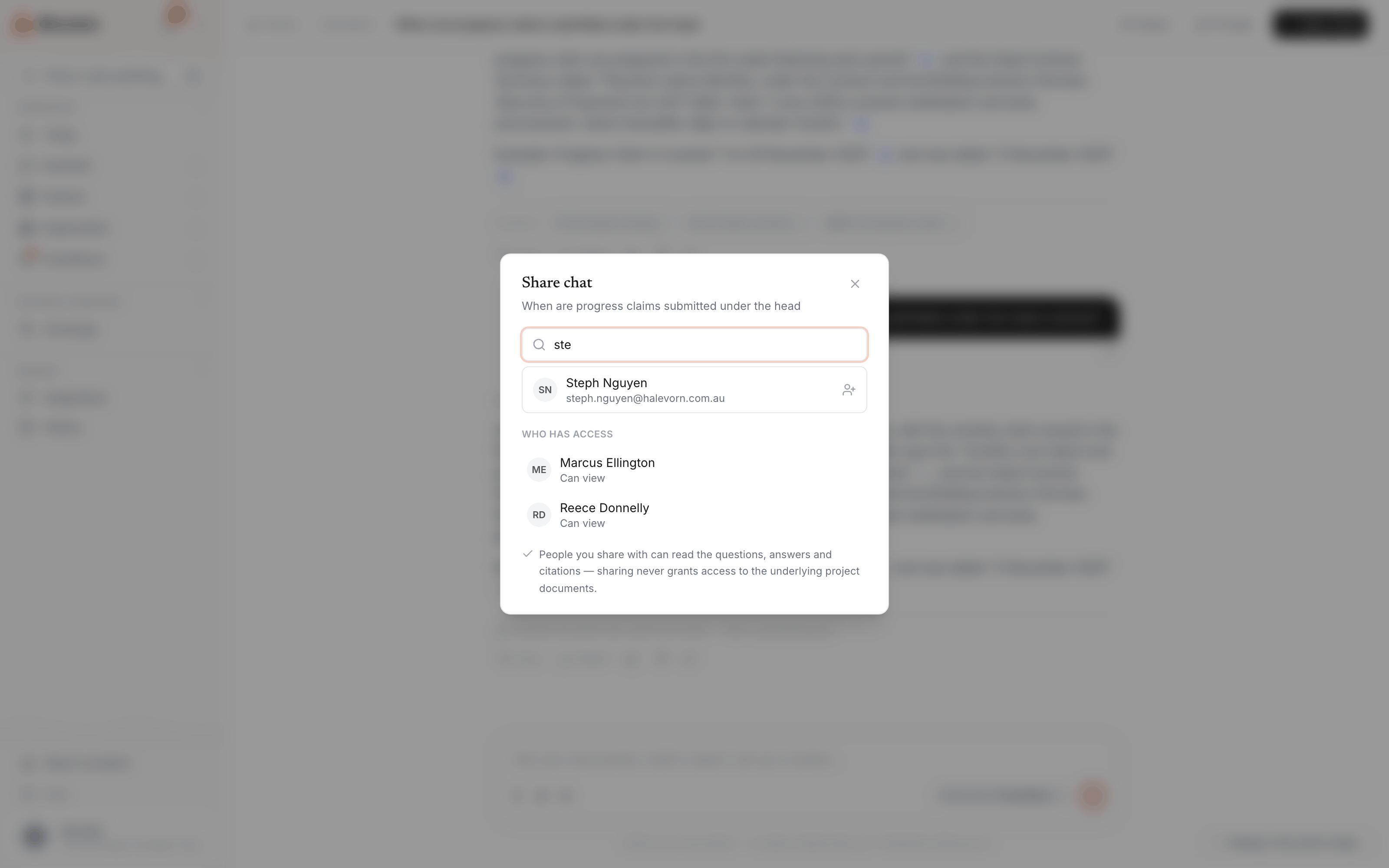
Chat threads can be shared with other members of your team. Recipients see the full exchange — questions, answers, and citations — read-only, without re-running the queries. Use the Share button at the top of the conversation, or the conversation's three-dot menu in the sidebar.
Permissions
Sharing a conversation does not automatically share the underlying documents. Recipients who are not already members of the project will see the answers and citations, but may not be able to click through to view the source document.Background mode
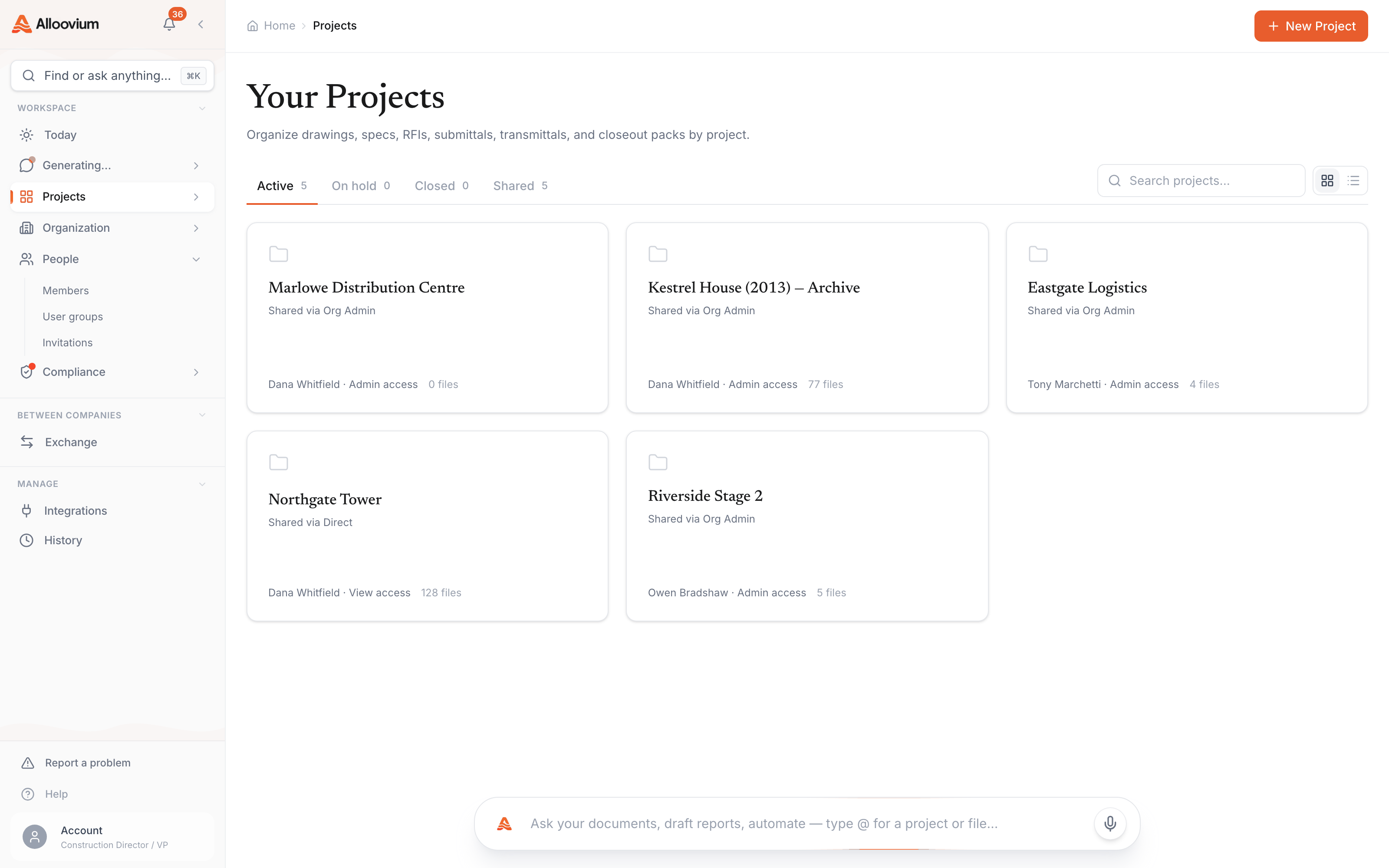
For complex queries that take longer — synthesis across a large number of documents, multi-step questions — you can run them in background mode. Submit the question and go work on other things (or close the tab) while the assistant processes it. You’ll get an in-app notification when it completes, and optionally an email, so you can pick up where you left off.
When to use background mode
Background mode is best for queries across 20 or more documents, or complex multi-step questions that synthesise a large amount of information. For quick factual lookups, standard mode is faster.