
Hub documentaire
Hub documentaire
Uploadez, organisez et gérez vos documents en toute sécurité dans des projets. Les projets sont le fondement de tout dans Alloovium.
Video · ~3 min
From upload to answers
Follow a batch of project documents from drag-and-drop upload, through automatic OCR, classification, and indexing, into Auto-sort's per-file folder proposals — and finish by asking the assistant a question the freshly indexed documents answer.
Aperçu
The Document Hub is the central repository for all files in a project. Every document you upload is automatically processed — text is extracted via OCR if needed, chunked into semantically meaningful segments, and embedded for fast AI retrieval.
Once a document is processed, it is immediately available for querying in the AI Assistant, template filling, document generation, and use in analysis tools like Change Impact.
Uploader des documents
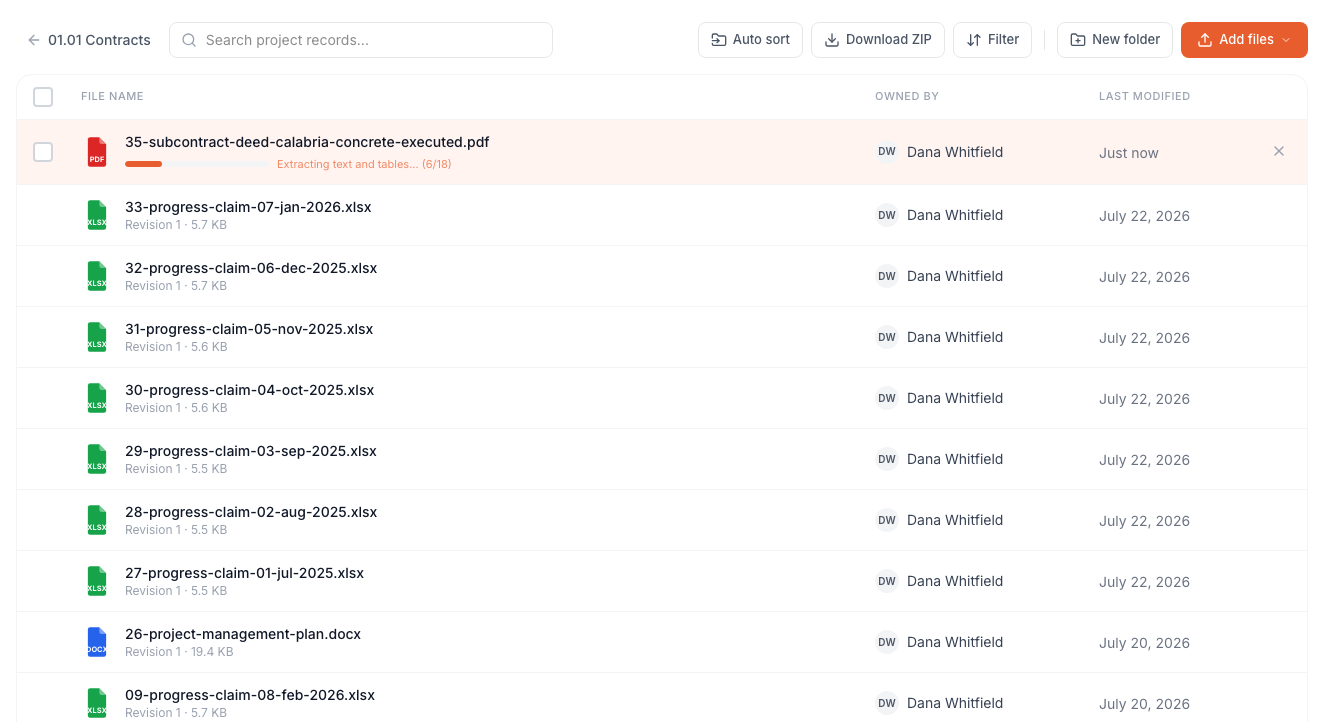
You can upload documents to a project in several ways: by dragging files directly onto the upload area, by clicking the "Upload" button and selecting files from your computer, or by syncing from a connected cloud storage provider (SharePoint, Google Drive, Procore).
Ouvrir le projet
Naviguez vers Projets dans la barre latérale et ouvrez le projet dans lequel vous voulez uploader.
Uploader vos fichiers
Faites glisser et déposez des fichiers sur la zone d'upload, ou cliquez sur « Upload » et sélectionnez des fichiers depuis votre ordinateur. Vous pouvez uploader plusieurs fichiers à la fois.
Attendre le traitement
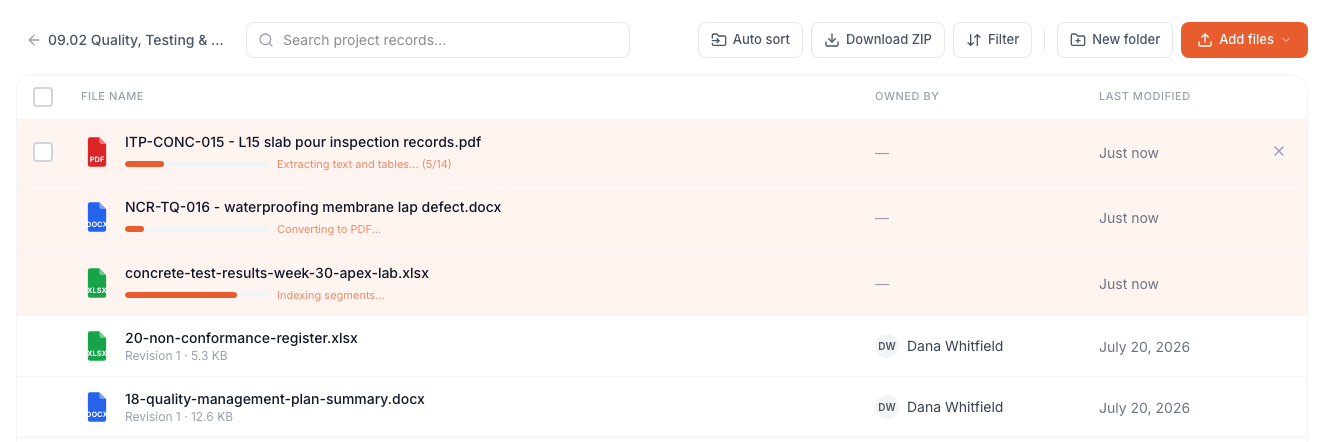
Alloovium traite chaque document automatiquement. Vous verrez un indicateur de progression à côté de chaque fichier. Le traitement prend généralement 30–120 secondes selon la taille du fichier.
Commencer les requêtes
Une fois le traitement terminé, le statut du document passe à « Prêt ». Vous pouvez maintenant l'interroger via l'Assistant IA.
Uploads en lot
You can upload up to 50 files at once. Large batches are queued and processed in parallel — you do not need to wait for one batch to finish before uploading another.Formats supportés
| Format | Extension | Notes |
|---|---|---|
| Includes scanned PDFs — OCR is applied automatically | ||
| Word | .docx | Tracked changes and comments are included |
| Excel | .xlsx, .xls | All sheets are processed; tables extracted |
| PowerPoint | .pptx | Slide text and speaker notes extracted |
| Images | .png, .jpg, .tiff | OCR applied; useful for scanned drawings |
| Plain text | .txt, .csv | Processed directly; no OCR required |
Gérer les projets
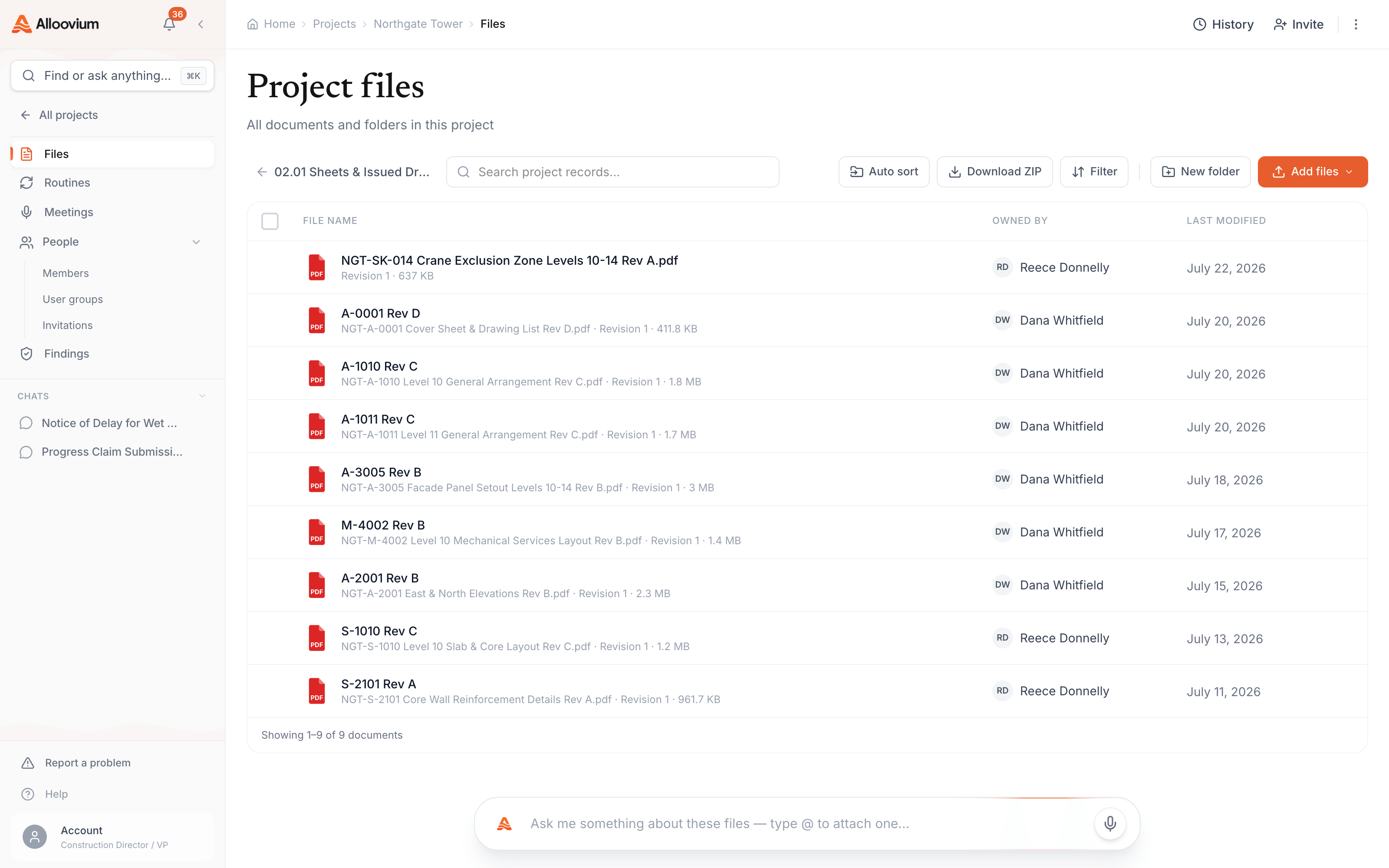
Documents are always organised inside a project. A project is a workspace that holds a set of related documents — for example, all documents related to a specific contract or tender. You can create as many projects as you need and invite different team members to each one.
Within a project, you can create folders to further organise your documents. Folders are optional — all documents in a project are available for querying regardless of which folder they are in.
Limites de stockage
Storage limits depend on your subscription plan. Contact support if you need to increase your storage quota.Organisateur IA & Tri automatique
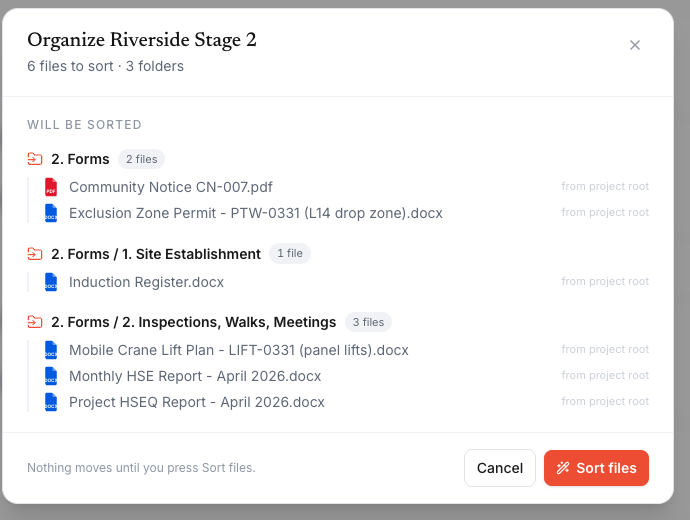
Got a loose batch of mixed files? Upload them into the project, then let Auto-sort file them: it reads each document and proposes a destination folder, with a confidence rating and an editable picker, before anything moves.
Upload the loose files
Drag the whole batch into the project's Files tab. Upload the full intake together — more context means better filing decisions.
Run Auto sort
Click "Auto sort" in the Files toolbar. Alloovium reads filenames and extracted content to classify each document and pick its folder.
Review, adjust, apply
Every file shows its suggested folder and a confidence rating. Change any destination from the picker, then apply — nothing moves until you do.
| Loose file type | Suggested folder | Typical examples |
|---|---|---|
| Specifications and standards | 03 Specifications & Technical / 03.01 Specifications | Specifications, scopes, standards, technical requirements, manuals |
| Drawings and issued sheets | 02 Drawings & Models / 02.01 Sheets & Issued Drawings | Drawings, plans, elevations, details, issued sketches |
| Registers and logs | 06 Controls & Schedules / 06.02 Registers & Logs | Registers, trackers, logs, schedules, look-aheads |
| Memos and correspondence | 07 Meetings & Correspondence / 07.02 Correspondence & Emails | Memos, letters, general correspondence, email exports |
| Instructions and notices | 08 Changes & Instructions / 08.02 Instructions & Notices | Site instructions, architect instructions, notices, formal directions |
Utilisez le lot complet
Auto-sort works best when you upload the full unsorted intake together. That gives it enough context to classify each file and choose the right folder paths.Protections de révision
Low-confidence files are marked for review instead of being silently moved into a folder you did not expect.Types de documents
Alloovium automatically classifies uploaded documents into categories to help with organisation and to optimise analysis. Common types include contracts, specifications, drawings, reports, and correspondence. You can also assign a custom type to any document.
| Type | Description | Best used for |
|---|---|---|
| Contract | Legal agreements and subcontracts | Payment terms, obligations, liquidated damages |
| Specification | Technical and performance specs | Scope verification, compliance checking |
| Drawing | Engineering and architectural drawings | Clash detection, revision tracking |
| Report | Site reports, inspection reports | Issue tracking, defect management |
| Correspondence | Emails, RFIs, instructions | Notice tracking, variation history |
Pipeline de traitement
Understanding how Alloovium processes your documents helps you get the most out of the platform. Each document goes through the following stages:
- Extraction de texte — Alloovium reads the raw text from each page. For scanned PDFs and images, GPU-accelerated OCR is applied automatically.
- Analyse de mise en page — The document structure is analysed: headings, tables, figures, and paragraph blocks are identified and tagged.
- Chunking — The document is split into semantically meaningful segments (typically 200–500 tokens each) that are small enough for precise retrieval.
- Embedding — Each chunk is converted into a vector embedding using a high-dimensional model trained on technical and legal language.
- Indexation — Embeddings are stored in a vector index for fast similarity search, enabling sub-second retrieval during AI queries.
Extraction GPU
Alloovium uses GPU-accelerated document extraction for complex PDFs and engineering drawings. This means higher accuracy on scanned documents, tables with merged cells, and multi-column layouts.