
AI Assistant
Voice Input
Speak your questions instead of typing them. Voice input is ideal for quick queries during site visits or when dictating longer questions.
Voice Input
The AI Assistant supports voice dictation, allowing you to speak your questions instead of typing them. This is particularly useful during site visits or when you want to quickly dictate a longer question.
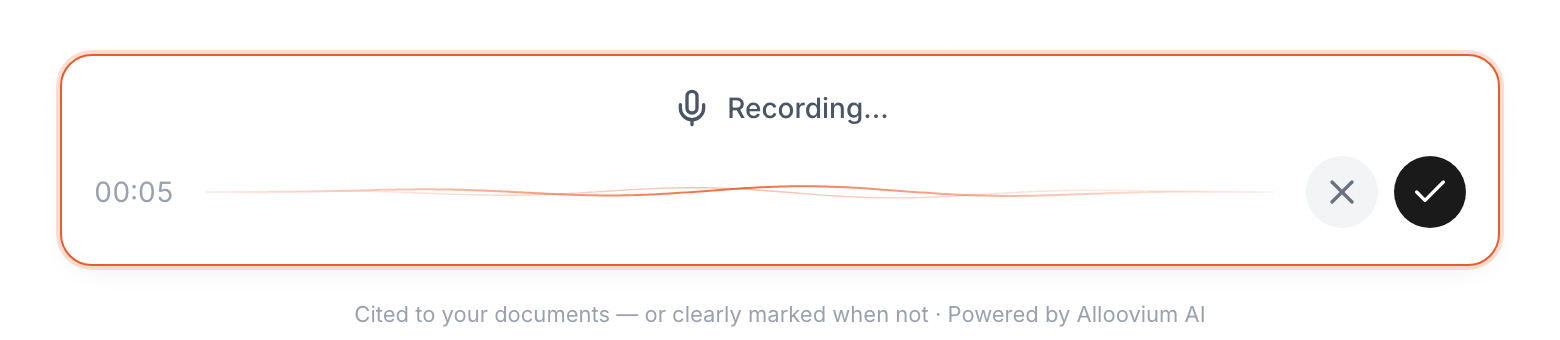
Click the microphone icon
The microphone icon is located on the right side of the message input field. Click it to begin recording.
Speak your question
Speak clearly into your microphone. Your words appear as text in the input field in real time.
Stop recording
Click the microphone icon again to stop. Edit the transcription if needed.
Send the message
Press Enter or click Send to submit your question to the assistant.
Video · ~1 min
Ask by voice
Tapping the microphone, speaking a full question while the words appear live in the ask bar, then stopping — the transcript is cleaned up server-side into a polished final question before it is sent.
Where voice input works
Voice input is available in every ask bar in the web app on Chrome and Edge. Your browser will ask for microphone permission the first time.