
Getting started
Getting started with Alloovium
Alloovium turns your project documents, emails, and site records into a living record you can question, draft from, and prove things with. This page takes you from a fresh account to your first cited answer.
What Alloovium is
Alloovium is an AI platform for construction and AEC teams. You bring the project record — contracts, specifications, drawings, emails, minutes, site diaries — and Alloovium reads all of it, so you can ask questions in plain language and get answers with citations back to the exact clause, drawing, or email they came from.
Everything is organised into Projects: one workspace per contract, tender, or job site, each with its own documents, people, and history. Above projects sits your Organization — the company-wide library of templates, standards, contacts, and lessons that every project can draw on.
Who is Alloovium for?
Project managers, contract administrators, engineers, and estimators — anyone who spends their day inside dense technical and legal documents and needs answers they can defend.Your first hour
Five steps from a fresh account to a working project. Most teams get their first cited answer within minutes of uploading.
Sign in — or accept your invite
Sign up at alloovium.com with your work email, or follow the invite link a teammate sent you. Invited users land directly in the projects they were given access to — no setup required.
Create your first project
Click "New Project", give it a name like "Northgate Tower — Main Works", and add an optional description. Projects are private until you invite people.
Upload your documents
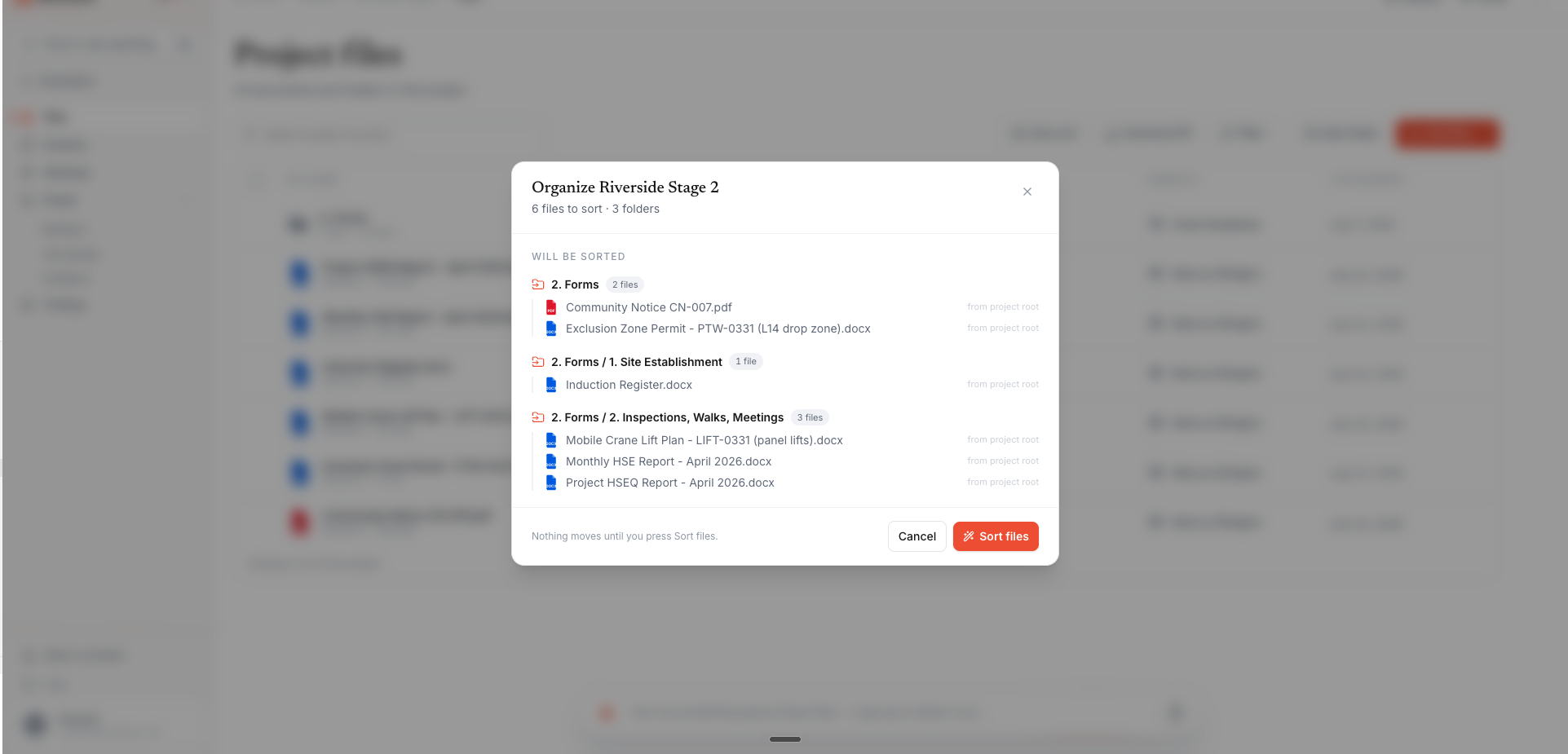
Drag PDFs, Word, Excel, and PowerPoint files — or whole folders — into the project. Processing (OCR, classification, indexing) runs automatically, and Auto-sort proposes a folder for every file, for your review, before anything moves.
Ask your first question
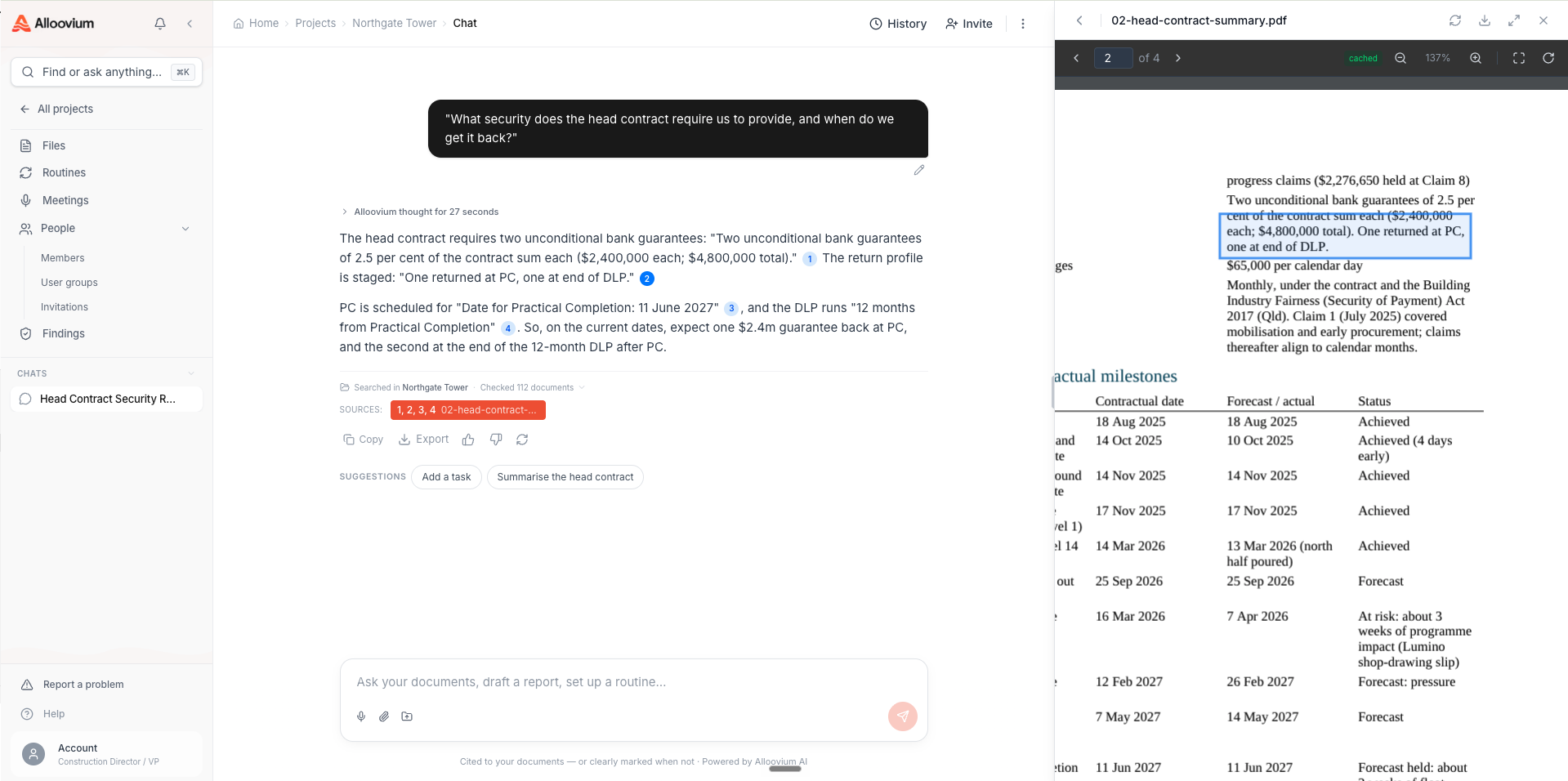
Type into the ask bar on the project's Files tab — "What's the defects liability period?" — and get an answer with numbered citations back to the source.
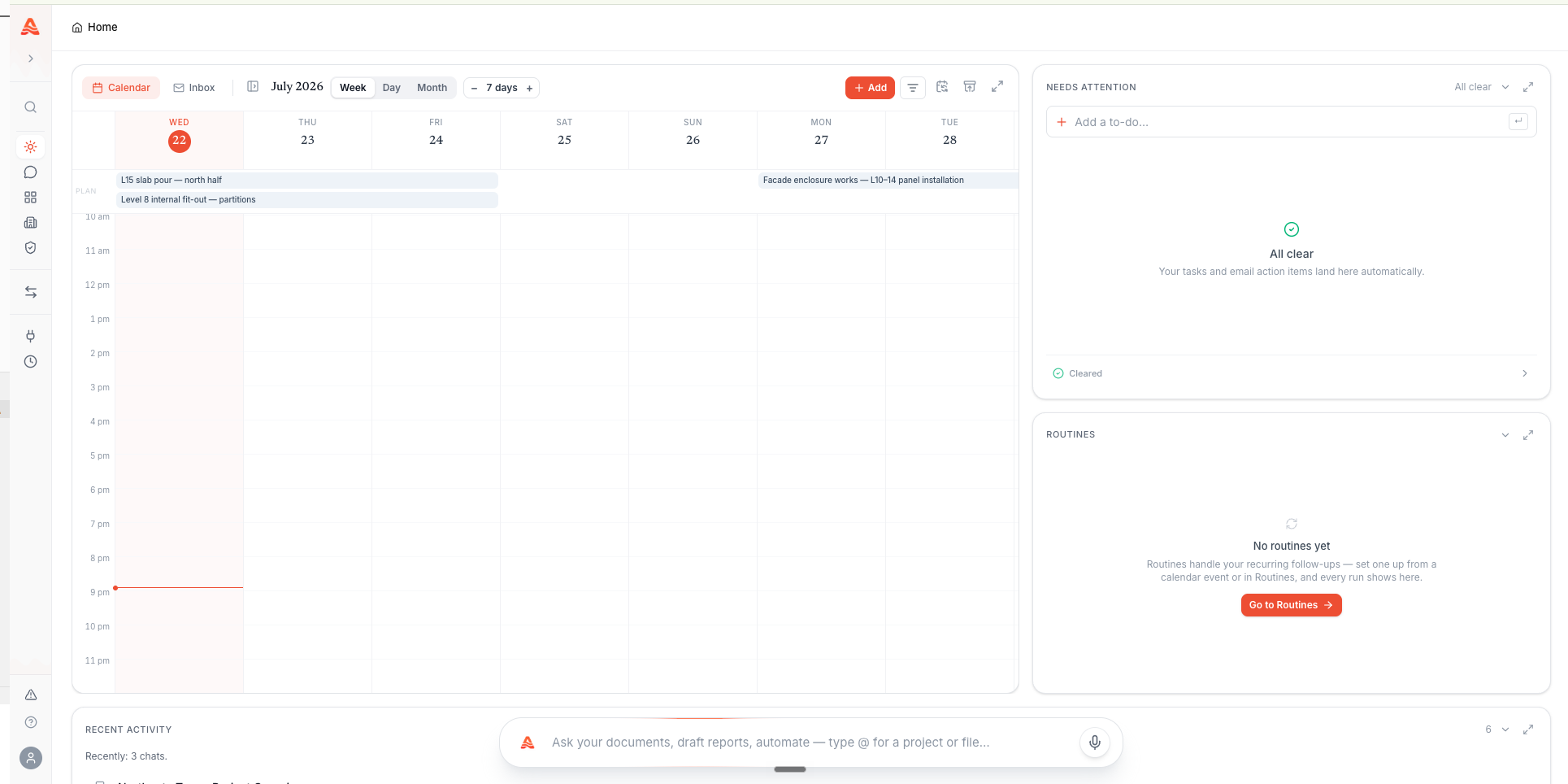
Open Today
Today is your daily cockpit: the calendar spine, the "Needs you" queue, and the activity feed. It fills up as your projects come alive.
Ask your first question
Every answer carries numbered citations. Click one and the source document opens with the supporting passage highlighted — so you never have to take the AI's word for it. This is the core promise of Alloovium: answers with receipts.
Finding your way around
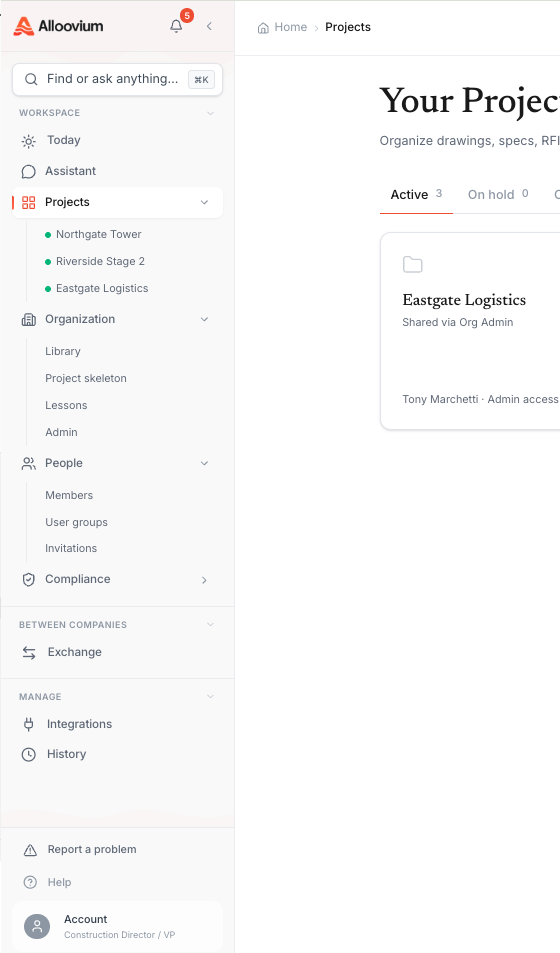
The left sidebar is the whole map. Seven surfaces cover everything.
| Surface | What it does |
|---|---|
| Today | Your daily cockpit — calendar, the Needs-you queue, action items, and the activity feed. |
| Assistant | Company-wide chat. Ask across every project you can access, with citations. |
| Projects | One workspace per job — files, meetings, people, claims, and the project timeline. |
| Organization | The company layer — template library, playbook, lessons, contacts, and people. |
| Conformance | Compliance signals — expiring credentials, findings, and audit packs. |
| Exchange | Send, receive, and sign documents across companies, with a full audit trail. |
| Integrations | Connect Outlook, SharePoint, Procore, Autodesk, and 15+ other systems. |
Jump anywhere with ⌘K
The command palette finds documents, projects, and people from anywhere in the app. Press ⌘K (Ctrl+K on Windows) and start typing.Inviting your team
Access in Alloovium is granted through user groups, not per-person role picking. When you invite someone you choose which groups they join; each group carries a permission matrix that decides what its members can see and do. A Read-only group is preselected for new invitees, so the safe default is one click.
Invite people to the whole organisation from Organization → People, or to a single project from the project's People tab. You can create a new group inline during the invite — including copying an existing group's permissions as a starting point.
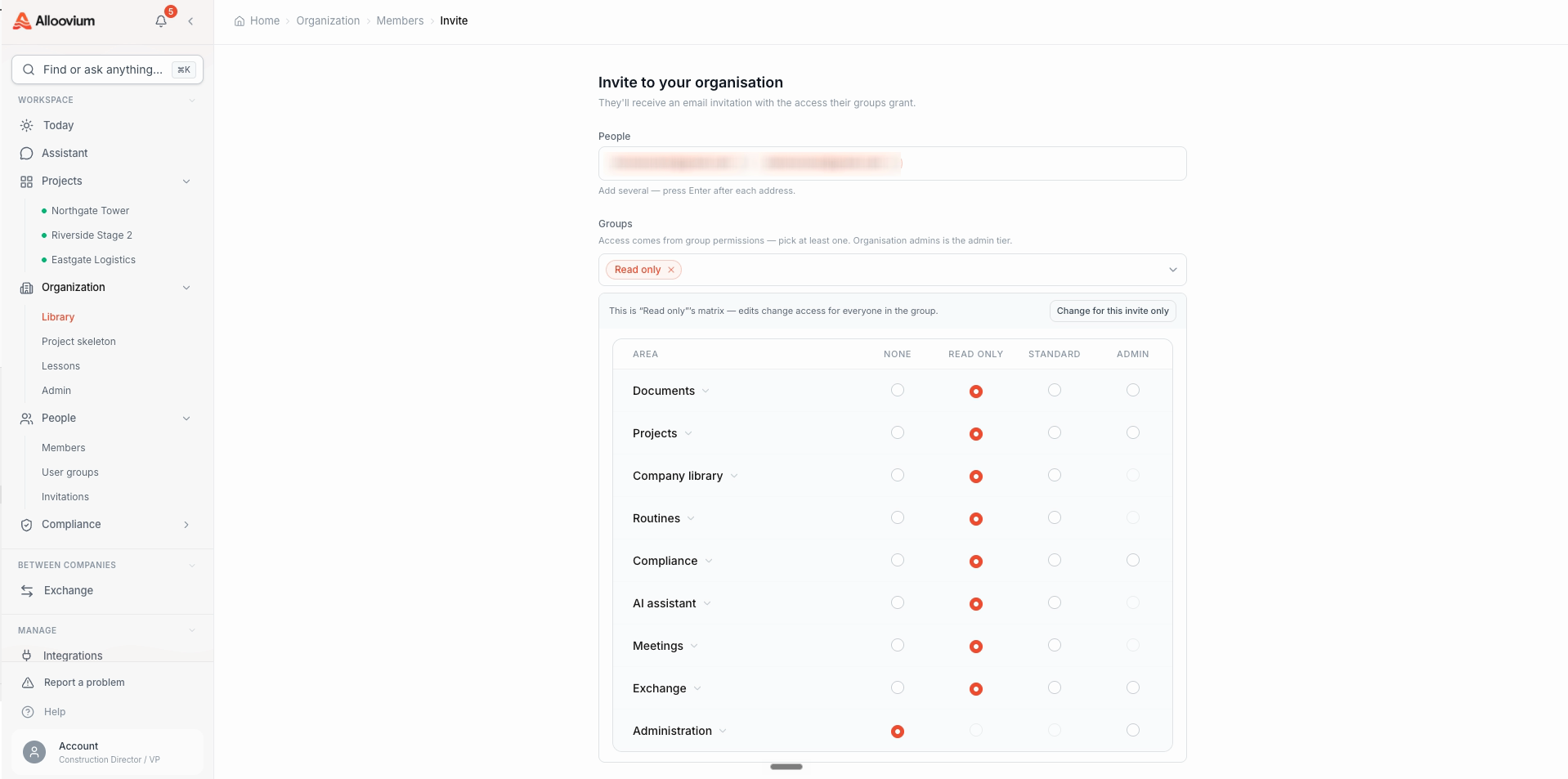
The full access model — groups, the permission matrix, and project membership — is covered in Teams & Groups.
Next steps
You have a working project. From here, go deeper wherever your day takes you:
- →Key Features — the complete capability tour, from drafting to routines to Exchange.
- →Today — make the daily cockpit yours.
- →Documents & Projects — uploading, the AI Organizer, and drawing intelligence.
- →AI Assistant — querying, citations, voice input, and sharing.
- →Routines — put the busywork on a schedule with approval gates.
- →Use Cases — ten real workflows for your role, from project managers to executives, each with a walkthrough video.