
Workflows
Document Generation
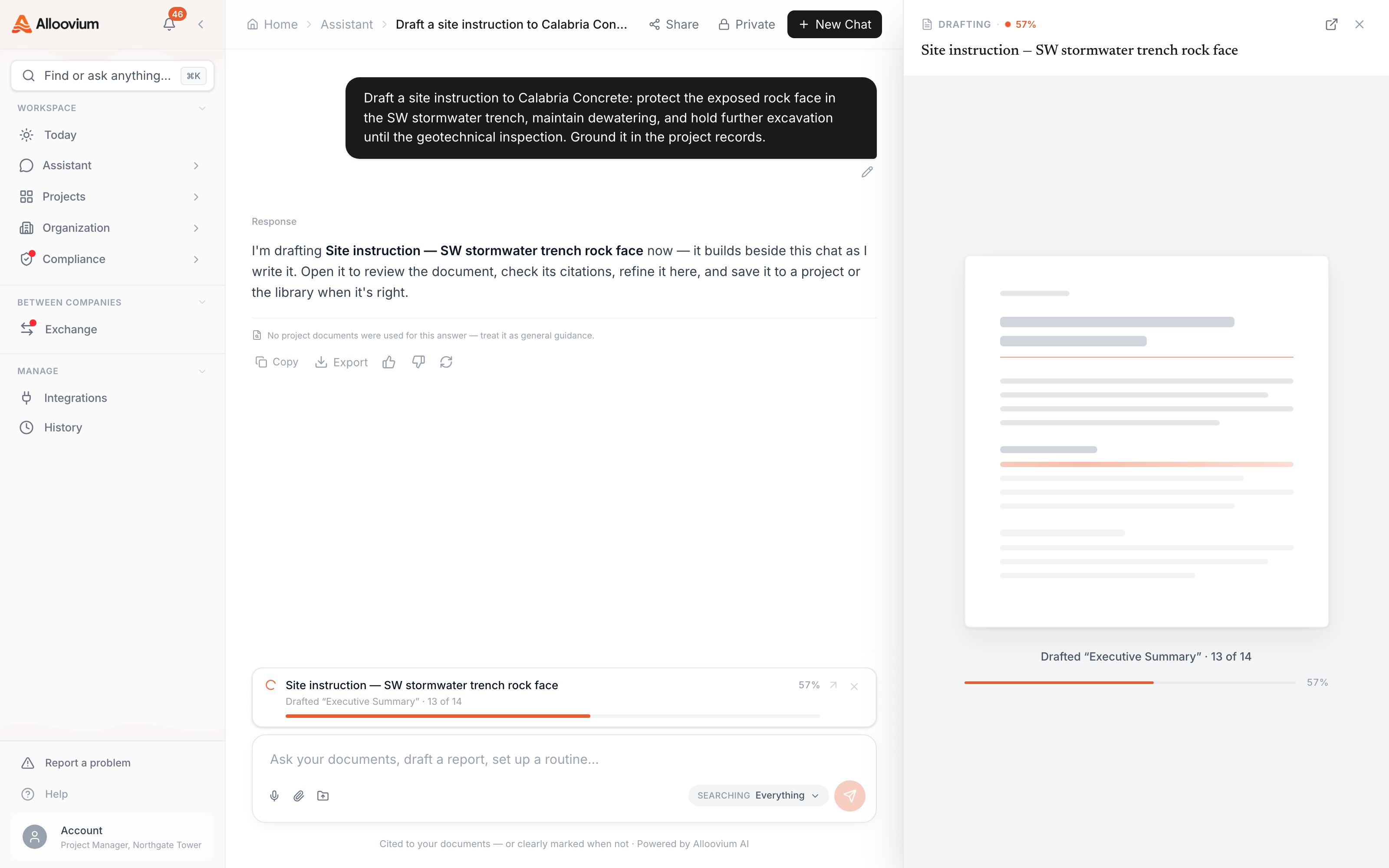
Document Generation drafts a new document from scratch when you don't have a template. Describe what you need — a variation notice for a scope change, an RFI about a drawing clash, a site instruction for a setting-out adjustment — and Alloovium produces a structured draft using your project documents as context.
Overview
Document Generation drafts a new document from scratch when you don't have a template. Describe what you need — a variation notice for a scope change, an RFI about a drawing clash, a site instruction for a setting-out adjustment — and Alloovium produces a structured draft using your project documents as context.
When to use which
If you have a blank DOCX template with placeholders, use Template Filling. If you need a brand-new document and don't have a template, use Document Generation.Document Generation
Open Document Generation
Ouvrez Routines dans la barre latérale gauche, passez à l’onglet Actions, puis cliquez sur « Document Generation ».
Describe what you need
Tell Alloovium the document type and the situation — for example, "Draft an RFI about the clash between the structural drawing S-201 Rev C and the hydraulic drawing H-104 Rev B on Level 2."
Pick the project context
Select the project Alloovium should pull information from.
Review and export
The draft appears with citations. Edit it, regenerate sections you want rewritten, or export as DOCX.
Video · ~3 min
Draft a document with receipts
Describe the document you need, watch the draft stream in grounded in project files, open an inline citation to check its source passage, then export — or sign it in place with the built-in e-signature.
Common document types
- Variation notice — notification of a scope or cost change.
- RFI — a request for information to a designer or consultant.
- Monthly report — a progress report covering programme, commercial, risk, and safety.
- ITP — an inspection and test plan generated from the relevant specification.
- Site instruction — an instruction to a subcontractor on site.
History
Every filled template and generated document is saved under History in the left sidebar. From there you can re-open, re-export, or regenerate any past document. Running the same template again on an updated project pulls the latest information without losing the edits you made to earlier versions.
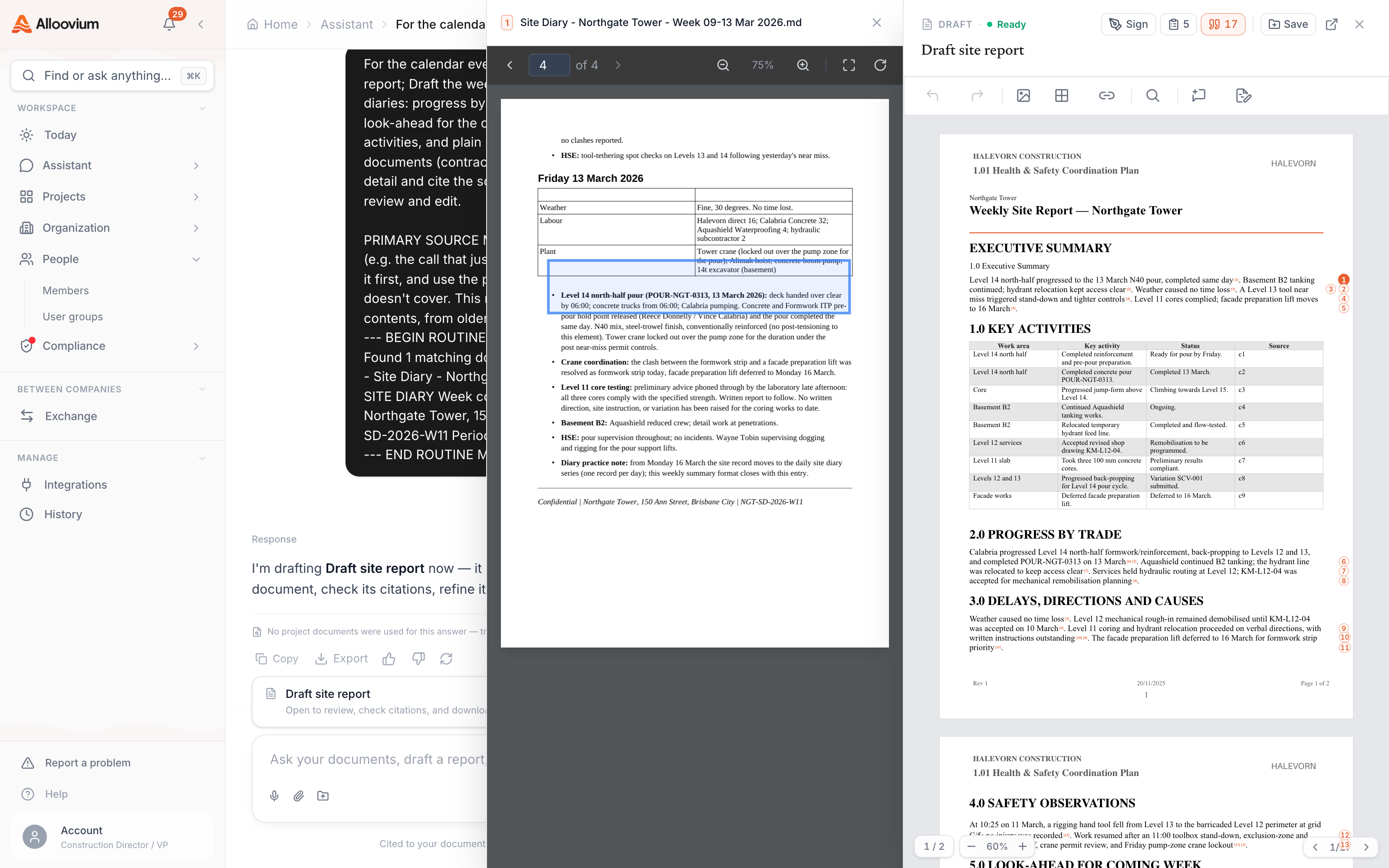
Citations stay with the document
When you re-open a past document from History, the original citations remain intact. You can click any cited value to jump straight to the source document and page.