
AI ASSISTANT
Drafting Documents
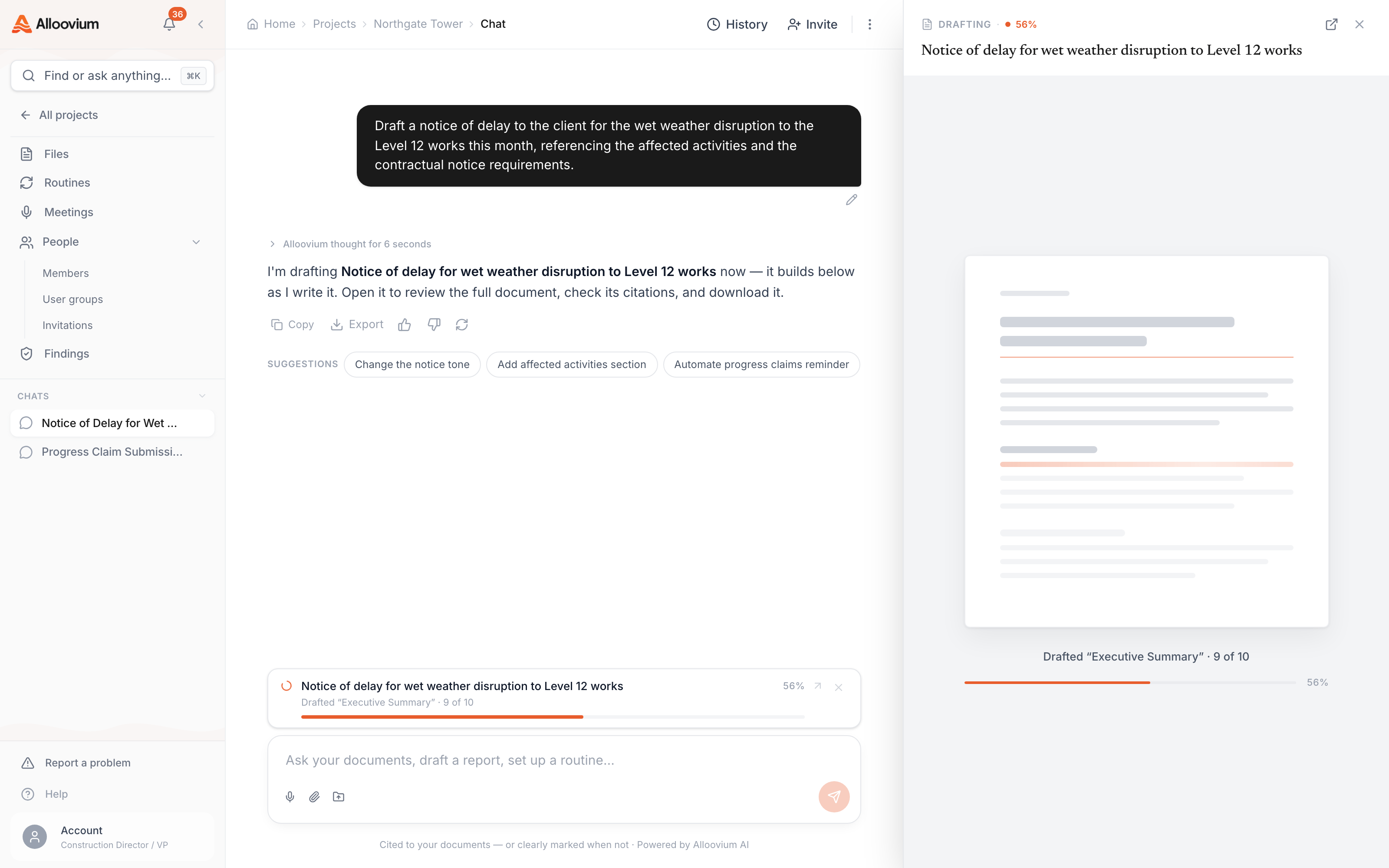
Ask for a document the way you'd brief a colleague — “draft a delay notice for the wet weather this month”, “put together an evidence pack for VO-118” — and the assistant writes it from the project record, with a citation on every claim. Then refine it in the same conversation: shorter, firmer, one page.
Video · ~2 min
Draft it in the conversation
One document from ask to saved file: requesting a delay notice in the chat, the draft streaming into the side panel with citation chips accumulating, clicking a citation to check the source passage, asking 'keep it to one page' and watching the draft tighten, then saving it to the project documents.
Overview
Document generation isn’t a separate tool you have to go find — it lives in the same conversation as everything else. When an answer turns into “now I need to put this in writing”, the next message can be the brief: what the document is, who it’s for, what it should cover. The assistant plans the document, pulls the facts from the project’s documents and live records, and writes it while you watch.
The draft opens in a panel beside the chat, so the conversation stays available while it writes — and generation keeps going even if you navigate away. A draft dock keeps in-progress documents within reach until you’re done with them.
Asking for a document
The brief can be as short or as specific as you like: “draft a response to RFI-214”, “a one-page position paper on the facade delay for the client”, “an evidence pack for VO-118”, “this month’s progress summary for the board”. Constraints in the ask are honoured — if you say one page, you get one page, not a ten-section report.
Because the assistant drafts from the project corpus, the document arrives already knowing the contract clauses, the variation history, the correspondence and the programme — you review substance, not fill in blanks.
Say who it's for
“For the client”, “for the subbie”, “internal” — the audience changes the tone and what gets included, so naming it in the ask saves a refinement round.Evidence on every claim
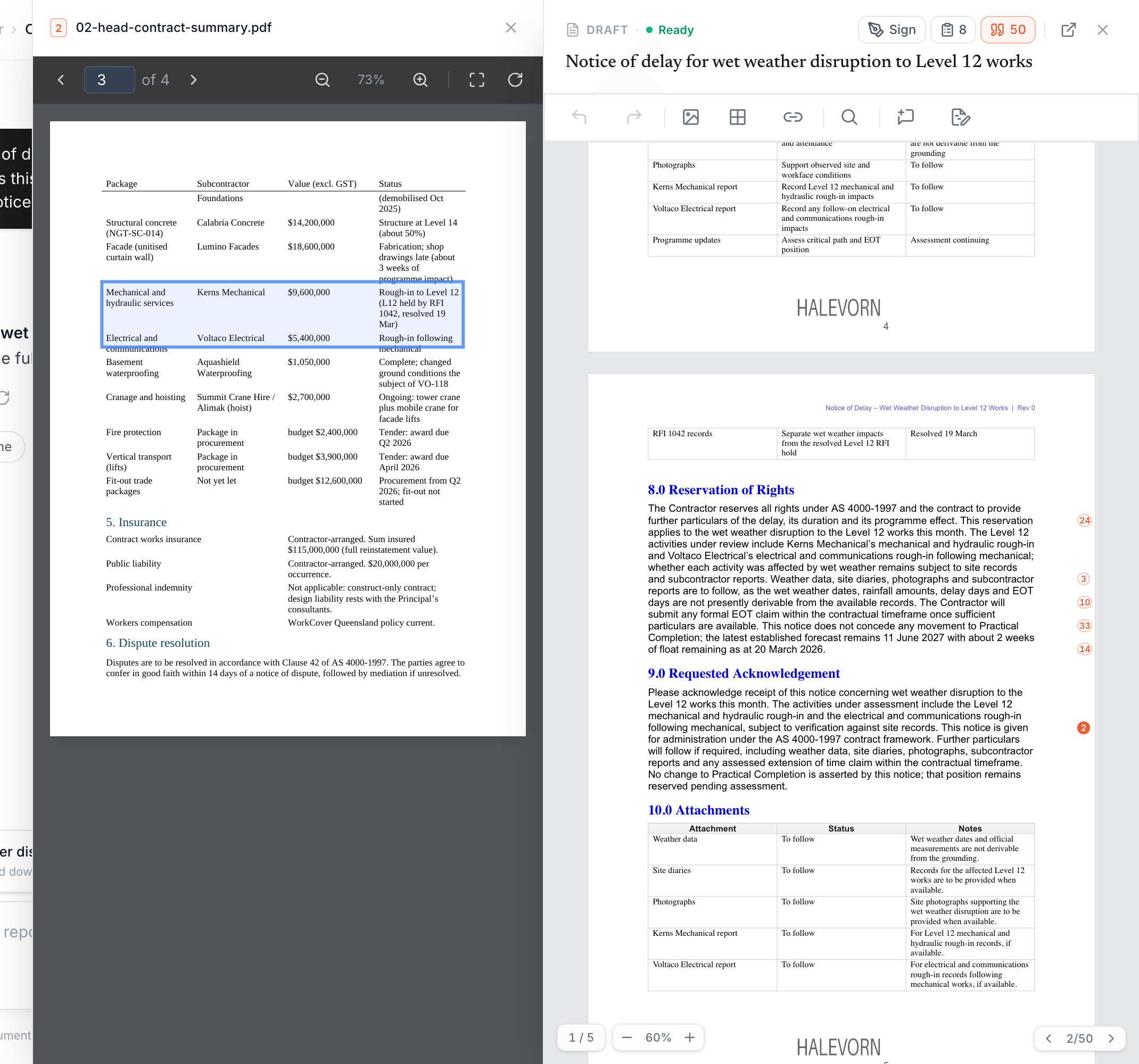
Generated documents carry the same citation discipline as answers: every factual claim in the draft — a date, a cost, a clause reference — links back to the source it came from. Click a citation chip and the source document opens at the cited passage, highlighted. That makes review fast: you’re checking the assistant’s receipts, not re-deriving the facts yourself.
Your templates, matched automatically
If your library holds a template for the kind of document you asked for — a delay notice, a site instruction, a monthly report format — the assistant matches it automatically and drafts into your format instead of a generic one. The draft shows which template it followed, and the saved document keeps that lineage.
For form-style templates where values get filled into fixed fields, see Template Filling.
Refining without starting over
The draft stays live in the conversation, so edits are just the next message: “make the summary shorter”, “add a cost breakdown table”, “firmer on the notice requirements”, “keep it to one page”. The assistant revises the existing draft — targeted changes touch only the sections they concern, and the citations stay attached through the edit.
If a revision goes the wrong way, ask it to regenerate a section — or the whole document — with the new direction baked in.
Saving and sending
When the draft is right, save it to the project — it becomes a normal project document: filed, searchable, citable in future answers. From there it can go out like any other document: attached to an email, or shared with another company via Exchange — both of which you can also ask for in the same conversation (see Taking Action).
Longer-form generation
For the full drafting surface — reports, monthly reports, and generation outside the chat — see Document Generation and Reports & Generation.