
AI ASSISTANT
Creating Routines from Chat
Anything you find yourself asking the assistant repeatedly can become a routine — and the fastest way to build one is to just say it: “every morning, check the inbox for new claims and send me a summary.” The assistant turns the sentence into a routine and shows you exactly what it built before switching it on.
Video · ~90 sec
From a sentence to a routine
Typing 'Every morning at 7, check the lookahead and message me anything at risk' into the ask bar, the assistant laying out the routine draft — trigger, steps, condition and delivery — a quick edit to the time, confirming, and then the routine appearing in the Routines list and its first run landing on the project timeline.
Overview
Routines are recurring jobs that check things, draft things, and chase things without you driving. There’s a full visual builder for them (see Routines), but you don’t need it to get started — the assistant can build a routine from a plain-language description, the same way you’d hand the job to a person.
Like every assistant action, routine creation is draft-gated: the assistant lays out what it understood — when the routine runs, what each step does, any condition, and how the results reach you — and nothing is scheduled until you confirm it.
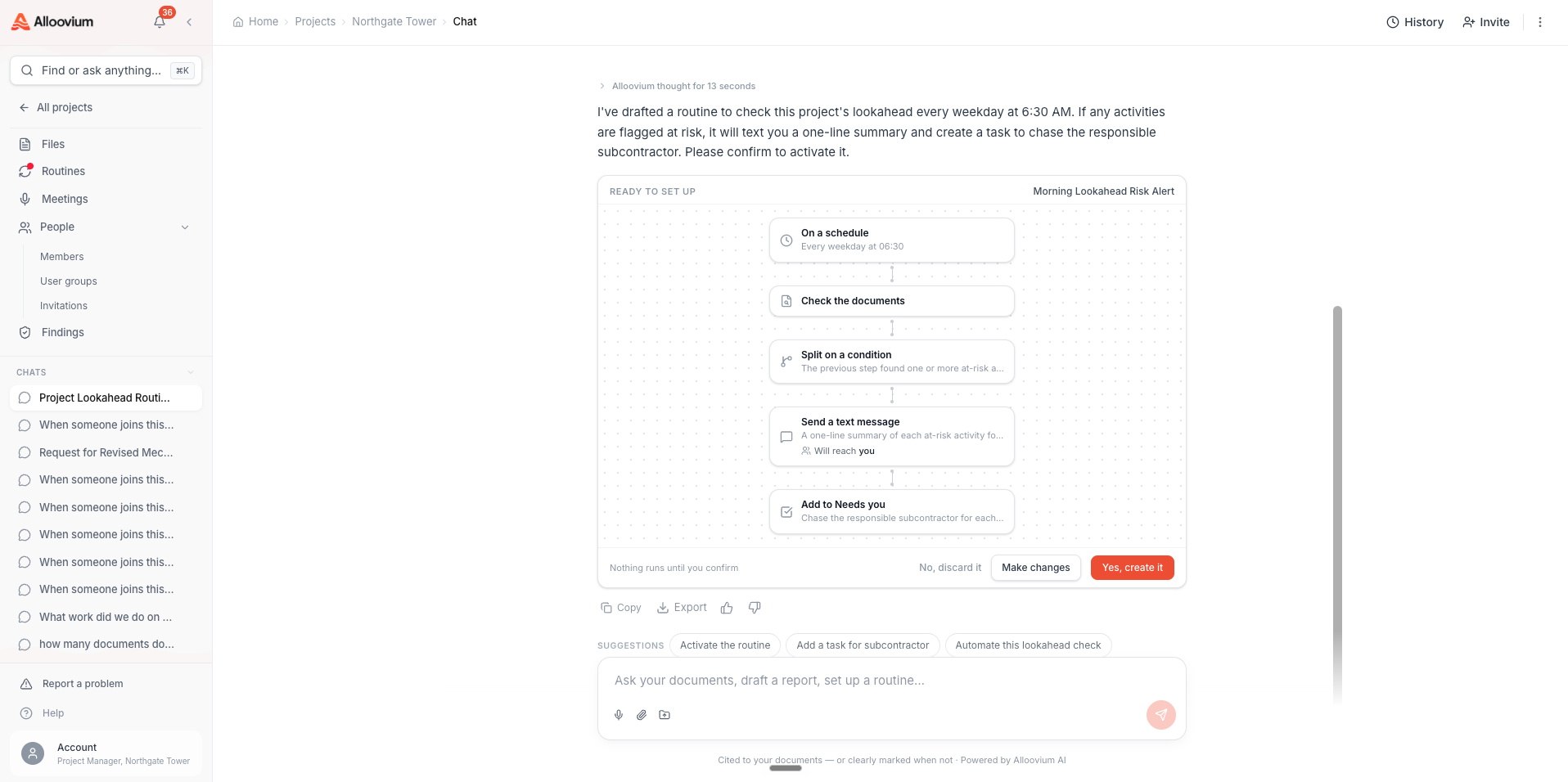
Describe the job in one sentence
The whole brief fits in one message: “every Monday at 7, draft the weekly site report from last week’s diaries”, “each morning, summarise anything new in the inbox about Northgate”, “every Friday, remind the subbies whose claims are due next week”. The assistant maps the sentence onto real routine steps — the same blocks the visual builder uses — so what you get is a first-class routine, not a chat-only reminder.
If something essential is missing, the assistant asks instead of guessing — most commonly how the result should reach you: a notification, an email, or a post to your Today page.
Conditions: “if…, then chase”
Routines can carry a condition, and you can say it naturally: “every morning check the lookahead — if anything is flagged at risk, message the responsible sub.” The condition is evaluated on every run, in your words: when nothing is at risk, the routine stays quiet; when something is, the chase goes out. That’s the difference between a useful routine and noise.
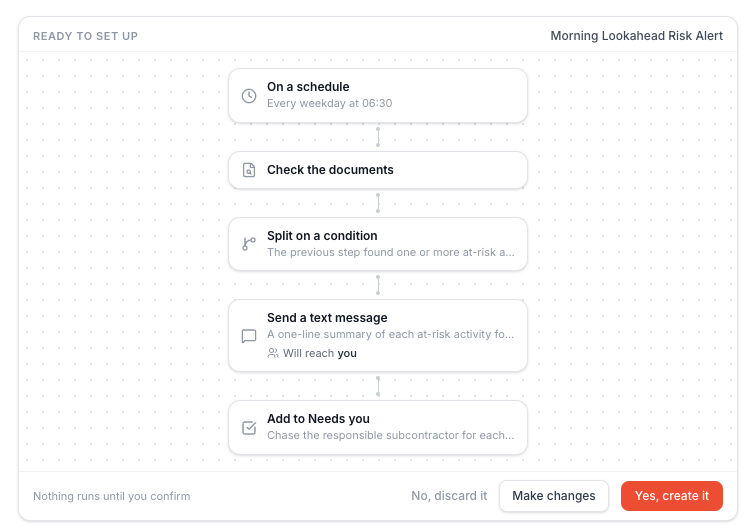
Schedules and event triggers
Not every routine runs on a clock. Routines can also fire when something happens — when a document lands in the project, when someone joins, when a claim is raised. Say the trigger the way you’d say it to a person: “when someone joins the project, send them the site induction pack”, “when a new drawing set is uploaded, summarise what changed and post it to Today.” For things the platform can’t watch directly, the assistant proposes the closest reliable shape — usually a frequent scheduled check — and tells you that’s what it’s doing.
Updating and cancelling from chat
Existing routines are manageable from the same conversation: “change the morning summary to 6:30”, “pause the claim chaser over Christmas”, “delete the Friday reminder routine”. The assistant confirms which routine it matched before changing anything, and edits are drafted for approval just like creation.
Every routine the assistant builds also appears in the Routines list, where you can open it in the visual builder — chat-created and builder-created routines are the same thing underneath.
The “Automate this” suggestion
The assistant notices patterns in what you ask it. If you’ve requested the same thing several mornings running, an Automate this chip appears under the answer — one click starts the routine draft with the schedule already inferred from when you actually ask. You review and confirm it like any other routine.
Where routine runs show up
Every run writes to the project timeline — what ran, what it found, what it sent — so routines stay as auditable as work done by hand.