
Integrations
Egnyte
Connect Egnyte to sync files and folders from your content platform into Alloovium, with folder permissions carried through.
Overview
The Egnyte integration syncs the folders you select — from Shared and Private spaces — into your tenant's file library, where documents become searchable, citable project records. A rolling poll picks up new and updated files automatically, and Egnyte folder permissions are mapped through to document access in Alloovium, so people only find what they could already open at the source.
Read-only access
Alloovium reads and syncs the folders you select — it never modifies or deletes anything in Egnyte. Read our data handling commitments →What data we access
Setup
You need an Egnyte account with access to the folders you want to sync. Connecting takes a couple of minutes:
Open Integrations
Go to Settings → Integrations → Egnyte and click Connect.
Sign in to Egnyte
You are redirected to your Egnyte domain to sign in and authorise read-only access.
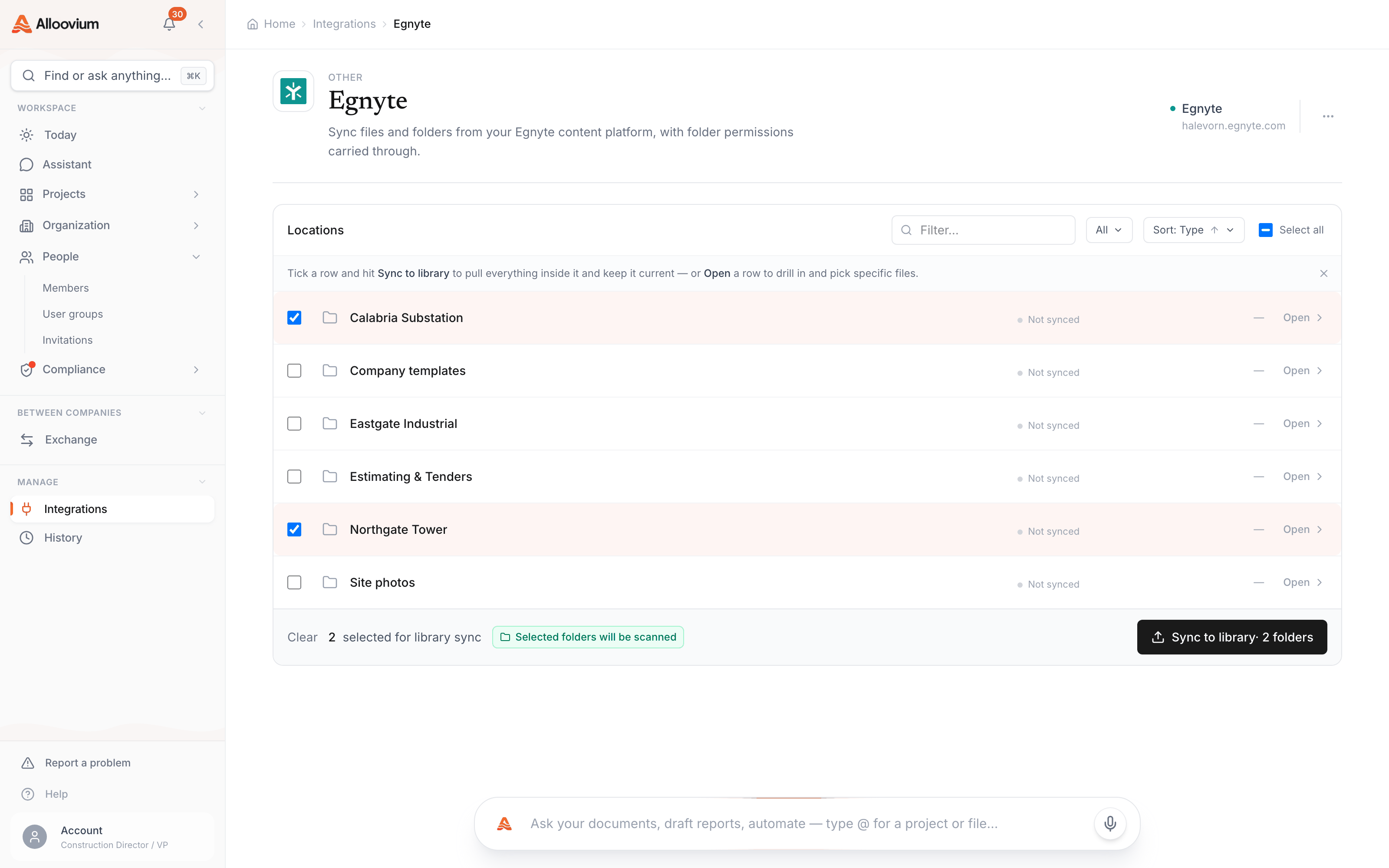
Choose folders
Pick the Shared or Private folders to sync. Only folders your Egnyte user can access appear in the picker.
Start the sync
Files ingest into your library in the background, and the rolling poll keeps them fresh as documents change in Egnyte. Attach synced files to projects whenever you like.
Permissions
Access is read-only OAuth — Alloovium never writes to Egnyte. Folder permissions carry through: a document synced from a restricted Egnyte folder is only findable in Alloovium by people with access at the source (or when it is explicitly shared inside Alloovium).
Troubleshooting
Folders not appearing in the picker
The picker shows only folders the connected Egnyte user can access. Reconnect with an account that has access to the folders you need, or ask your Egnyte admin to grant it.
A teammate can't find a synced document
Permission mapping is working as intended — they don't have access to that folder in Egnyte. Grant it at the source, or share the document with them inside Alloovium.