
DAILY WORKFLOW
Today
Today is the home you open first each morning. It brings the calendar, the items waiting on you, and everything that changed across the project into one place — deadlines, drafts and flags surfaced while there is still time to act on them — so the day starts ahead of the project rather than chasing it.
Overview
Today is designed as a cockpit for the project manager. Rather than asking you to check email, then the schedule, then site reports, then approvals, it assembles those streams into a single surface. The intent is simple — a “no surprises” view of the project you can scan in a minute and act on without leaving the page.
Two things sit side by side. On the left is the calendar, the spine that anchors the day in time. On the right is Needs you, the queue of items waiting on a decision from you. Below the queue is a recent activity feed that answers “what happened since I last looked?” across documents, meetings, site updates, routines, and more.
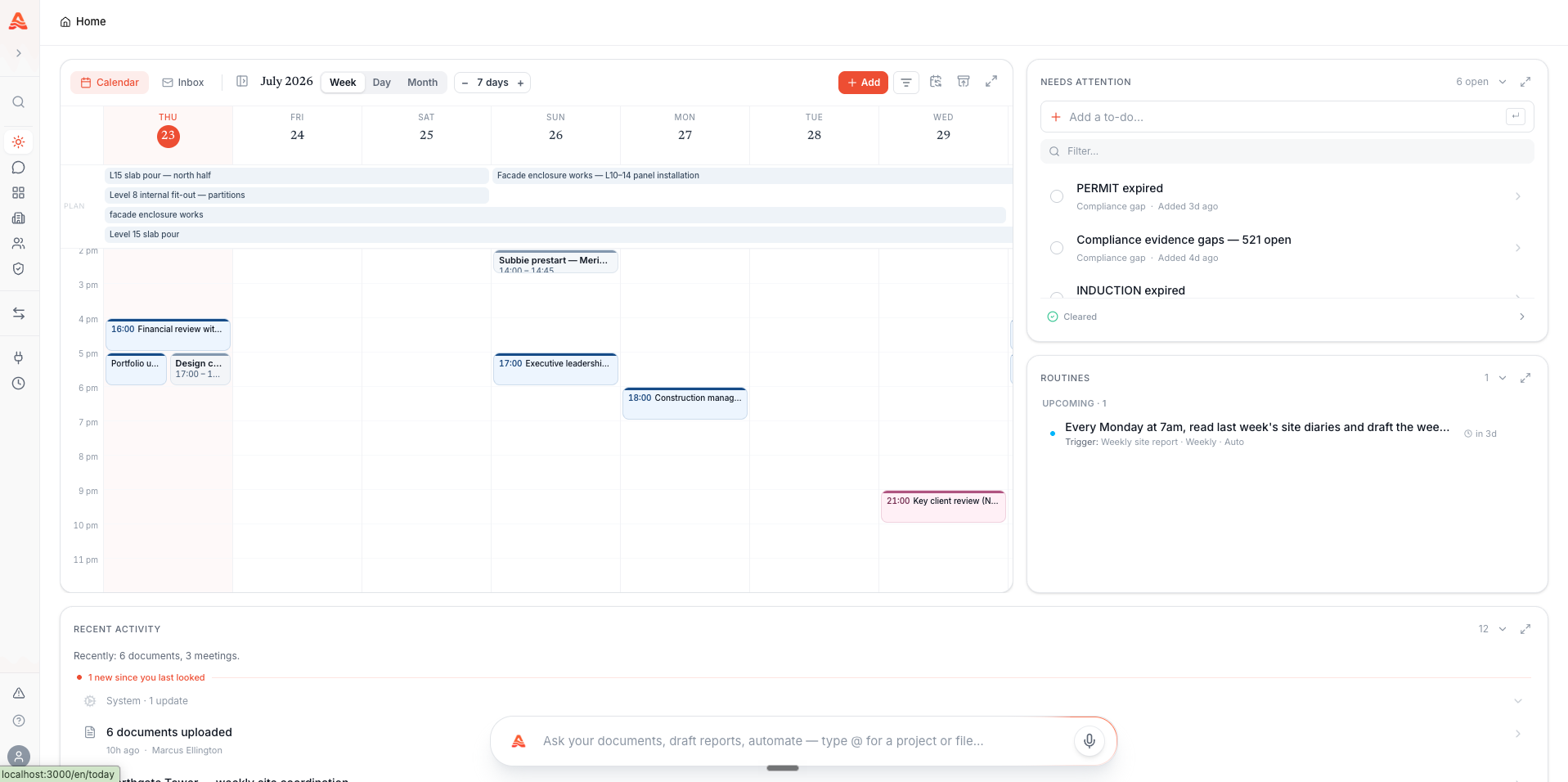
How Today is laid out
The left column toggles between two views. Calendar is the default and shows your schedule as a timeline. Inbox switches the same column to your connected mailbox when you want to read and triage email in context.
The right column holds the Needs you queue with a set of filter tabs across the top, followed by the recent activity feed. Every item in Today is scoped to your projects, so the view reflects your work rather than the whole organisation.
The calendar spine
The calendar is the core of Today. It offers Day, Week, and Month views, and defaults to Week. Day and Week lay hours down the side so meetings and scheduled work read at a glance; Month gives you the wider shape of the period ahead.
The timeline is continuous — calendar events, task due dates, scheduled activities, site updates, and routine runs all appear on the same rail so the day reads as one picture rather than several disconnected lists. Your chosen view is remembered between visits.
Meetings appear here
Recorded meetings and their outcomes flow onto the calendar and into the activity feed. See Meetings for how recording and transcription work.Needs you
Needs you is the queue of items waiting on you. It gathers your to-dos and action items — raised from site calls, meetings, routines and emails, or added by hand — together with anything flagged as at risk, and lets you narrow the list with filter tabs. Tabs only appear when they have something in them, so the queue stays quiet when there is nothing to do.
| Tab | What it shows |
|---|---|
| All | Every item waiting on you, in one list. This is the default. |
| Tasks | To-dos and action items — raised from calls, meetings, routines and emails, or added by you. |
| Alerts | Work you or your team have flagged as at risk, such as a slipping pour date. |
| Commitments Alloovium has picked out of your connected inbox. |
Opening an item brings up its detail panel, including where it came from and any deadline attached to it. From there you can act on it, mark it done, or set it aside.
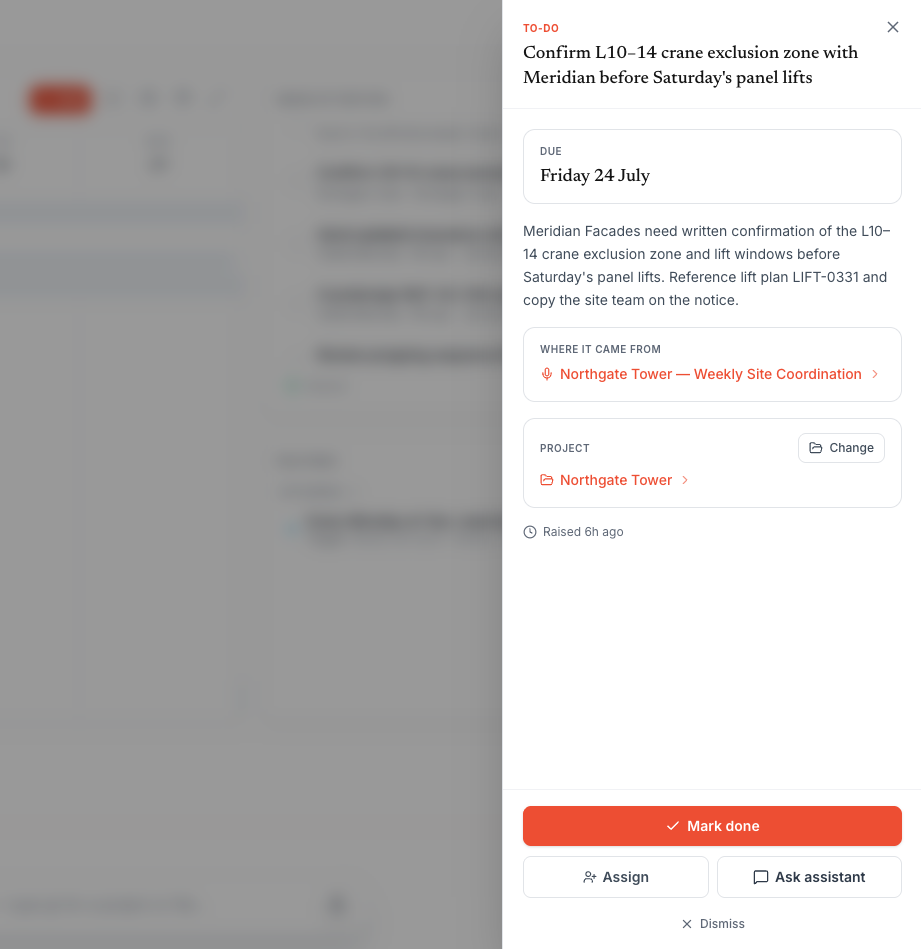
The Compliance lens
Compliance items live in their own console rather than in this queue. Organisations that run the full compliance engine get a dedicated view of gaps and conformance — see Compliance.Action items and drafts
Some items in Needs you are action items — a specific piece of downstream work that Alloovium has recognised and staged for you. An action item is typically raised automatically from a source such as a site-walk call, a meeting summary, a routine run, or an email, and it carries a link back to that source so you can see exactly where it came from.
For typed action items — a variation, an RFI, or a purchase order — the point is not just the reminder but the head start. Alloovium opens an intake pre-filled from the source context, you complete the remaining details, and it produces a draft you can refine. A variation raised from a note on site can therefore arrive on Monday morning already framed, rather than as a blank page.
An item is raised
A routine run, meeting summary, call, or email produces an action item that lands in Needs you with a link to its source.
Open it and review the context
The detail view shows where the item originated and any deadline. For a variation or RFI, it also offers to start a pre-filled draft.
Complete the intake
Alloovium fills what it can from the source and asks you for the rest, so you confirm rather than compose from scratch.
Produce and refine the draft
The finished intake generates a variation or RFI draft, linked back to the action item, ready for you to review.
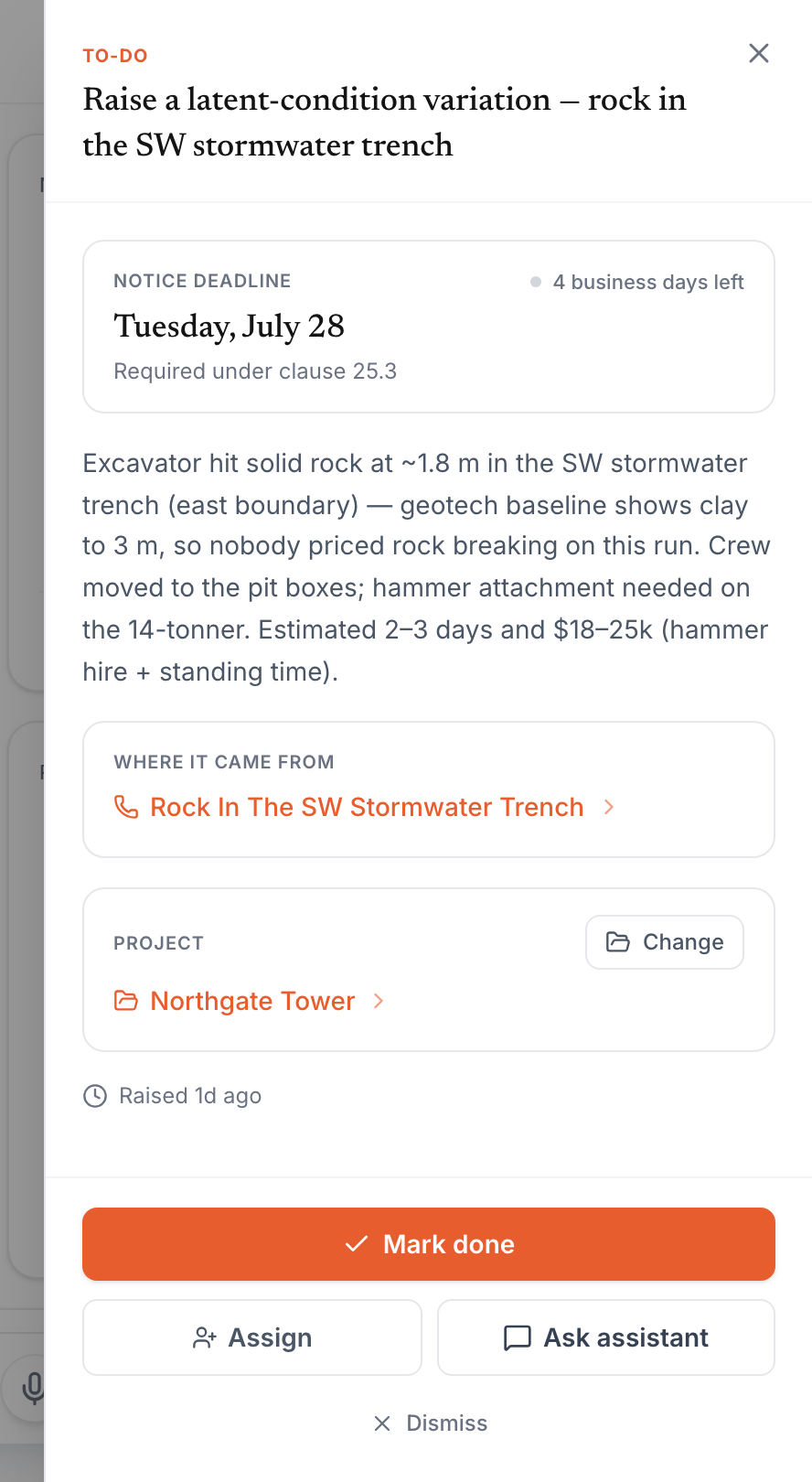
You can also mark an action item done, dismiss it, hand it to a teammate, or take it to the assistant for help. Items that have produced a draft show as drafted so you can see progress at a glance. For the document side of variations and RFIs, see Variations.
Contractual notice clocks
Some action items — such as a latent-condition variation — carry a notice deadline shown directly on the item. Treat these as time-sensitive; they exist so a contractual clock does not quietly run out.Ahead of the clock
Two cards below the hero row watch the things that go wrong quietly: contract deadlines and delegated work.
Contract deadlines is the radar over every dated obligation Alloovium extracted from your contracts — notices, reports, insurances, milestones — counting down with a day chip per row. Notice time-bars are flagged and given extra runway, because missing one does not cost a late fee; it costs the entitlement. Each row names its clause and the contract it came from, and anything already late says so in days over.
Waiting on others is the ball-in-court view: every open task you have handed to someone else, with who has it and how long they have had it. Anything with no movement for a week is flagged as stalled — not an accusation, a prompt — so a two-day job cannot quietly become a three-week problem.
Quiet by default
Both cards render only when they have something to say. No dated deadlines and no outstanding delegations means no cards — an empty radar is noise, not reassurance.The activity feed
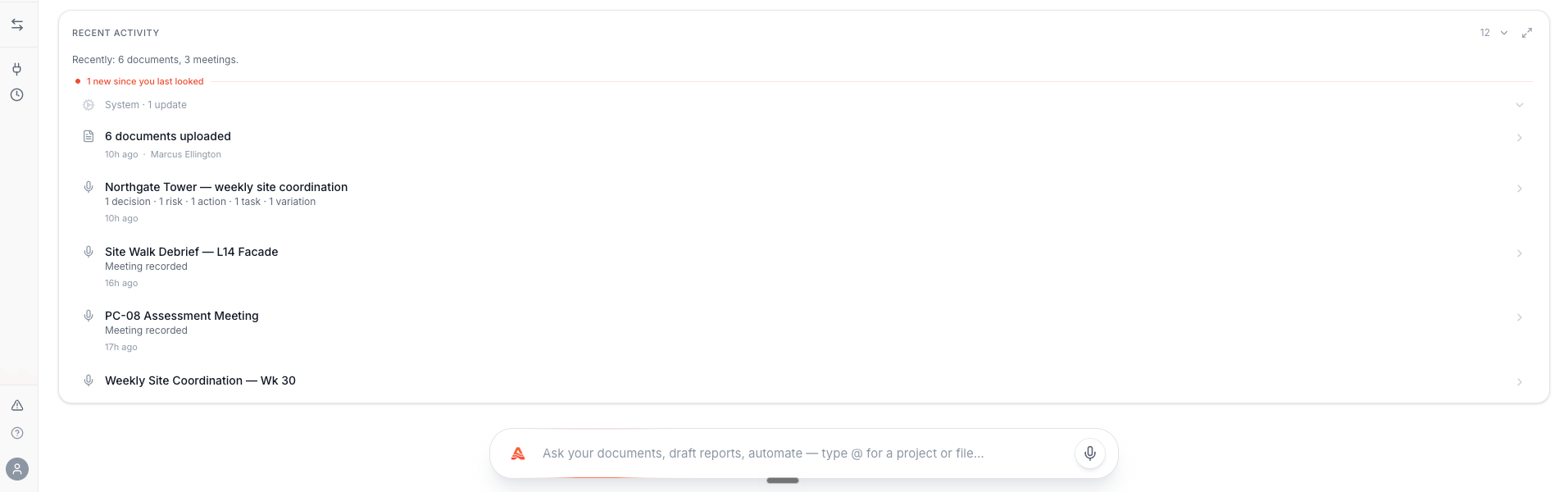
Below the queue, the activity feed answers “what changed since yesterday?” It pulls together events from across the project — documents added, meetings recorded, RFIs and change requests, calendar changes, routine runs, team check-ins from site, call transcripts, and assistant conversations — into one time-ordered stream.
When many similar events happen together, they collapse into a single line so a bulk upload reads as “several documents added” rather than flooding the feed. Meetings, site calls, and messages stay as individual rows because each one usually matters on its own. The feed refreshes as new activity arrives, so a call that just finished shows up without a manual reload.
Inbox
Switching the left column to Inbox opens your connected mailbox inside Today. This keeps email beside the calendar and the queue, so you can read a message and act on the item it raised without moving between tools. The triage classification and mailbox setup are covered in depth on Project Inbox.
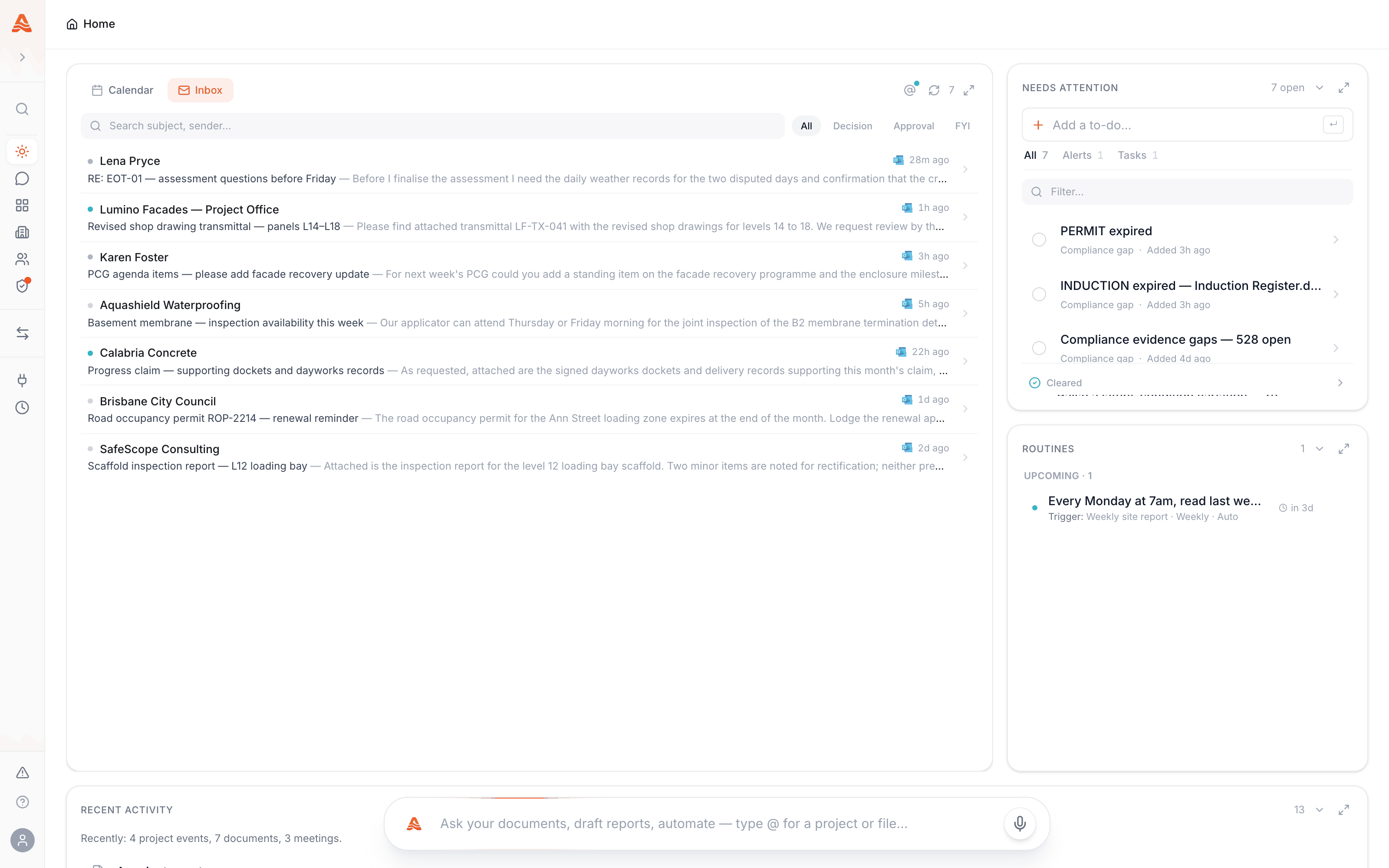
Email that carries a task or decision can be turned into an action item so it is not buried in a thread — see Action items and drafts below. Connecting a mailbox is covered in Integrations.
What feeds Today
Today is a reflection of the rest of Alloovium rather than a place you fill in by hand. The more of the platform you use, the more complete the view becomes.
Routines
Scheduled routines run on their own cadence and post their results into Today — upcoming fires and recent completions appear on the calendar and in the activity feed, and a routine can raise an action item for you to finish. See Routines.
Meetings and calls
Recorded meetings and site-walk calls contribute their outcomes to Today. A summary can surface the commitments and decisions from a conversation and raise the follow-up work as action items. See Meetings.
Email and site updates
Connected email and updates from site both feed Today. Email produces triage-ready action items, and team check-ins from the field appear in the activity feed and roll up for review, so what happens on site is visible without chasing it.