
Settings
Settings
Configure your account preferences, notification settings, security options, and API access.
Account
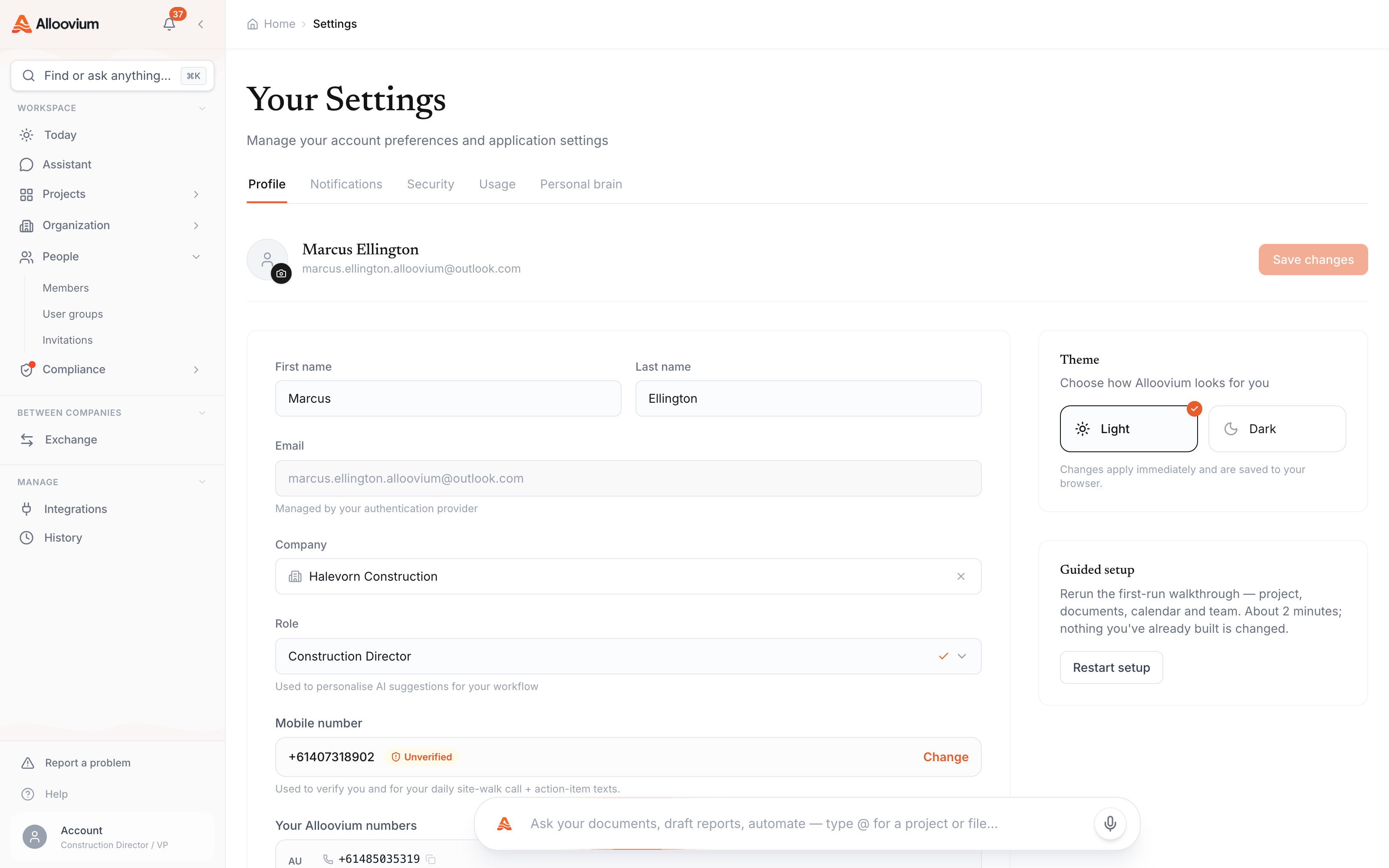
Open the account menu by clicking your avatar at the bottom of the left sidebar, then choose Settings. The Profile tab is where you set your display name and company, and pick a role so Alloovium can tailor its AI suggestions to the way you work.
Your profile photo and sign-in email live in your account profile — click your avatar and open your profile to change them. On the Settings page the email field is read-only and labelled "Managed by your authentication provider", because it comes from how you sign in; if your organisation uses single sign-on, update it through your identity provider.
Notifications
Alloovium notifies you in-app and, if you choose, by email when important events occur. Tune email delivery and the priority threshold in Account Settings → Notifications.
- Document generation complete — notified when a document generation job finishes.
- Background AI queries — notified when a background mode query completes.
- Shared with me — notified when a colleague shares a conversation or document with you.
- Document processing — notified when a large document batch finishes processing.
- SharePoint sync errors — notified if a sync job encounters an error.
Weekly digest
Alongside per-event email, a weekly digest summarises activity across your projects — a safety net even when the email threshold is set high.Security
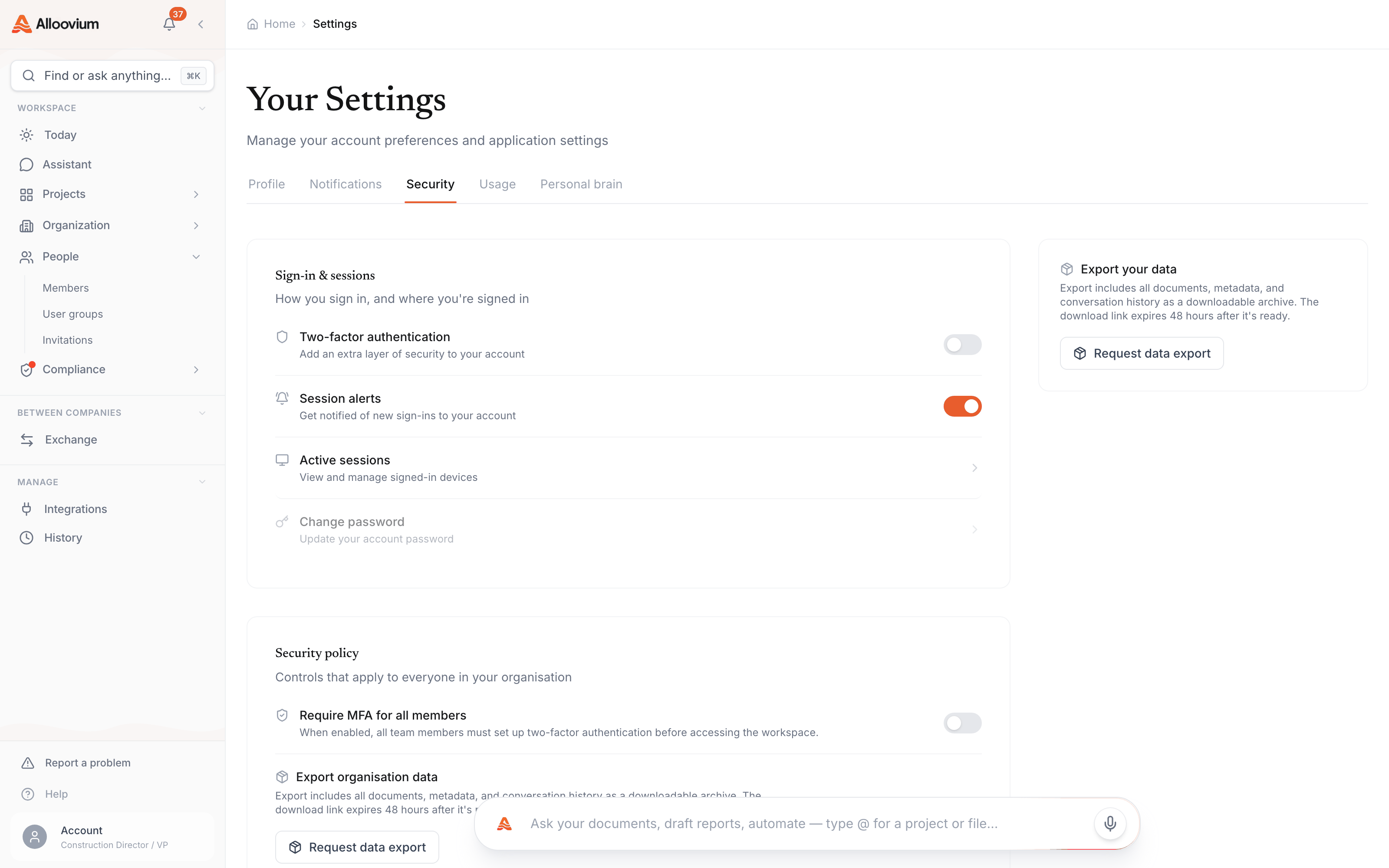
Alloovium uses Clerk for authentication, which supports single sign-on (SSO) via your organisation's identity provider, multi-factor authentication (MFA), and session management.
- Multi-factor authentication (MFA) — enable MFA in Account Settings → Security. Alloovium uses authenticator apps (TOTP) — any standard app works.
- Active sessions — view all active sessions for your account and remotely terminate any session you do not recognise.
- Organisation SSO — contact your organisation admin to configure SSO via Microsoft Entra ID or Google Workspace.
BYOK encryption
Enterprise plans support Bring Your Own Key (BYOK) encryption for data at rest. With BYOK, Alloovium uses your organisation's AWS KMS key to encrypt all stored data. Contact sales to enable BYOK.API Keys
If you need to access the Alloovium API programmatically (for example, to build a custom integration), you can generate API keys from Account Settings → API Keys.
API keys are scoped to your user account and inherit your project permissions. Keys can be given a name and an optional expiry date. You can revoke a key at any time.
Keep your API keys secret
API keys provide full access to your Alloovium account. Never commit them to source control or share them in chat. If a key is compromised, revoke it immediately and generate a new one.