
Document Hub
Document Hub
Upload, organise, and manage your documents securely in projects. Projects are the foundation of everything in Alloovium.
Video · ~3 min
From upload to answers
Follow a batch of project documents from drag-and-drop upload, through automatic OCR, classification, and indexing, into Auto-sort's per-file folder proposals — and finish by asking the assistant a question the freshly indexed documents answer.
Overview
The Document Hub is the central repository for all files in a project. Every document you upload is automatically processed — text is extracted via OCR if needed, chunked into semantically meaningful segments, and embedded for fast AI retrieval.
Once a document is processed, it is immediately available for querying in the AI Assistant, template filling, document generation, and use in analysis tools like Change Impact.
Uploading Documents
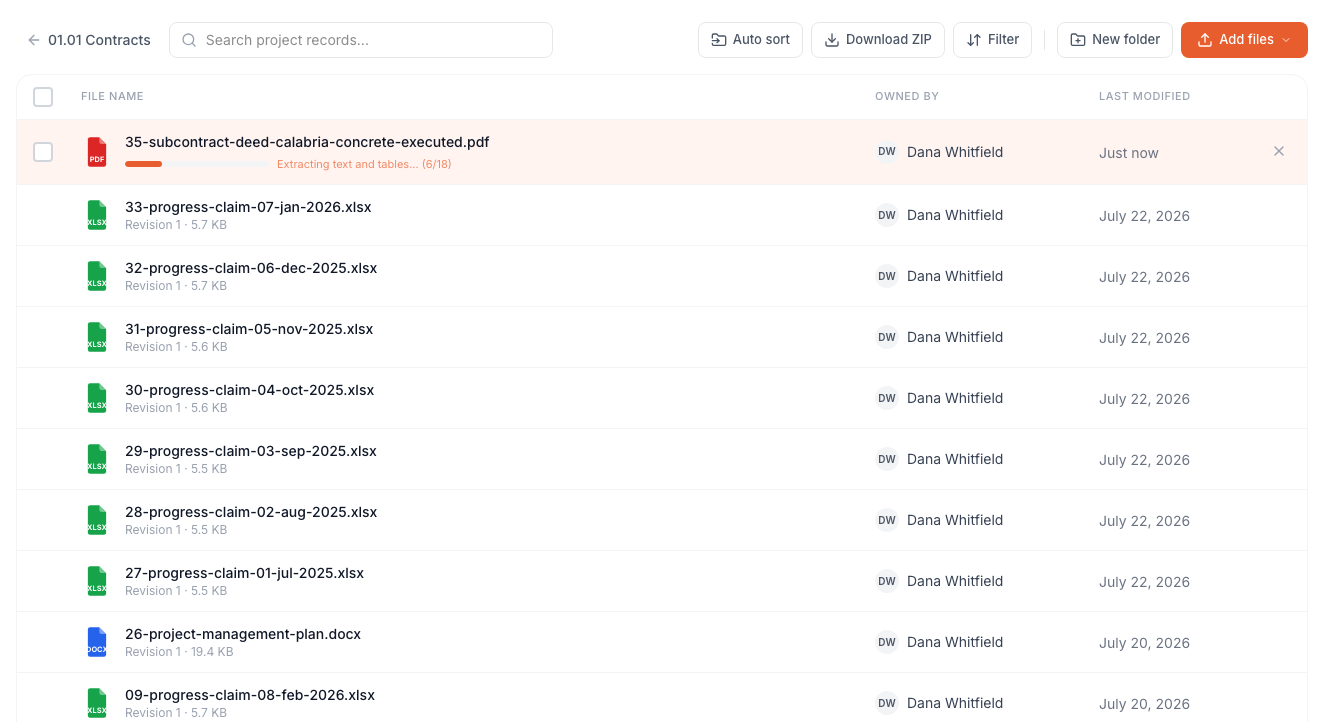
You can upload documents to a project in several ways: by dragging files directly onto the upload area, by clicking the "Upload" button and selecting files from your computer, or by syncing from a connected cloud storage provider (SharePoint, Google Drive, Procore).
Open the project
Navigate to Projects in the sidebar and open the project you want to upload into.
Upload your files
Drag and drop files onto the upload area, or click "Upload" and select files from your computer. You can upload multiple files at once.
Wait for processing
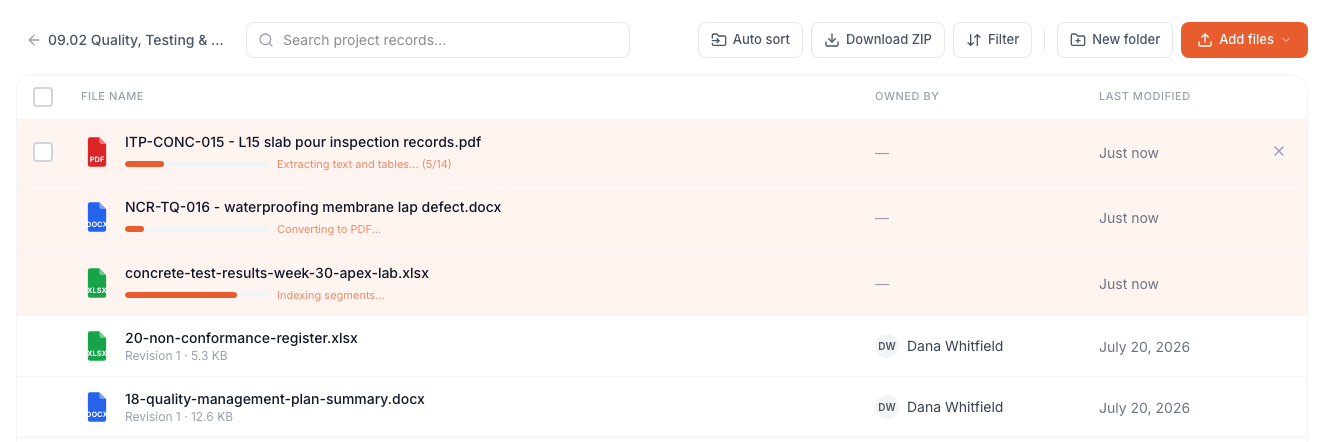
Alloovium processes each document automatically. You will see a progress indicator next to each file. Processing typically takes 30–120 seconds depending on file size.
Start querying
Once processing is complete, the document status changes to "Ready". You can now query it via the AI Assistant.
Batch uploads
You can upload up to 50 files at once. Large batches are queued and processed in parallel — you do not need to wait for one batch to finish before uploading another.Supported Formats
| Format | Extension | Notes |
|---|---|---|
| Includes scanned PDFs — OCR is applied automatically | ||
| Word | .docx | Tracked changes and comments are included |
| Excel | .xlsx, .xls | All sheets are processed; tables extracted |
| PowerPoint | .pptx | Slide text and speaker notes extracted |
| Images | .png, .jpg, .tiff | OCR applied; useful for scanned drawings |
| Plain text | .txt, .csv | Processed directly; no OCR required |
Managing Projects
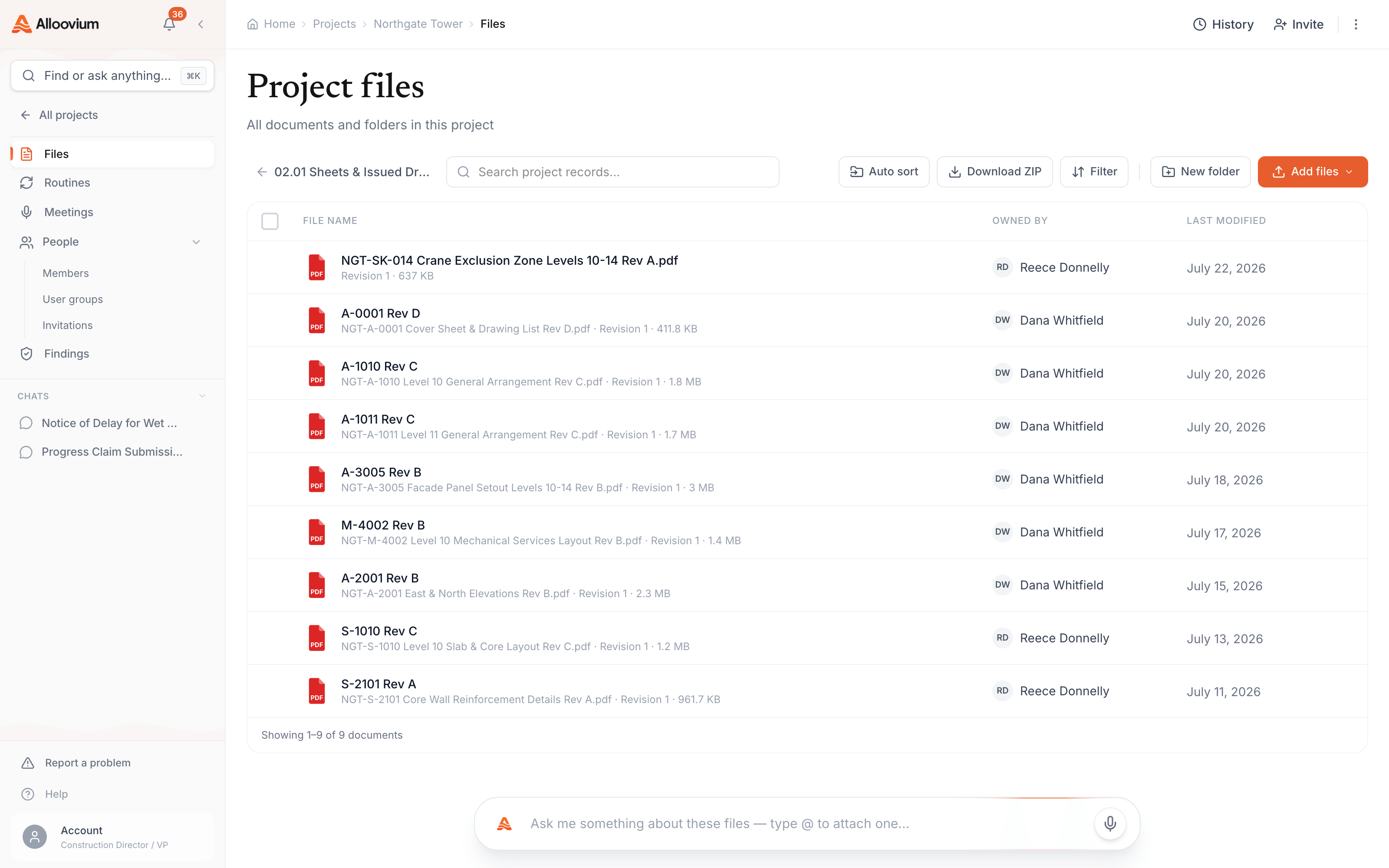
Documents are always organised inside a project. A project is a workspace that holds a set of related documents — for example, all documents related to a specific contract or tender. You can create as many projects as you need and invite different team members to each one.
Within a project, you can create folders to further organise your documents. Folders are optional — all documents in a project are available for querying regardless of which folder they are in.
Storage limits
Storage limits depend on your subscription plan. Contact support if you need to increase your storage quota.AI Organizer & Auto-Sort
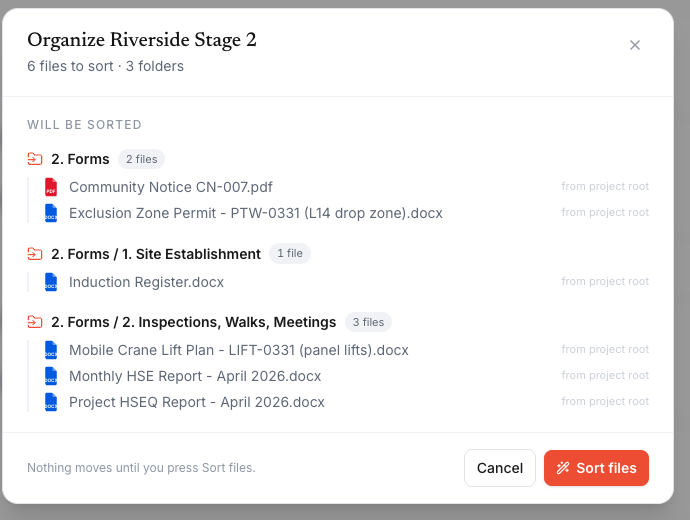
Got a loose batch of mixed files? Upload them into the project, then let Auto-sort file them: it reads each document and proposes a destination folder, with a confidence rating and an editable picker, before anything moves.
Upload the loose files
Drag the whole batch into the project's Files tab. Upload the full intake together — more context means better filing decisions.
Run Auto sort
Click "Auto sort" in the Files toolbar. Alloovium reads filenames and extracted content to classify each document and pick its folder.
Review, adjust, apply
Every file shows its suggested folder and a confidence rating. Change any destination from the picker, then apply — nothing moves until you do.
| Loose file type | Suggested folder | Typical examples |
|---|---|---|
| Specifications and standards | 03 Specifications & Technical / 03.01 Specifications | Specifications, scopes, standards, technical requirements, manuals |
| Drawings and issued sheets | 02 Drawings & Models / 02.01 Sheets & Issued Drawings | Drawings, plans, elevations, details, issued sketches |
| Registers and logs | 06 Controls & Schedules / 06.02 Registers & Logs | Registers, trackers, logs, schedules, look-aheads |
| Memos and correspondence | 07 Meetings & Correspondence / 07.02 Correspondence & Emails | Memos, letters, general correspondence, email exports |
| Instructions and notices | 08 Changes & Instructions / 08.02 Instructions & Notices | Site instructions, architect instructions, notices, formal directions |
Use the whole batch
Auto-sort works best when you upload the full unsorted intake together. That gives it enough context to classify each file and choose the right folder paths.Review safeguards
Low-confidence files are marked for review instead of being silently moved into a folder you did not expect.Document Types
Alloovium automatically classifies uploaded documents into categories to help with organisation and to optimise analysis. Common types include contracts, specifications, drawings, reports, and correspondence. You can also assign a custom type to any document.
| Type | Description | Best used for |
|---|---|---|
| Contract | Legal agreements and subcontracts | Payment terms, obligations, liquidated damages |
| Specification | Technical and performance specs | Scope verification, compliance checking |
| Drawing | Engineering and architectural drawings | Clash detection, revision tracking |
| Report | Site reports, inspection reports | Issue tracking, defect management |
| Correspondence | Emails, RFIs, instructions | Notice tracking, variation history |
Processing Pipeline
Understanding how Alloovium processes your documents helps you get the most out of the platform. Each document goes through the following stages:
- Text extraction — Alloovium reads the raw text from each page. For scanned PDFs and images, GPU-accelerated OCR is applied automatically.
- Layout analysis — The document structure is analysed: headings, tables, figures, and paragraph blocks are identified and tagged.
- Chunking — The document is split into semantically meaningful segments (typically 200–500 tokens each) that are small enough for precise retrieval.
- Embedding — Each chunk is converted into a vector embedding using a high-dimensional model trained on technical and legal language.
- Indexing — Embeddings are stored in a vector index for fast similarity search, enabling sub-second retrieval during AI queries.
GPU extraction
Alloovium uses GPU-accelerated document extraction for complex PDFs and engineering drawings. This means higher accuracy on scanned documents, tables with merged cells, and multi-column layouts.