
COLLABORATION
Teams & Groups
Alloovium is built for teams. Access is granted through user groups — a group collects people and carries a set of permissions, and everything someone can see and do follows from the groups they belong to. This page covers the people directory, groups, and the two invite flows.
Overview
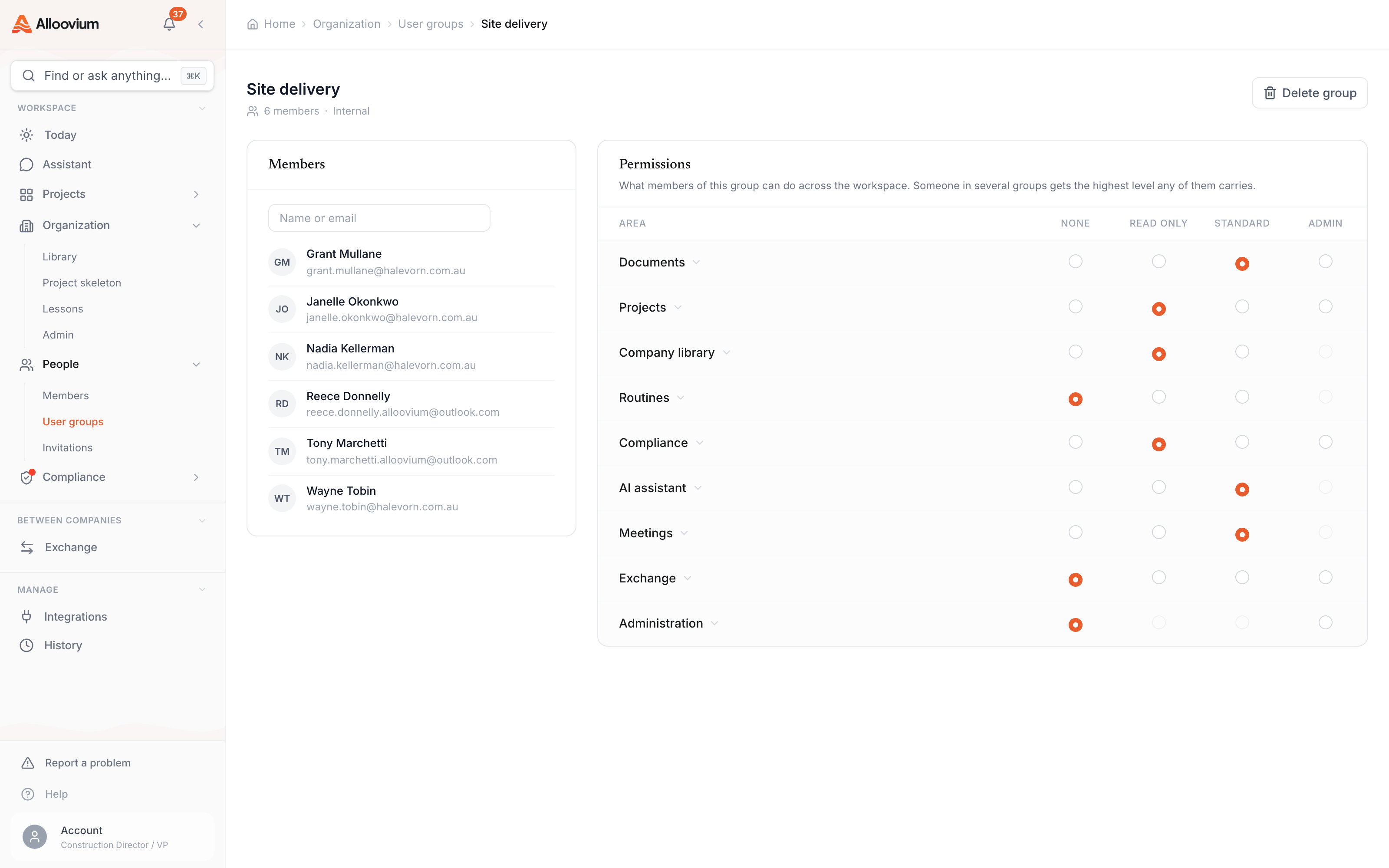
There are no per-person roles to assign when you bring someone in. Instead, you pick the groups they should join, and the groups do the rest: each group carries a permission matrix that says what its members can do across the workspace, and projects grant access to groups rather than to a long list of individuals.
This keeps access manageable as the team grows. When a new engineer starts, you add them to the same groups as the last engineer — you do not reconstruct their permissions by hand. When a group’s permissions change, everyone in it changes at once.
Video · ~2 min
Invite your team the right way
Inviting a new teammate from Organization → People: staging their email, keeping the preselected Read only group, adding a second group and reviewing its permission preview, then sending — followed by adding a group to a project so the whole crew gets access at once.
How access works
Three ideas carry the whole model:
- Groups grant access. A person’s permissions are the union of the groups they belong to — someone in several groups gets the highest level any of them carries. There is no separate role field to keep in sync.
- Every member belongs to at least one group. The organisation has a default
Read onlygroup that acts as the access floor — read-only everywhere — so nobody ever lands in the workspace with undefined access. - Admin is a group too. Membership of the
Organisation adminsgroup is what makes someone an organisation admin. Adding a person to that group grants admin; removing them revokes it.
The detail of what each group can do — the permissions matrix of areas and levels — is covered on Permissions.
The people directory
Organization → People is the home for everyone in your organisation. It lists members with their group memberships, lets admins see who is active or inactive, and holds the invite flow. Organisation admins also get a member detail view with each person’s recent activity and session controls.
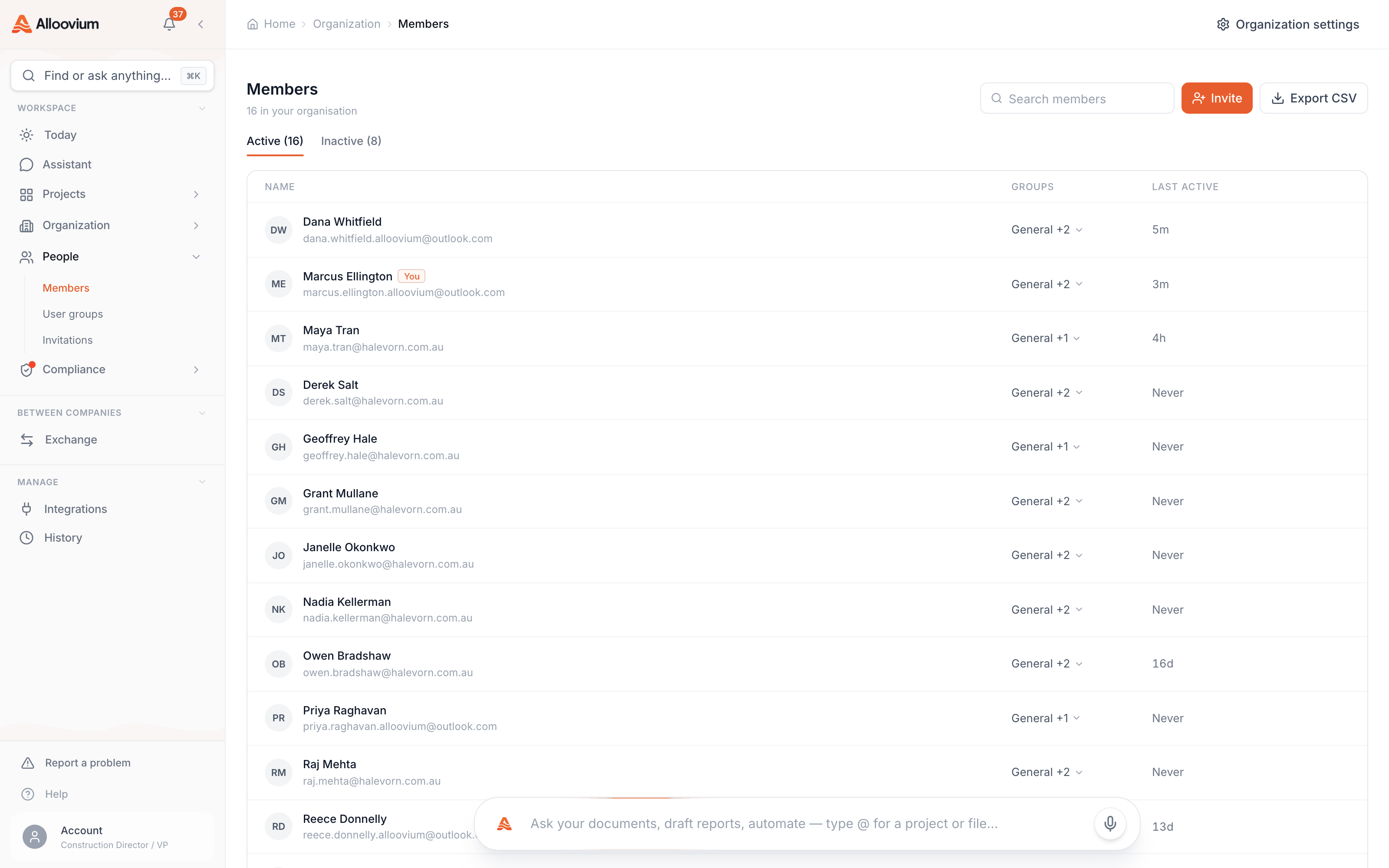
The same page carries a Groups tab where groups are created, renamed, and managed. Opening a group leads to its detail page: the roster of members on one side and the group’s permission matrix on the other.
User groups
A group is a named collection of people that carries permissions. Typical groups mirror how the business already works — Site engineers, Contracts team, Subcontractors — and the same groups are reused everywhere: org invites, project access, and the Exchange addressing rail.
Two groups exist by default
Read only is the organisation’s access floor. Everyone in the organisation belongs to it, and it grants read-only access across the platform. It is created automatically the first time it is needed.
Organisation admins is the admin tier. Its members manage people, groups and organisation settings. Because admin is expressed as group membership, you can see at a glance exactly who holds it.
Creating a group
Groups are created from the Groups tab, or inline in the middle of an invite. When you create one you can start blank or use Copy permissions from… to copy an existing group’s permission matrix as the starting point, then adjust it on the group’s detail page.
Project membership
Projects grant access to groups. Adding a group to a project gives every member of that group access to it, at a share tier the project controls — View, Edit or Admin. Each group on a project has its own detail page showing that access tier alongside the roster, so you can always answer “who can touch this project, and how?”
People invited to a project directly also receive an individual membership at a view-only floor, so an invitee always has at least read access to the project — the groups they were invited through carry anything above that. Project access tiers are covered in more detail on Permissions.
Inviting someone to the organisation
Org invites live in Organization → People. There is no member/admin choice to make — you stage the people, pick their groups, and send.
Stage the recipients
Type an email address (or several — they can be pasted as a batch) and stage each one. Existing members and recent invitees are suggested as you type.
Pick their groups
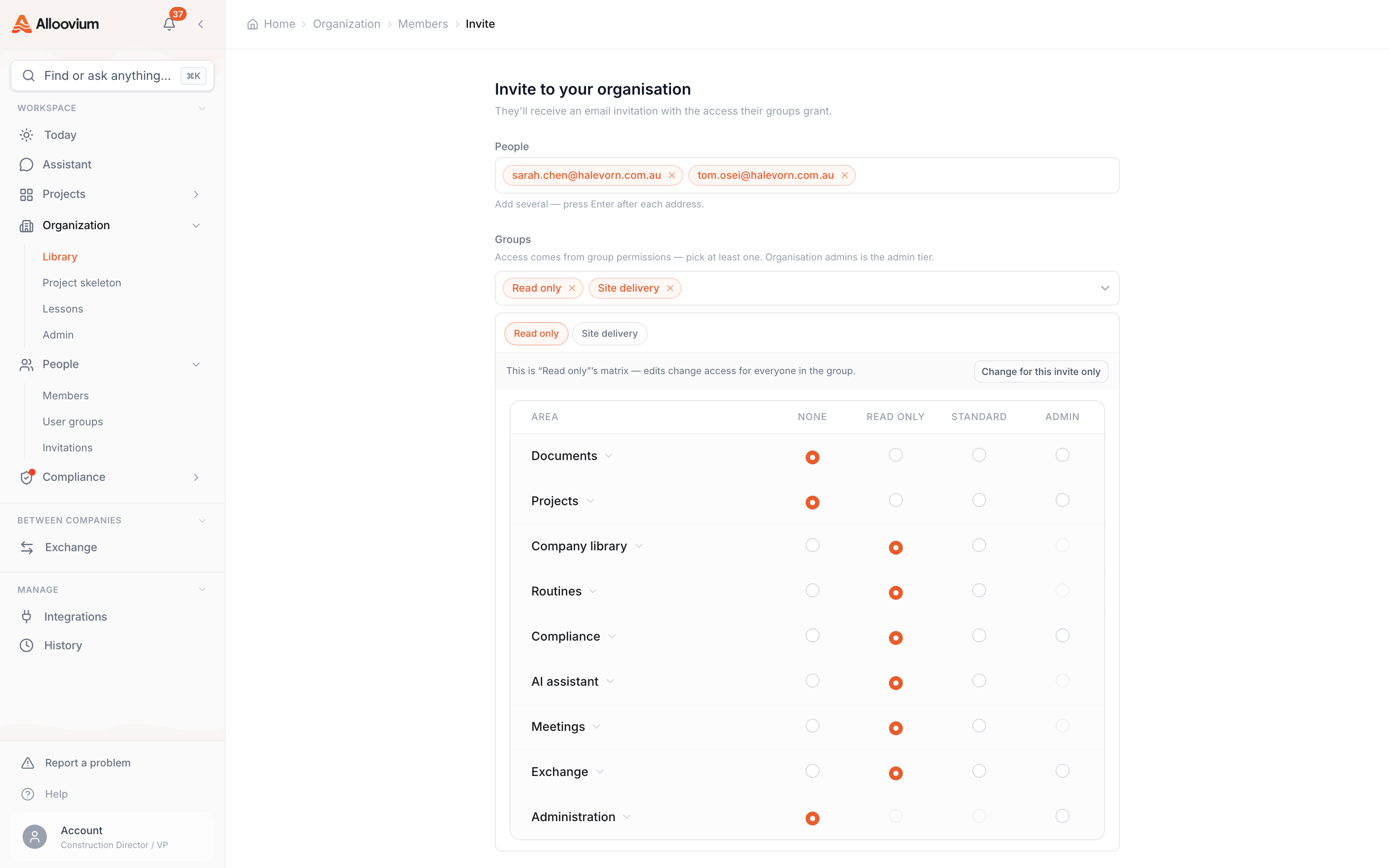
The Groups selector starts with the Read only group preselected. Keep it for read-only access, or add the groups that match their job. Selecting Organisation admins is how you invite an admin.
Create a group inline if you need one
Choose "New group with its own permissions" from the group menu to mint a group without leaving the invite — name it, optionally copy another group's permissions, and it joins the selection.
Review what the groups grant
The selected groups' actual permission matrices are shown in the invite panel, so you can verify what you are granting before you send.
Send
Each recipient gets an email invitation. When they accept, they land in the groups you chose — their access is already set.
Admins are invited through a group
There is no admin checkbox. Adding the Organisation admins group to an invite is what makes the invitee an organisation admin — the same group that controls admin for existing members.Inviting someone to a project
Project invites work the same way, scoped to the project. There is no role dropdown — access comes from the project’s groups, and the invite asks which groups the person should join.
Open the project invite
From the project's People area, start an invite and stage the recipients.
Pick from the project's groups
A multi-select lists groups; pick at least one. Each group's share tier and permissions apply to the people who join it.
Or mint a new group inline
The same "New group with its own permissions" option is available here, with the option to copy permissions from an existing group.
Send
Invitees receive at minimum read access to the project (the view-only floor), with the picked groups carrying their real access.
Prefer whole groups over one-off invites
If a whole crew needs a project, add their group to the project instead of inviting each person. New members of that group inherit the project automatically, and removing the group removes the access in one move.What the Read-only default means
The preselected Read only group is a deliberate safe default. Someone invited with only that group can open and read what is shared with them — documents, projects they are given, answers from the assistant — but cannot change anything, share anything, or manage anyone.
That makes the low-effort path the safe path: sending an invite without thinking about groups never over-grants. When the person’s job calls for more, add them to a group that carries it — from their row in the people directory or from the group’s detail page — and the extra access applies immediately.