
Document Hub
Uploading Documents
Upload files to a project by drag-and-drop, file picker, or connected cloud storage. Alloovium handles the rest automatically.
Uploading Documents
You can upload documents to a project in several ways: by dragging files directly onto the upload area, by clicking the "Upload" button and selecting files from your computer, or by syncing from a connected cloud storage provider (SharePoint, Google Drive, Procore).
Open the project
Navigate to Projects in the sidebar and open the project you want to upload into.
Upload your files
Drag and drop files onto the upload area, or click "Upload" and select files from your computer. You can upload multiple files at once.
Wait for processing
Alloovium processes each document automatically. You will see a progress indicator next to each file. Processing typically takes 30–120 seconds depending on file size.
Start querying
Once processing is complete, the document status changes to "Ready". You can now query it via the AI Assistant.
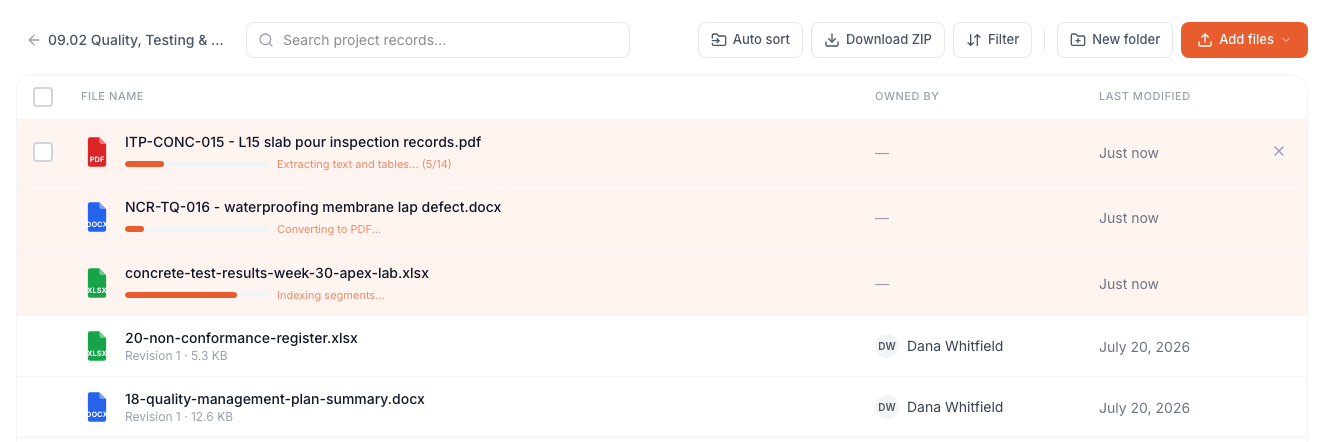
Batch uploads
You can upload up to 50 files at once. Large batches are queued and processed in parallel — you do not need to wait for one batch to finish before uploading another.Supported Formats
| Format | Extension | Notes |
|---|---|---|
| Includes scanned PDFs — OCR is applied automatically | ||
| Word | .docx | Tracked changes and comments are included |
| Excel | .xlsx, .xls | All sheets are processed; tables extracted |
| PowerPoint | .pptx | Slide text and speaker notes extracted |
| Images | .png, .jpg, .tiff | OCR applied; useful for scanned drawings |
| Plain text | .txt, .csv | Processed directly; no OCR required |