
PROJECTS
Project Timeline & Activity
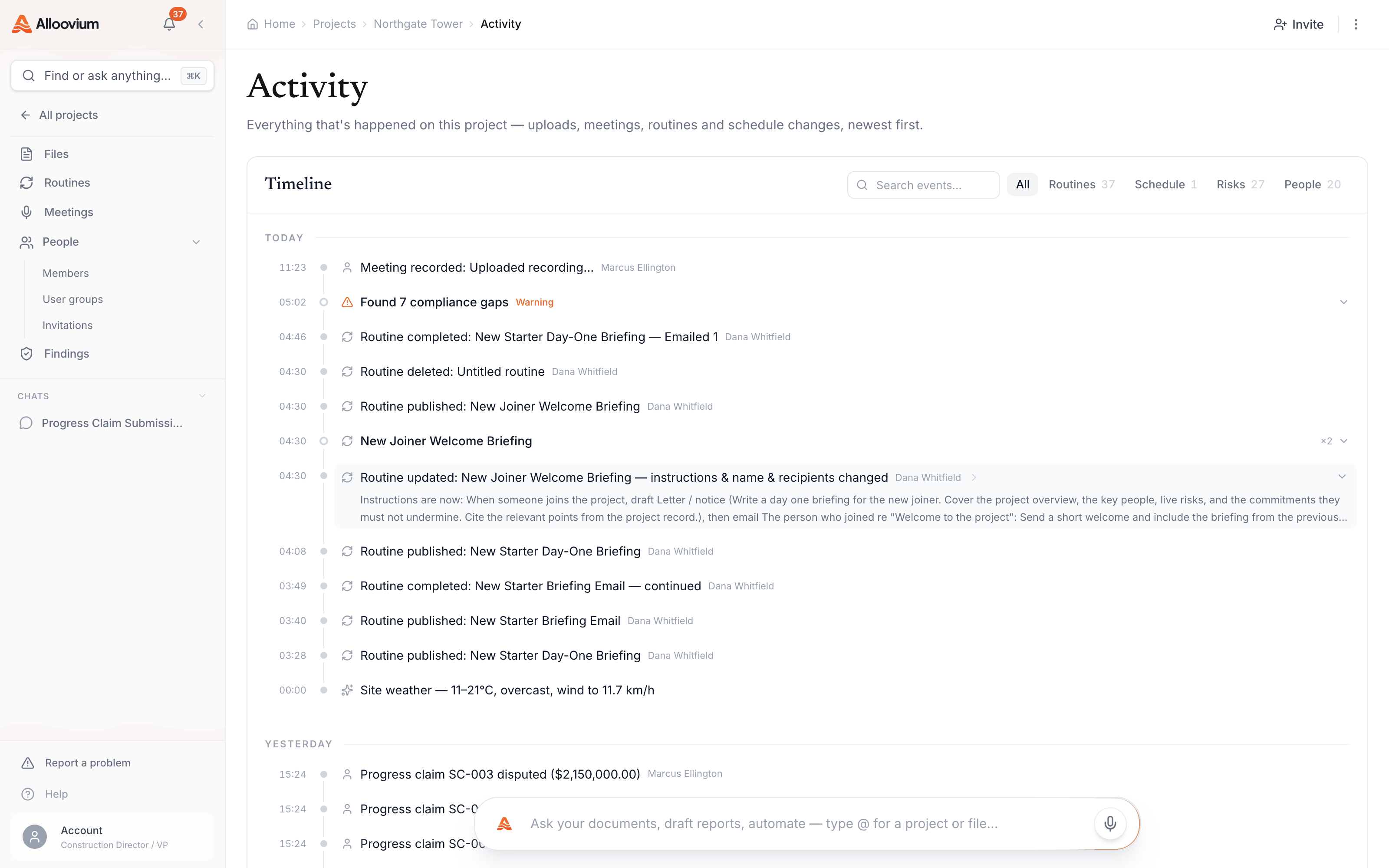
Every project keeps a live record of what happened on it — uploads, meetings, routines, claims, schedule changes and more, newest first. The timeline is where that record lives, and it is the destination the assistant's [T#] citations link back to.
Overview
The Timeline tab on the project dashboard shows everything that’s happened on the project as one append-only feed. Events are written as things happen — by people, by routines, and by Alloovium itself — and they are never edited afterwards, which is what makes the timeline usable as a record: what it says happened on the 14th is what happened on the 14th.
The timeline is permission-aware. Each person sees the events they are entitled to see, the same access rules that govern documents and retrieval.
Video · ~2 min
Read the project record
A tour of one project's timeline: scanning today's events, filtering to Risks, searching for a variation code, expanding a collapsed routine run — then clicking a [T#] citation in an assistant answer and landing on the exact event it cited.
What lands on the timeline
Events come from across the platform. The major families:
| Family | Examples |
|---|---|
| Documents | Uploads, ingestion, status changes, supersessions, shares. |
| Emails & updates | Updates and correspondence received and sorted into the project. |
| Variations & RFIs | Variations and RFIs raised, and action items created and completed. |
| Routines & AI actions | Routine runs starting, waiting and completing, drafts becoming ready, lessons matched. |
| Schedule | Activities created, blocked and completed, milestones hit or slipped, lookahead changes, schedule imports. |
| Compliance & risk | Compliance gaps found, requirements satisfied, risks raised and escalated. |
| Meetings & site | Meetings recorded and daily site conditions. |
| People & syncs | Members added or removed, integration syncs completing or failing. |
Because variations, documents and routine outputs all write here, the timeline doubles as the project’s audit trail.
[T#] citations from the assistant
When the assistant answers from the project’s live records rather than from a document, it cites them with [T#] badges — [T1], [T2] and so on — the live-record counterpart to document citations. Ask “what happened with the facade this week?” and each claim in the answer carries a badge pointing at the record behind it.
Hovering a badge previews the record — its title, date and where the link leads. Clicking it goes to the source: a timeline event opens the project’s Timeline tab scrolled to that exact event, briefly highlighted; other record types — action items, meetings, routine runs — open on their own surfaces. Register rows cited in an answer (a variation or RFI, say) open the timeline with its search pre-filled to that record’s code, so every event mentioning it is in view.
![An assistant answer walking through the week's events, each carrying its [T#] timeline badge — with the hover preview open on one badge showing the cited event's title, date and project. Clicking a badge opens that event highlighted on the project timeline.](https://marketing-intelligence-gray.vercel.app/docs/timeline-tcite.png)
Two kinds of citation
Document citations point into files and open the document at the cited passage.[T#] citations point at live records — timeline events, action items, meetings — and deep-link to where those records live. An answer can carry both.Filtering and searching
Across the top of the feed sit filter chips — All, Routines, Schedule, Risks, Docs, Syncs and People — each showing a count of matching events. Chips with nothing in them stay hidden, so the row reflects what the project actually has.
The search box filters events by their text as you type. Searching a code — VO-118, PC-005 — is the quickest way to pull one thread out of the feed: every event that mentions the record lines up in date order, which is exactly the view a dispute or a handover needs.
Day grouping and rollups
Events are grouped by day — Today, Yesterday, then dated headings — and within a day the feed keeps itself readable by rolling up noise:
- Routine runs collapse into one entry. A run that produced several steps shows as a single row named for the routine, expandable to the full cascade.
- Compliance gaps roll up per day. A sweep that found many gaps reads as one line — “Found 5 compliance gaps” — with the worst severity shown, expandable to the individual findings.
- Repeated identical events compress. A burst of the same event shows once with a count instead of flooding the day.
A deep link into a collapsed group — from a [T#] citation, for instance — expands the group automatically so the target event is visible.
Cited sources on events
Events can carry their own citations back into the document set. An event with sources shows a cite chip; expanding it lists the documents behind the event, each with its page and the quoted passage. Clicking a source opens the document preview located at that passage, highlighted — so the chain runs unbroken from “something happened” to the exact line of the file that evidences it.