
ROUTINES
Routines
A routine is a repeatable piece of work you set up once and let Alloovium run for you — starting on a trigger, then working through an ordered chain of blocks that check the inbox, read the documents, ask the team, and produce a draft, before handing it back to you for review.
Overview
A routine is a repeatable job Alloovium runs for you. If you have found yourself running the same sequence week after week — check the drawings for new revisions, ask the site team for an update, draft the report — a routine captures that sequence so it happens on its own.
Every routine follows the same shape: a trigger starts it, then an ordered chain of blocks runs one after another. Each step does its one job and passes what it produced to the next — a check of the documents feeds the draft that follows it. When a step would send something outward, the routine stops at a human review gate before it acts, and the result surfaces in the Today feed. The review gate is not optional.
Naming
Routines were previously called Workflows, and you may still see that word in some screens and technical references. They are the same thing.The block model
A routine is an ordered chain of blocks. It starts with one trigger, then runs its action and logic blocks in the order you placed them.
Rather than a single opaque prompt, a routine is assembled from typed blocks. A routine begins with exactly one trigger that decides when it runs, followed by a sequence of action and logic blocks. The chain runs top to bottom, in order: "ask the team, then draft the minutes, then text the client" runs those three steps one after another, and the context each step gathers is available to the steps below it. It is a straight chain, not a branching or merging graph.
A routine runs up to 20 action steps
A single run executes at most 20 action steps. This is a blast-radius guard — a routine that would fire more than 20 side-effecting steps (texts, calls, drafts) in one run is almost certainly misconfigured. If a chain is longer, the remaining steps are left for you as a reminder rather than fired in a storm.Triggers
A trigger decides when a routine runs. You choose exactly one when you set the routine up.
| Trigger | When it fires |
|---|---|
Run manually | You open the routine and press Run. Good for anything you do on demand rather than on a clock. |
On a schedule | Runs on a cadence you set — daily, weekdays, weekly, fortnightly, or monthly, at a chosen time. |
Around a calendar event | Fires before or after a matching calendar event, so prep or follow-up happens around a meeting. |
When an email arrives | Fires when a message lands in a connected Gmail or Outlook inbox, optionally filtered by sender or subject. |
When a document arrives | Fires when a document lands from a watched source — SharePoint, Procore, Google Drive, or a direct upload. |
When a drawing is revised | Fires when a new revision of a drawing or spec is detected. |
When someone joins the project | Fires once per new team member — an accepted invitation, a direct add, or an invite link. Steps can address the person who joined. |
When a claim moves | Fires when a progress claim changes state — submitted, certified, scheduled, paid, or disputed — optionally narrowed to one state or direction. |
When a variation moves | Fires when a variation changes state — submitted, approved, or rejected. |
Before a contract deadline | The notice clock — fires ahead of a contract obligation’s due date (notice time-bars, reports, insurances), with a lead window you choose. Fires once per obligation. |
Some triggers are gated
Scheduled and on-arrival triggers are rolled out per workspace and may be off by default. If you only see manual runs, those triggers have not been enabled for your account yet.Action blocks
Action blocks are the steps that do the work. They fall into a few families. Availability can vary by workspace and some blocks depend on a connected inbox or calendar.
| Block | Family | What it does |
|---|---|---|
Ask the team for an update | Talk to people | Opens an update cycle — asks named people by text, email, in-app, or phone and captures their replies back into the run. |
Send a text message | Talk to people | Sends a one-off text to the crew. No reply is captured. |
Send an email | Talk to people | Sends an email to chosen recipients from your mailbox or the Alloovium service. |
Call someone | Talk to people | Places a phone call that speaks a short script you provide. |
Check the inbox | Inbox | Reads recent mail from a connected Gmail or Outlook inbox into the run, optionally filtered by search or sender. |
Reply to the email | Inbox | Replies to the email that fired the routine (with the “when an email arrives” trigger). |
Forward the email | Inbox | Forwards the email that fired the routine to chosen recipients, with an optional covering note. |
Check the documents | Documents | Searches your project documents by query, type, or source and reads the matches into the run. |
Fill a template | Produce | Fills a saved template from matching documents. See Template Filling. |
Generate a document | Produce | Drafts a new document — a letter, notice, report, or similar — as Word or PDF. |
Add to the calendar | Track | Creates a calendar event from a description or a set date and time. |
Move a calendar event | Track | Reschedules or edits an existing calendar event. |
Cancel a calendar event | Track | Cancels an existing calendar event. |
Add to your to-do list | Track | Posts an item to your to-do list in Today. |
Start from a template, not a blank canvas
Most people never assemble blocks by hand. The starter gallery on the routines page offers ready-made templates — the notice clock, the claim response window, the RFI chase, the Friday free-work audit — that open in the builder with the trigger and steps already laid out for you to review and publish. Building from scratch is there when you need it.Logic blocks
Logic blocks shape how the chain flows without acting on the outside world themselves.
| Block | What it does |
|---|---|
Split on a condition | Evaluates a condition against the run so far and continues only when it holds. |
For each | Repeats the steps that follow once per item the run gathered. |
Wait | Pauses the run for a set time or until a moment before continuing. |
Await replies | Pauses the run until people respond to an earlier ask; when a reply arrives, the run resumes. |
The builder
Where you assemble the ordered chain and see the routine end to end.
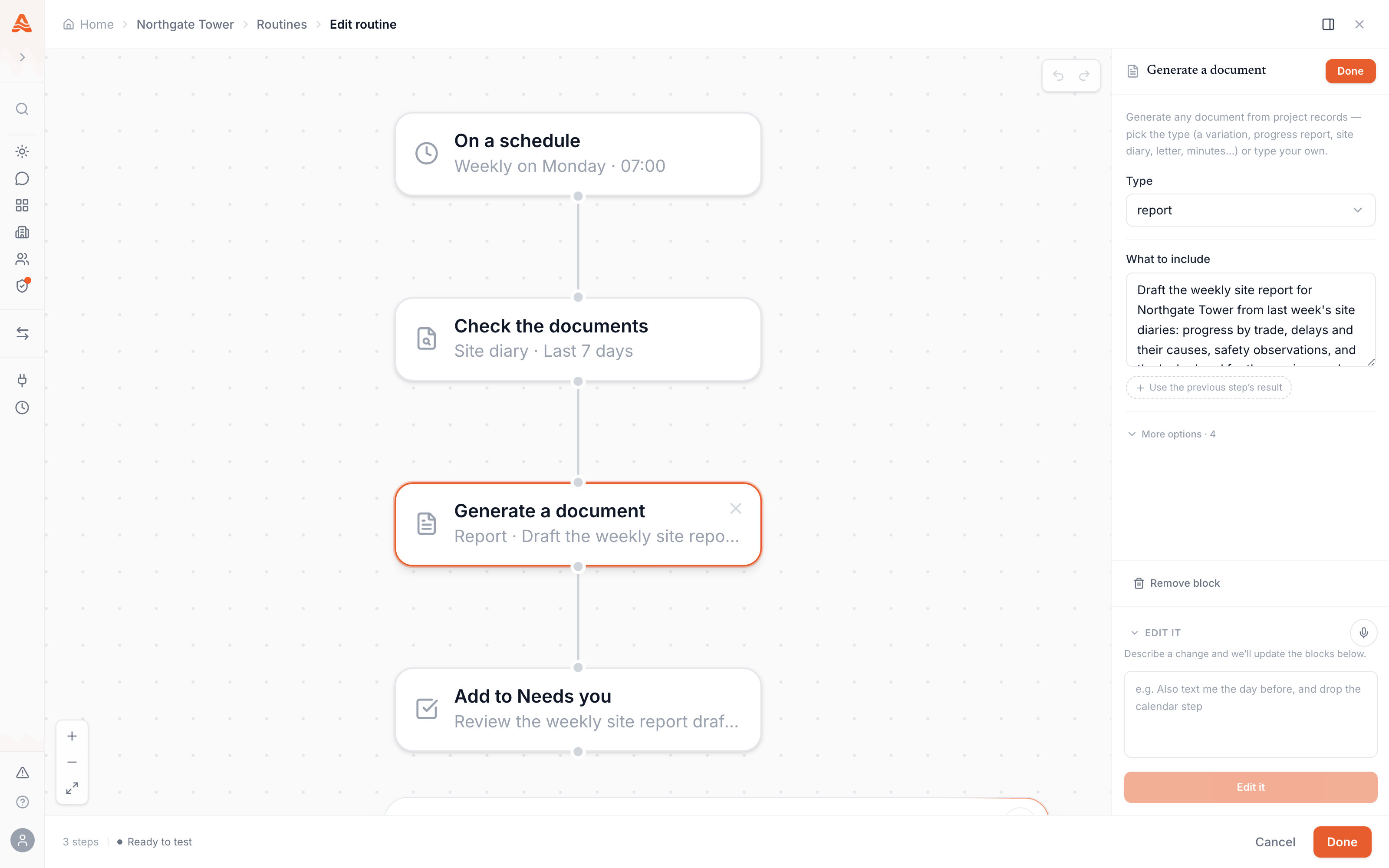
The builder is where you assemble the chain. You add a trigger, then add the action and logic blocks in the order they should run, and configure each block in a side panel. Because a routine is a straight ordered chain, the steps run top to bottom — there are no branches to wire up or separate paths to merge back together.
Open the builder
From Routines, choose a catalogue card to fork or start a blank routine. The builder opens ready for your trigger and first steps.
Choose a trigger
Pick how the routine starts — manually, on a schedule, around a calendar event, or when an email, document, or drawing revision arrives.
Add blocks in order
Add the action and logic blocks the routine should run, in the sequence you want them to fire. Each step can use the context the steps above it gathered.
Configure each block
Select a block to set its options in the side panel — who to ask, the query for a document check, the template for a fill, what a drafted document should include.
Save and test
Save the routine, then run it once to confirm each step behaves as expected before you rely on it.
Video · ~4 min
Build your first routine
Fork a catalogue card into a project, choose the trigger, add and configure each block in the side panel, run the routine once, then approve its drafted output at the review gate.
Running a routine
Watch each step as it happens, with its output in view.
When a routine runs, it does so a block at a time, in order. The run sidebar shows each step with its live status — running, waiting, done, or failed — and the output it produced. You can follow a document check pulling matches, an ask-the-team step going out, and a draft composing a letter, then open any step to inspect what it returned.
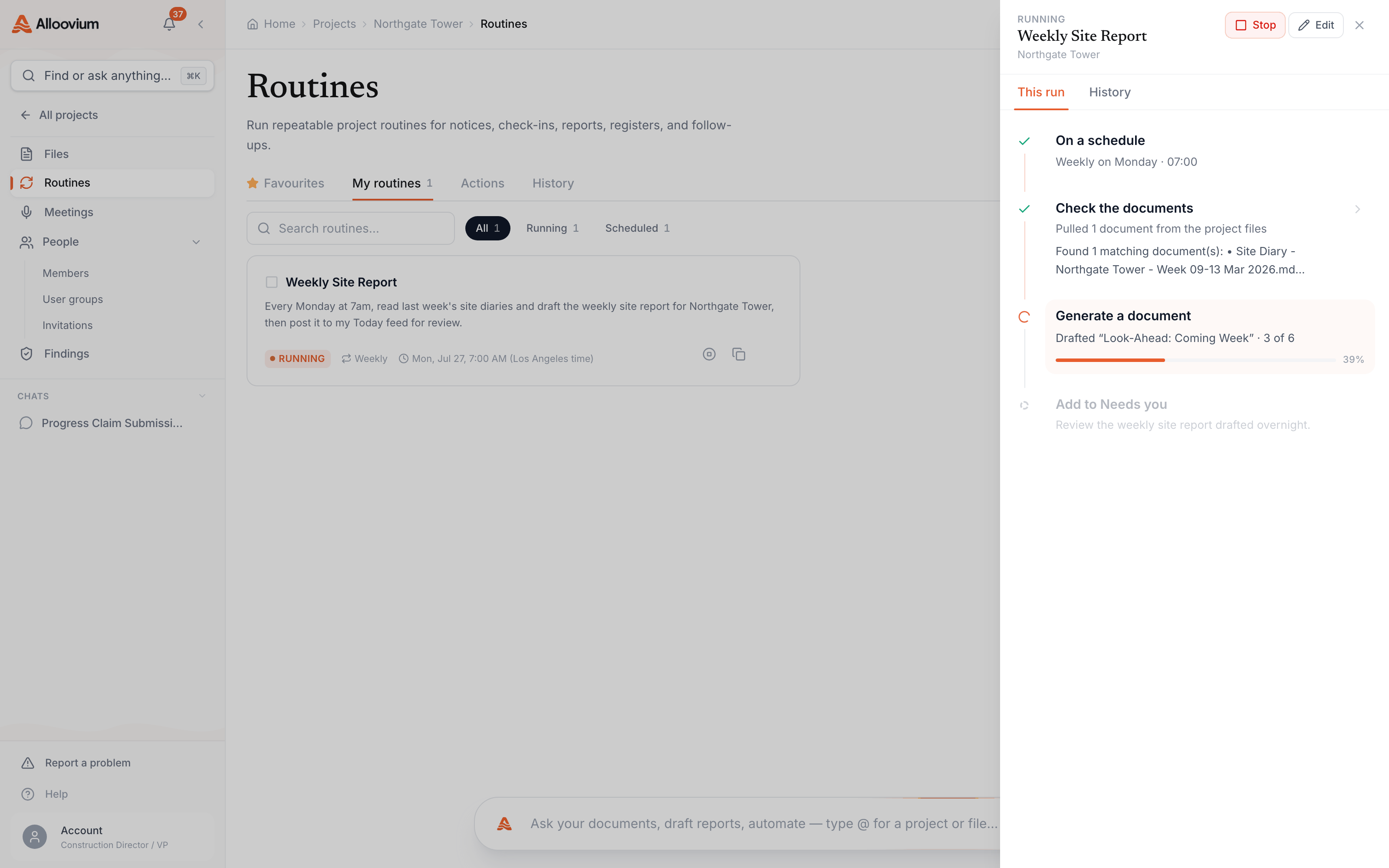
If a routine reaches a logic block, it can pause and wait. An await replies step holds the run until people respond to an earlier ask; when the replies arrive, the run resumes from where it stopped and their answers feed the steps below. Completed runs stay in the routine's history so you can revisit the output and see how it was produced.
Everything is cited
When a routine reads your documents, that retrieval is grounded and carries citations through to the output, so a drafted notice or a figure it used can be traced back to the source document it came from.Project and cross-project scope
A routine belongs to a project. Retrieval respects your permissions.
A routine instance lives inside a single project. The catalogue card it was forked from is reusable across your company, but the running routine — its configuration, its history, and the documents it touches — is bound to one project and is removed with that project.
Retrieval is permission-filtered. A routine only reads documents the person who owns the run is allowed to see, so a routine never widens access to material a user could not open themselves. Steps that reach beyond a single project's folders are constrained the same way.
The human review gate
Nothing leaves the workspace or acts on your behalf until you approve it.
The review gate is the core promise of routines. A routine drafts; it does not send. When a run produces something that would go outward — a filled document, an email, a notice — it stops and places the result in a queue for you to review. You read it, edit it if needed, and approve or discard it. Approval is what triggers the downstream action.
Workspaces that have enabled it can raise the level of autonomy per routine, from suggest only to run and hold for review. Even at higher levels the reviewed output waits in your queue; the gate remains. This is deliberate — the routine does the tedious assembly, and a person makes the call.
Available capability varies
Routines and their triggers are enabled per workspace and several capabilities are still rolling out. If a block, trigger, or autonomy option described here is not visible in your account, it has not yet been turned on for you.Schedule-risk flags raised by routine runs land on Today, in the Needs attention queue. For the template mechanics behind the fill block, see Template Filling.