
Automation
Automating document work
Alloovium has two automation features that turn repeatable document tasks into one-click actions: Template Filling and Document Generation. Both live in the left sidebar and write results back to your projects.
Overview
Construction project teams fill the same documents over and over — RFIs, variation notices, ITPs, monthly reports, site instructions. Alloovium automates the two halves of that work: filling a template you already have, and drafting a new document from scratch using context from your uploaded project documents.
Every generated document is cited back to the source files it was built from, so you can trace every value, date, and clause to the drawing, spec, contract, or email it came from.
When to use which
If you have a blank DOCX template with placeholders, use Template Filling. If you need a brand-new document and don't have a template, use Document Generation.Template Filling
Template Filling takes a DOCX template you provide and fills its placeholders using information extracted from the documents in your project. Useful for RFIs, variation notices, transmittals, submittal cover sheets, ITPs, monthly reports, or any recurring document your team produces from a standard format.
- 1
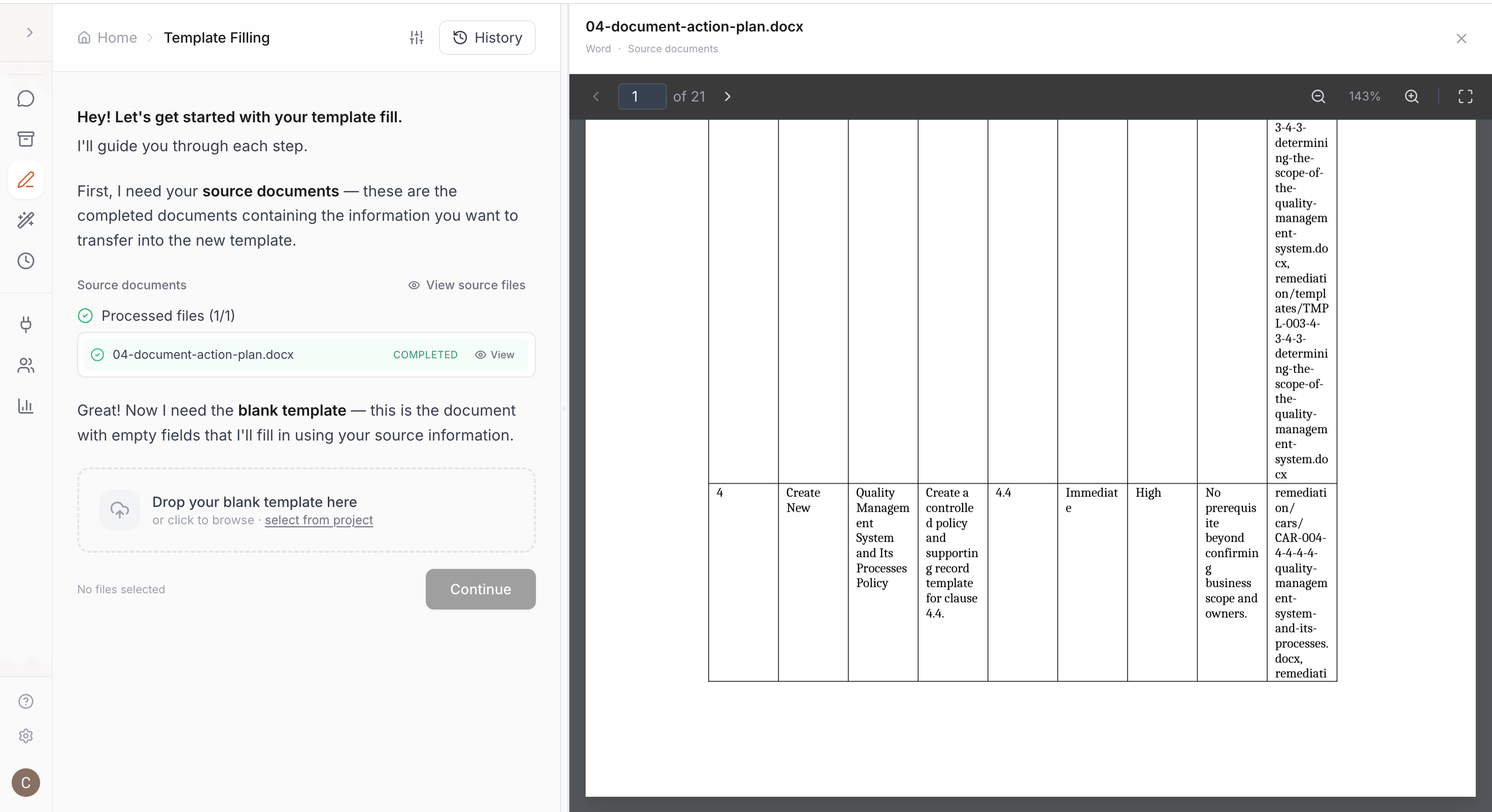
Click "Template Filling" in the sidebar
The page loads with upload zones for your source documents and blank template.
- 2
Upload your files and click "Fill Template"
Drop in your source documents and blank DOCX template, then click "Fill Template". The filled document appears with every value cited back to its source — export as DOCX when ready.
Document Generation
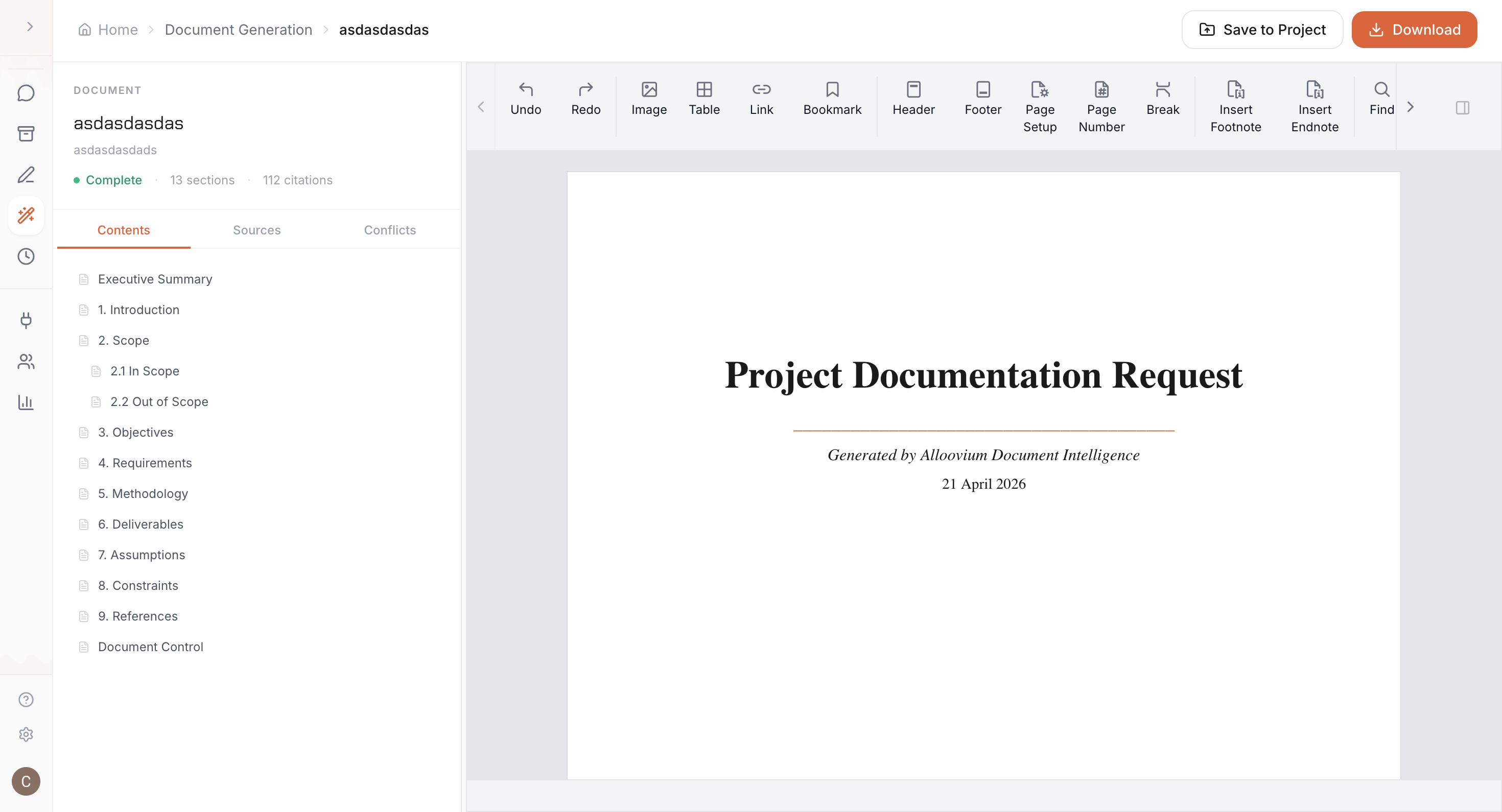
Document Generation drafts a new document from scratch when you don't have a template. Describe what you need — a variation notice for a scope change, an RFI about a drawing clash, a site instruction for a setting-out adjustment — and Alloovium produces a structured draft using your project documents as context.
- 1
Open Document Generation
Click "Document Generation" in the left sidebar.
- 2
Describe what you need
Tell Alloovium the document type and the situation — for example, "Draft an RFI about the clash between the structural drawing S-201 Rev C and the hydraulic drawing H-104 Rev B on Level 2."
- 3
Pick the project context
Select the project Alloovium should pull information from.
- 4
Review and export
The draft appears with citations. Edit it, regenerate sections you want rewritten, or export as DOCX.
Common document types
- →RFI — a request for information to a designer or consultant.
- →Variation notice — notification of a scope or cost change.
- →Site instruction — an instruction to a subcontractor on site.
- →Monthly report — a progress report covering programme, commercial, risk, and safety.
- →ITP — an inspection and test plan generated from the relevant specification.
History
Every filled template and generated document is saved under History in the left sidebar. From there you can re-open, re-export, or regenerate any past document. Running the same template again on an updated project pulls the latest information without losing the edits you made to earlier versions.
Citations stay with the document
When you re-open a past document from History, the original citations remain intact. You can click any cited value to jump straight to the source document and page.